


From Unaware Interns To Evil Executives: How To Say Sayonara With Skill

It’s never easy to terminate an employee. The skill of firing with flair is a sensitive but necessary process that everyone should learn!

Firing an employee

It happens to the best of us. We post an advertisement for an available position on job boards across the Internet. We scour through the thousands (and thousands) of submitted resumes. We painstakingly choose the best candidates (on paper) to bring in for an interview, and we try to pose the questions that should result in the most thought-provoking and inspired responses, giving us the deepest insight into their soul – in about 30 minutes or less. We thank each interviewee dutifully for their time, wonder if we’ll get the perfunctory thank-you note or if their manners will go remiss, and try to decide who makes the cut and gets the job offer. Fast forward to the day we discover the candidate doesn’t stack up to the promises made during the hiring and onboarding process – and it’s time for the HR team to tactfully terminate.

We’ve all been there. The goal is always to build a team that is dedicated, loyal, and earnest – but too many times we encounter flaws with one of these characteristics, and the relationship is no longer, as the saying goes, mutually beneficial. Is your termination process thorough? What steps do you need to take to protect yourself and your business from retaliation in preparation before a potentially hostile departure? Read on to cover all your bases, but leave the exit details to the HR team.

First Things First

Once you have a full grasp of the outstanding projects and deadlines that still need to be met, you can move on to the most pressing matters.

Access: All login credentials

  • For global enterprises, there are large IT teams that oversee just logins and passwords alone – but since you’re reading this, you don’t work for IBM or Apple with a department of staff dedicated solely to current credential maintenance.
    • Network
      • Most organizations require a username and password to access anything related to the organization itself: email, file storage, etc. and this is the first of many credentials that should be addressed to ensure swift and secure measures to protect the company after a termination.
    • Email
      • First, change the password. The terminated party likely has their work email on their smartphone and thus can access their email immediately upon departure from the office. This offers the chance for damage or sabotage, such as deleting emails from their inbox or sending damaging emails to contacts.
      • Maintain the email account by having another party monitor incoming messages. Consider setting up an auto-reply feature to notify senders to the recipient that further communications should be directed to another email address for attention in the future.
      • One task that tends to be overlooked in the immediacy of a departure is the removal of the terminated party from internal distribution lists and notifications.
      • Lastly, if the individual has suspected termination was imminent, they may have deleted emails before the action taking place. There is a brief window when email recovery is still possible, but the standard time frame is 30 days.
    • VPN or remote access
      • If your company allows remote network access, likely through a Virtual Private Network (VPN) or a service like LogMeIn, a team member likely only needs to have this access set up one time and store their login and password at the remote point of access. The simplest way to prevent future access with this is by changing the affected password. If a platform like LogMeIn is the primary connection method, the administrator will need to be the one to change the user’s access settings.
    • Intranet
      • Typically, an organization uses an Intranet portal to store internal communications or Human Resources information like health insurance details, company directories, staff handbooks, forms and processes, office calendars and holiday schedules, and any other pertinent documentation related to operations. Access removal or password change to a network will often serve to prevent further access to this area, but a quick verification of settings here is still wise.
    • Cloud Storage
      • To prevent anyone from accessing files after termination, and for similar reasons as above – sabotage or deletion – change any access passwords for this portal. It’s very likely that proprietary information on projects, clients, or other sensitive information is stored here.
      • If termination is pending for an individual, it’s wise to preemptively make a back-up of these files and store them elsewhere for later access.
      • If your company uses cloud providers like Dropbox for Business, Microsoft OneNote or SharePoint, your administrator will need to lock the account for security, likely by resetting the password.
    • Data Recovery
      • Files
        • If after the termination and departure is complete you notice files are missing and suspect deletion, time is critical for data recovery.

What else can you do?

Aside from the items listed above, any organization should take every precaution possible to protect themselves in any situation. At some point, a termination is inevitable, and proper handling of the process can be what defines the outcome.

  • Enact security protocols that limit or prevent the use of external devices like hard drives or thumb drives.
  • Prevent team members from removing any proprietary data from the premises. This is almost impossible in the case of a distributed workforce, but you can require all files to be stored in a central repository to minimize risk.
  • It’s worth taking the time to review the terminated party’s outgoing email in “Sent Items” to verify if any messages were forwarded to a personal email address.
  • It’s always challenging to decide if a note to other team members is a good idea, alerting staff to the departure of an individual. Privacy policies typically protect the terminated party, and a perfunctory statement of “Sally Smith is no longer with the company as of April 1, 2018. We wish her well in future endeavors. Any questions, concerns, or communications may be directed to her supervisor, Billy Boss, moving forward” or something very similar, so long as it’s kept generic.

Handling a termination is never easy. The most important aspect of any termination is to protect the company – it sounds harsh, but it’s a fact. Preventing someone who is being fired from stealing information and using it to damage a company or sabotage a brand or person is a challenging task.

With the proper processes in place, anyone can minimize the risk to the company, ensuring survival after saying sayonara!
Tired Of Amateur Hour? Learn How To Use Excel Like A Pro

With the 2016 version of Excel, Microsoft has really upped the game for people who aren’t great with numbers. You can now easily use one-click access that can be customized to provide the functionality you need.

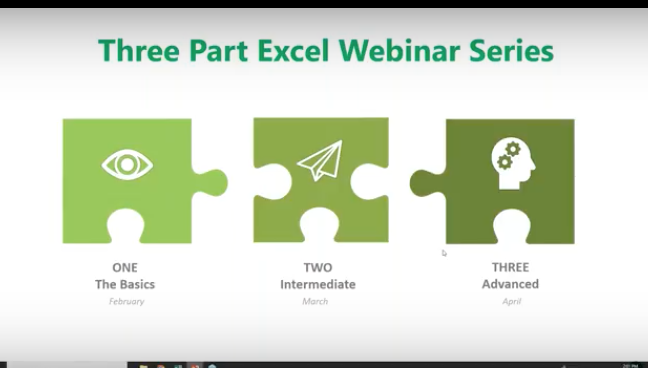
This is the first of a three-part series about using Microsoft Excel 2016 to help you identify trends, construct helpful charts, and organize information to maximize the value of your data.

You can use Excel Worksheets and Workbooks in conjunction with programs like Microsoft Access and PowerPoint. Excel 2016 possesses many capabilities that aren’t readily apparent. That’s why we’re providing this three-part series for you.

What is Excel and how is it organized?

Excel is an electronic spreadsheet program that’s used to store, organize and manipulate data. You enter data into Workbooks that are made up of individual Worksheets. In the Worksheets, you enter data into cells that are organized into rows and columns. Excel data can consist of text, numbers, dates, times and formulas.

Why would you want to use Excel?

If you or your employees work with financial data, it’s a great tool to use for:

  • Basic mathematical operations like adding, dividing, and multiplying.
  • Finding values like profits or losses.
  • Calculations like averages, percentages and number counts.

Performing calculations in Excel is only the tip of the iceberg. There’s much more you can do like creating charts and graphical layouts to make it easier to recognize trends and more easily analyze data.

Navigation

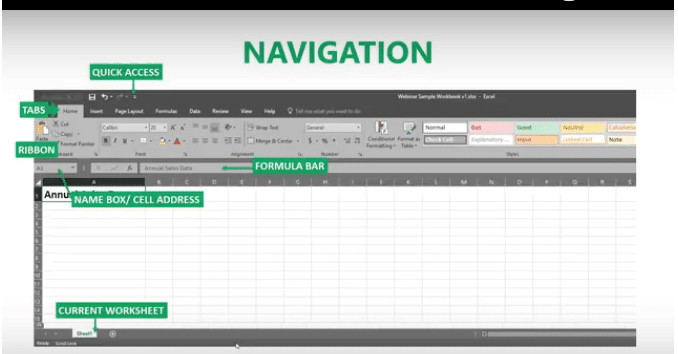
What’s great about Excel is that it has the same set up as other Microsoft products you’re familiar with. You have tabs across the top, where each tab has a corresponding ribbon with many functionalities to choose from.

The Quick Access Toolbar

The Quick Access Toolbar is a drop-down menu where you’ll find functions that you commonly use like Print and Save. You can also customize the Quick Access menu with other functions you use on a regular basis.

The Formula Bar

This is located underneath the ribbon next to the Name Box that shows you where your cursor is located on your Worksheet. The Formula Bar is important because it’s what calculates the math for you. Excel does the calculation and displays the answer in the cell you choose. The Formula Bar also shows you the contents of the particular cell you’re in.

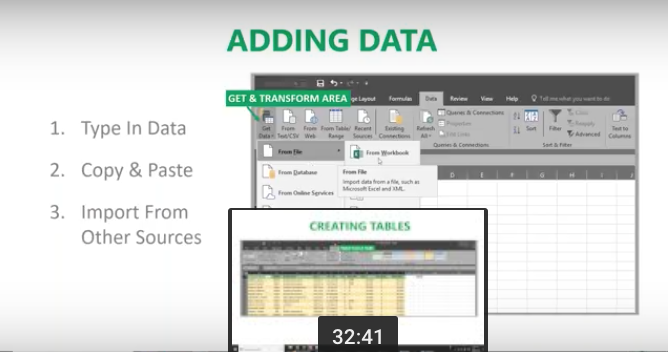
Adding Data

There are three ways you can add data to your Excel Worksheet. You can:

  1. Type in the data,
  2. Copy and Paste data, or
  3. Import data from other sources.

This is great if you have a large amount of data. For example, if you have customer lists in a database, you can even pull this into Excel.

You can enter data into only one cell, into several cells at the same time, or even on more than one Worksheet at once. And, as mentioned, the data can be numbers text, formulas, dates, or times.

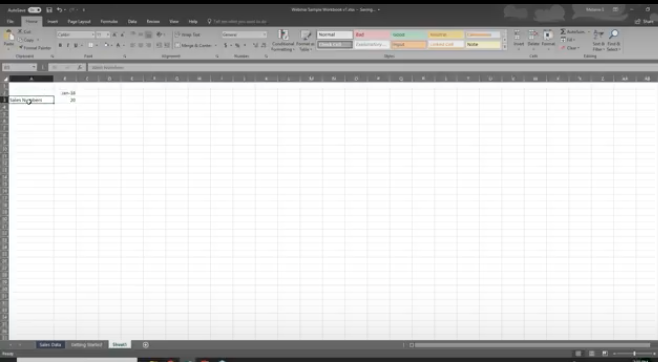
On your Worksheet, simply click a cell and type in the information that you want to enter. Then hit ENTER or TAB. If you typed in a date, Excel will recognize this and format it the way you’ve specified in your default settings.

Formulas

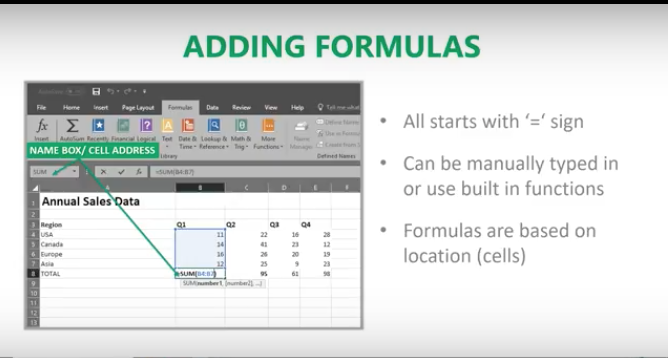
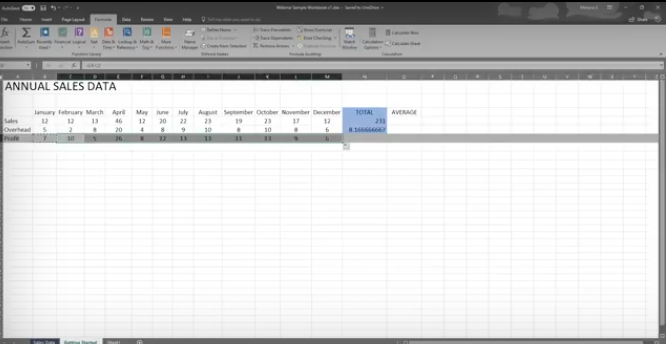
Excel computes the correct answer when you enter a formula into a cell. Once you’ve done this, it recalculates whenever you change any of the values. The way Excel knows that you’re entering a formula is by starting with an equal sign. Then you follow the equal sign with a SUM or AVERAGE.

For example, C2: =A2+B2 means that the number in C2 is what occurs when you add the numbers in A2 and B2.

You can type this in manually, but now Excel has great functionalities to help you do this. The simple way is to put your cursor in cell C2, hit = and type in A2+B2. The numbers in A2 and B2 will be added, and the SUM will be entered in cell C2.

Note: You always want to calculate using the actual cells rather than typing in numbers like 1 + 2, etc. The reason for this is so you can go back at any time and change the values in cells and the formula will calculate with the new numbers.

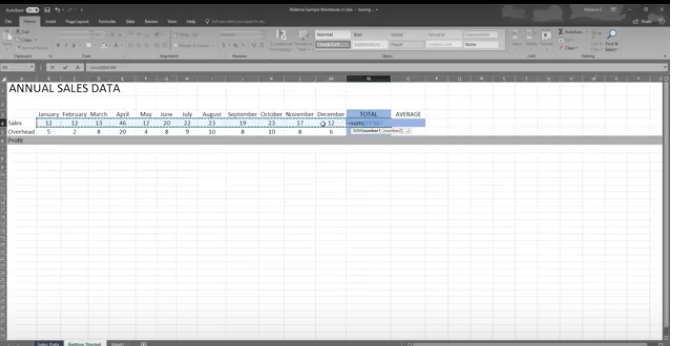
Let’s say you want to add a bunch of numbers together in your Worksheet. You can type = sum (a1:a5) in the cell where you want the answer to appear. Or you can do this and drag your mouse across the cells you want to add. Type =sum ( and drag your mouse across the cells and hit ENTER. The sum will appear in the cell without you having to typing in all the numbers! When you put your cursor on the cell, you will see the actual formula you just created.

There are many ways to do the same thing in Excel. It’s like this across all Microsoft products. You can go to the Ribbon at the top to “Auto Sum” to do the same calculation. Select a cell next to the numbers you want to add, click AutoSum on the Home tab and press Enter. Do what works best for you.

Once you create a formula, you can copy and paste it into another cell. You can also copy and paste formulas into different Worksheets as well. This can save you a lot of time.

Formatting Worksheets

With Excel 2016, you can format your Worksheets much more easily than you could before. You can use document themes throughout the Worksheets in your Workbook to present a professional and consistent appearance. You can also apply predesigned formats as well.

Let’s say you have a Worksheet with many rows that are hard to read. You can go in and create fill colors and more to differentiate the rows, columns, and headers to make reading much easier.

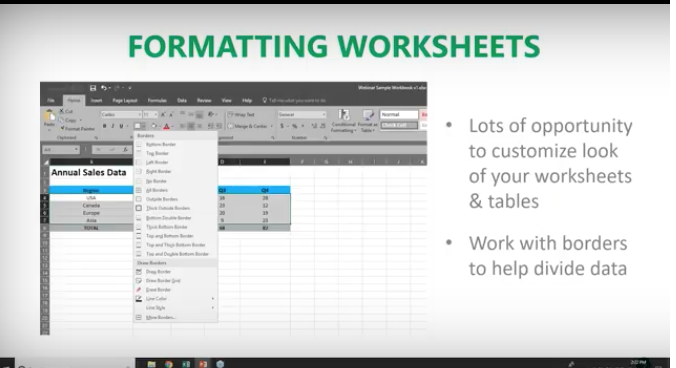
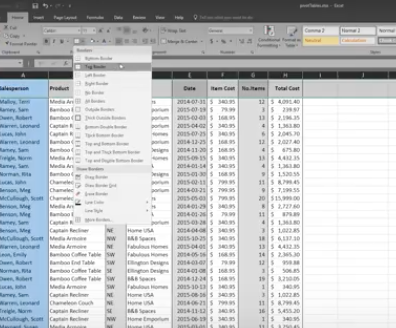
You have options to create borders around cells, rows or columns from the drop-down menu. You can also shade cells with a solid background. Don’t forget that you can change the style and types of fonts. Right-click the text, and a drop-down menu will appear where you can make these and other selections easily.

Creating Charts

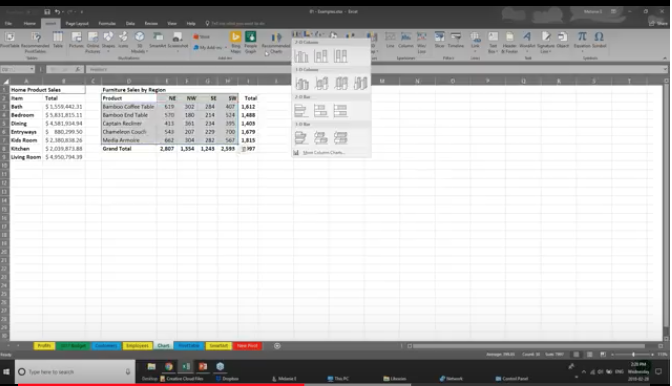
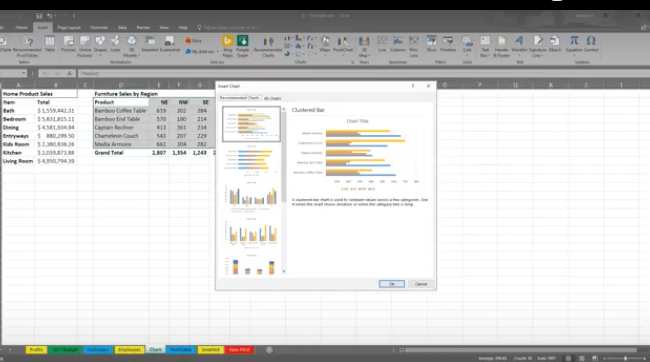
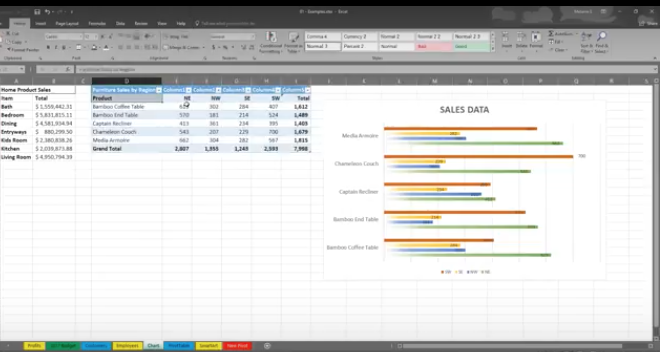
If the data isn’t complex, you can easily read it, but if you have a lot of data, creating a chart will help you better analyze it. You can select specific cells, rows, and columns for your chart. One way to do this is to highlight the data and go to the top ribbon to select the type of chart you want to create.

With Excel 2016, you have a “recommended charts” option. Excel will help you choose the chart that best suits your data.

You can then go in and further customize your chart in the “Chart Tools”. You can change the color scheme, 3D effects, shading and more. If you change the data in the cells in your Worksheet, your chart will reflect the changes.

Some of the new charts in 2016 include:

  • Waterfall
  • Tree Map
  • Box and Whiskers
  • Sunburst

Creating Tables

You may be used to creating tables in Word or PowerPoint. Some people think the format in Excel is already in a table, but it’s not; at least until you tell it to do so. If you want to do this, select your data, go to “Insert” and select “Table.”

Similar to other Microsoft products, tabs will appear to help you format your table.

Viewing Worksheets

When dealing with lots of information, it can get unruly trying to work around various rows and columns. This is where Viewing Worksheets can be helpful. You can freeze a portion of your worksheet with “Freeze Panes” to more easily view it.

You also have the ability to “split” the data to view different parts of your Worksheet. You can compare two Worksheets in the same Workbook or even in different Workbooks by viewing them side by side.

Saving and Printing

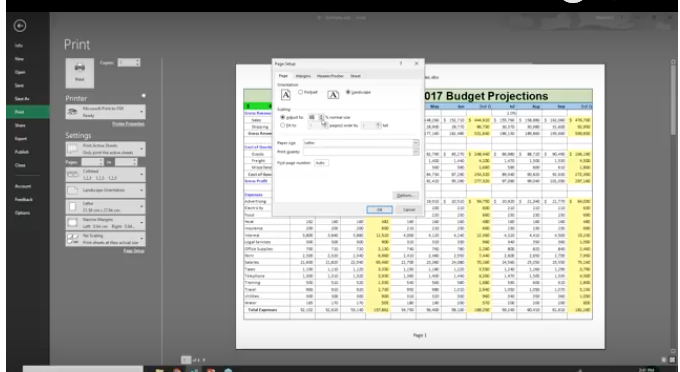
If you have Worksheets that are so large they won’t fit on one page, go to “Save As” and decide on the name, where it gets saved, and go to “Print” where you can save the file to a pdf that you can send.

You can select options for printing the entire sheet, part of it, resizing it, and more to suit your needs. Going to “Page Setup” will allow you to shrink the entire Worksheet down to a size that’s more manageable for printing.

Sharing & Security

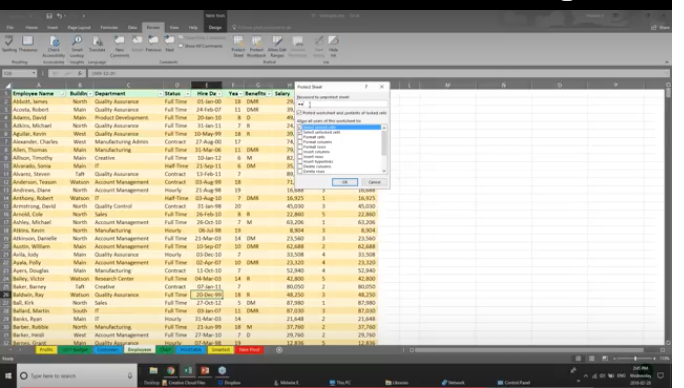
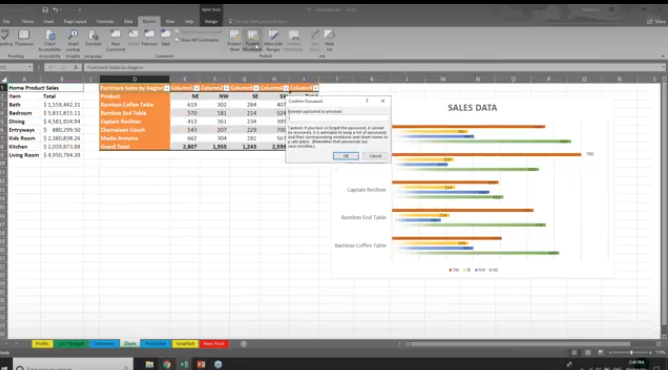
In Excel 2016 you can share Workbooks and Worksheets with others and password-protect them. The people you send them to need to know your password to open them, whether you send them via email, share them on your network, or via the cloud. From within Excel, you can designate who can access your Worksheets and Workbooks, and also whether they can edit them or not. There are a variety of parameters you can set within a Worksheet.

For example, if you want to hide employees’ salaries, you can hide this section when you share it. Or, you can let people see your data but lock it down, so they can’t change it. You can also protect your Worksheets and Workbooks to keep them secure from non-authorized users.

The Quick Analysis Tool

When highlighting data, click on the Quick Analysis button to create a chart, highlight specific cells, and much more. It doesn’t give you the functionality you’ll find in the Ribbon, but you can get things done quickly and easily with this tool.

3D Power Maps

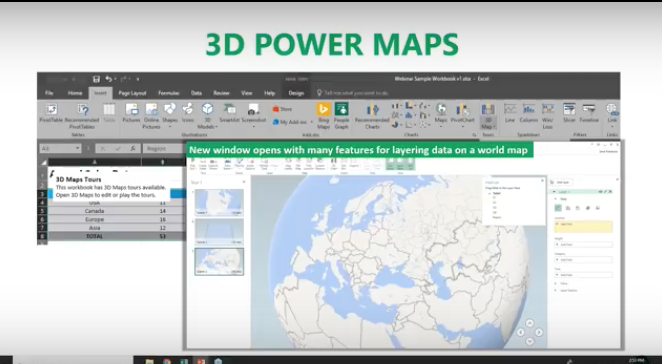
This is another new tool in Excel 2016 that lets you look at information in ways you might not have seen in the two-dimensional format. This helps you strategically create your data on a 3D map. You need latitude and longitude data to do this. You can also import your own maps into 3D Power Maps.

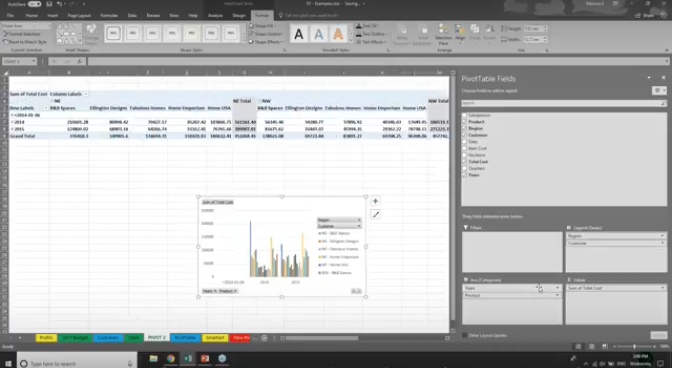
PivotTables

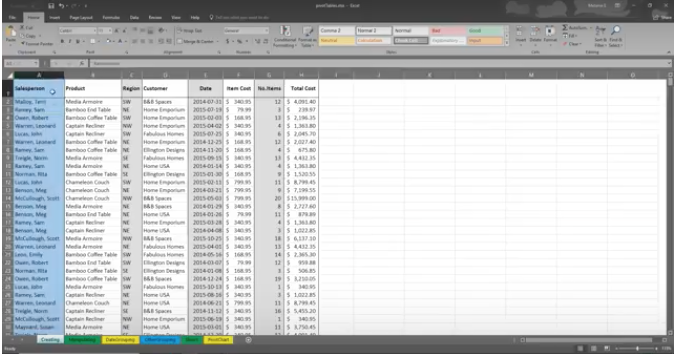
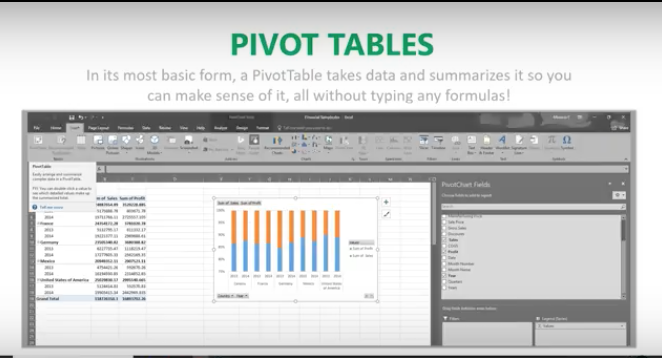
PivotTables help you analyze your Worksheet data. You can summarize, analyze, explore and present your data in just a few clicks. They are very flexible and can be adjusted to your unique needs. Note: Your data should be organized without blank rows or columns for this to work properly.

The good news is that Excel 2016 will also help you pick the best format for your PivotTables!

PivotCharts

PivotCharts are another great way to add visualizations to your data. You will first need a PivotTable to create a chart. Now, your PivotTable will behave like a PivotChart. When you change the information in your PivotTable, the PivotChart will also reflect this change. The PivotTable is connected to the PivotChart.

That’s it for now! For more information on using Excel 2016 like a Pro, feel free to contact the Microsoft Experts at {company}! {phone} {email}

Battle To The Death – Three Virtual Assistants Enter; Only One Will Survive

First, there was Siri, then Cortana, and then Alexa. Each virtual assistant comes equipped with a rich package of features and capabilities, but who is the best in the business?

Virtual Administrator

Every April, organizations big and small all over celebrate Administrative Assistants Day as a show of gratitude for the staff that carries out the day-to-day administrative operations. These are the individuals that make sure communications reach the proper contacts, that calendars are maintained, and appointments are kept. Good administrative assistants are indispensable to an enterprise, and truly deserve recognition more than one day each year.

The job of an administrative assistant — or any assistant — is to support the position they assist; Sounds simple enough, right? Wrong. Typing, faxing, emailing, answering calls, scheduling appointments, and all duties that fall under this umbrella require great organization and attention to detail. Duties don’t always stay within the 8-5 workday, and responsiveness is key.

When the Palm Pilot launched as one of the earlier electronic mobile devices for mobile communication with features for schedules and task organization, followed by BlackBerry models, and then the iPod Touch among many others, artificial intelligence emerged as an economical option and valuable tool for consumers. These devices at the time were just an extension of administrative assistants, though.

Enter the virtual assistant. Artificial intelligence (AI) has truly enabled technology to support human activity. From machines helping build machines — think automobile manufacturing lines – to machines helping people fix people — think 3D printers creating a replica of a heart or other organ to assist surgeons in planning an operation – the common thread is that artificial intelligence enables us to improve the world through the use of machines. Do you wear a Fitbit or another activity tracker? From counting your steps to telling time to monitor your heart rate to tracking your exercise route with built-in GPS capabilities, the little machine on your wrist is pretty incredible. Virtual assistants offer support on a basic level, but with more sophisticated capabilities, like voice-enabled operations and support.

Apple launched Siri, the built-in intelligent personal assistant, in 2011. Siri was designed to answer questions and perform basic actions using Apple apps on the iPhone. Apple worked with voice actors from British, Australian and American backgrounds to offer support in native “accents” given the global use of Apple products.

Both Amazon’s Alexa and Microsoft’s Cortana followed in 2014, bolstering an AI competition that is most beneficial to the consumer. A common misperception is that Amazon’s Alexa is tethered to devices used only in a home, enabling home automation services. Alexa is designed to work with several Acer, Lenovo, and HP desktop and laptop computers as well as the Fire tablet line-up and a handful of mobile devices – though none carry the mobile market presence as the iPhone.

  • For decades, roles in the administrative assistant capacity were relegated to females – perhaps this is why the default voice in the virtual assistant market is female?

Each of the virtual assistants offers an assortment of the same type of features: set alarms, provide weather reports, sports scores, Internet search results, and other real-time options like news, driving directions, and traffic alerts. But with so many AI virtual assistants on the market and consumers have more options, which brings the most bang for the buck? Which offers the most robust features? Which has the coolest capabilities? We break down the “Big Three” and let you decide.

Siri

Siri was the first and is thereby the model for all others that come after. Siri was the first voice-activated, voice-controlled virtual assistant, and dominated the market for three years before her first true competitor came along. With a quick “Hey, Siri!”, she was eager and waiting to help you out! Siri’s user interface was pretty basic initially, but considering the innovative concept of a responsive virtual assistant in your pocket, consumers were happy with basic. Siri has evolved into a much more robust and astute virtual assistant, though she still prefers to look things up on the Internet and just give you her search results. This is reported because of Apple’s dedication to user privacy, and a commitment to not collecting data from browser history or emails – like Google does – for Internet search results.

Siri’s lack of integration with non-native apps is rather frustrating. Some partner apps will offer more complex functionality, but with most apps, users are limited to basic “open” commands and exclude secondary commands – think “open Facebook and create new status update” or something along those lines. It’s not rocket science, but it’s not something Siri can help you with – yet.

Cortana

Cortana had a built-in cult following even before she was a reality! “Cortana” was the code name for the AI virtual assistant project from Microsoft, but once leaked Cortana was a wildly popular name in user forums and users initiated a petition to Microsoft to keep the name upon release – and we now know how that turned out! The code name was a reference to a synthetic intelligence character in Microsoft’s Halo video game, and the same voice actress lent her voice to the virtual assistant.

One area Cortana has others beat is language support. Rather than just English, Cortana also supports Portuguese, French, German, Italian, Spanish, Chinese, and Japanese.

The downside of Cortana? Depending on your browser preference, Cortana may offer limitation in this aspect, only offering Internet search results in Bing (not Google). But Bing offers users rewards based on search activity volume, so perhaps this default is beneficial. Side by side, Bing and Google search results can differ, which is why we consider this a ‘downside’. An interesting note for Cortana, too, is that it offers a built-in music recognition capability. Could Cortana have plans to take on fan-favorite music discovery app Shazam? In case you weren’t paying attention, Shazam was recently acquired by Apple (iTunes springboard, anyone?).

  • Microsoft, lover of all things collaborative and integration, has plans for integrating Cortana into Skype, and we can’t wait to see how that pans out.

Alexa

Amazon’s Alexa is the exception to the rule in more than one way. Unique to the virtual assistant market, Alexa is standard on Amazon Echo devices – which are not smartphones but rather designed to primarily support home automation. This is rather genius in that Alexa supports orders and shopping through a user’s Amazon account with stored payment and shipping details, conveniently offering a built-in way for Amazon to monetize their virtual assistant.

Alexa is an audio-only voice-activated AI virtual assistant. She has to read all results out loud to you – but more importantly, interact directly with you. She is the foundation of a smart home rather than confined to a smartphone.

Alexa is also designed to work with third-party apps. Want to play a Spotify playlist? Alexa’s got you covered. Need a ride? Alexa can now order you an Uber. Alexa can help you order dinner due to integration with Pizza Hut and Domino’s, among others. Can Siri or Cortana do that? They can help you track down the phone number or website, but that’s the extent of their help. Alexa will also get you in (quick) shape — body or mind — with a daily 7-minute workout and a Jeopardy game.

  • Amazon wants Alexa to be essential to your home environment. Many households are already Amazon Prime members, relishing unlimited two-day shipping for a meager $99/year. This packages nicely with the Amazon Echo product line-up, each designed to work seamlessly with each other and integrate with your Amazon account while supporting home automation. Consumers notice weekly emails from Amazon with helpful tips on “what Alexa can do for you” details.

What’s the verdict?

Alexa is nice in your home or office, but for the power of the virtual assistant in your pocket and on the go, Siri was the first and is still the best! Setting up a to-do list, scheduling meetings and reminders, sending emails – it’s all pretty crucial for day-to-day mobile operations, and “mobile” is the keyword. Amazon is expanding what Alexa can do, but for now, it’s still second to Siri.

What will the rest of 2018 hold for the AI virtual assistant future? We can’t wait to see!

Tired Of Juggling The Many Apps Your Team Uses?

Integrate and Collaborate Seamlessly Microsoft Teams

Microsoft Teams has become the go-to chat-based workspace in Office 365. It’s more than just a hub for teamwork. It’s even customizable for each type of team.

Microsoft Teams is perfect for one-on-one conversations, open group discussions or even public meetings. It has many modern features that make meetings more fun and productive. For instance, there are cool GIFs, stickers, and emojis available so team members can show a little personality. The program integrates well with Outlook email and it’s easy to switch between teams. Add to that the ability to use video calling on Android that includes mobile voice and you’ve got an excellent business resource.

The Microsoft Teams app provides users with all the tools necessary to facilitate meetings for corporate America as well as freelancers and even educational institutions. With so many people now taking online classes, the Teams app can give a tutor and student the perfect place to discuss Algebra or learn a new language. The app is fairly intuitive and most users pick up all the fine points of how to use it very quickly.

How Microsoft Teams Sets Itself Apart

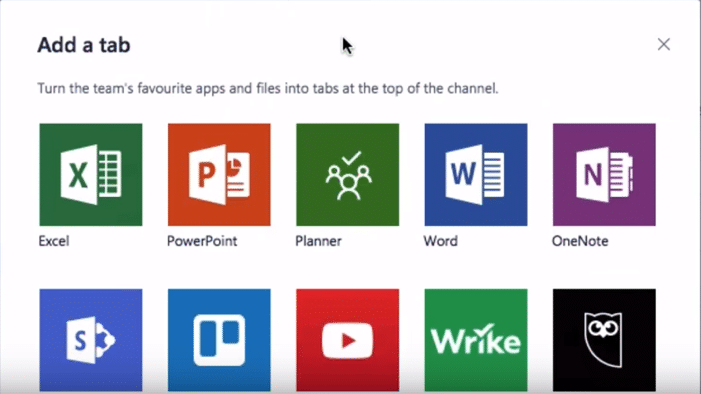
With so many meeting apps available now, organizations want to know why Microsoft Teams is better. That’s a good question and it does have a good answer: because this app is included in Office 365, it seamlessly integrates with all the programs that today’s business professionals are already using. Within the Teams app, users can access all files and any Office programs such as PowerPoint, Excel, Word and OneNote. In addition, the app features integration with Power Bl, SharePoint and Planner Intelligence using Microsoft Graph.

Though you can open these files using other meeting apps, they are seamlessly integrated into the Microsoft Teams app, limiting the additional steps that users must perform. Many of the exciting features are available with just a single tap. Regardless of what type of business you’re in, the Microsoft Team’s app can be customized to work the way you need it to. That’s one of the big reasons why people in so many different industries choose Team. The app works just as well for a few people or a dozen. It works nicely for business pros, teachers and students. The app is easy to set up and takes very little instruction to get started. With custom memes and tailored channels, most people quickly become expert Teams users.

Beyond the Basics

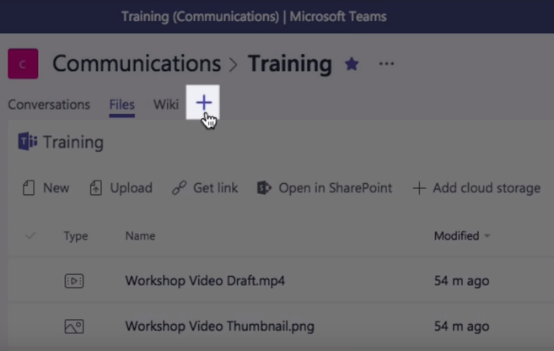
After using Microsoft Teams for a while, most people start looking around at some of the more advanced features, of which there are many. Do you need to integrate some common cloud services into your meeting? It’s a simple process.

Partner integration is available for Trello and SAP but Microsoft will be adding new partners in the future. The individual channels contain Bots that can be working in the background on important tasks. In addition to those great features, the Teams App is served from the Microsoft global hyperscale cloud. That makes it available from anywhere in the world, so if you need to meet with people in Japan, in Taiwan, someone in Quebec and a group in India, it’s a simple matter to do so. Team players can share their documents, show a PowerPoint, go over an Excel spreadsheet and work on many other tasks like these. There are virtually a limitless number of tasks that can be done and without the help of an IT specialist.

Ideal for the Medical Field

Since the Teams app is compliant with HIPAA, ISO27001, and others, it’s perfect for use in a medical facility of any type or size. However, the app could also work well in telemedicine. Though live face-to-face meeting software is included in most programs for the telemedicine industry, Teams could be used in numerous instances. Say you were on the go and needed to use the app from your mobile phone. It’s not only quick and easy but remember that it is compliant with most HIPAA guidelines. Talk to a colleague or patient. Sometimes you just need a quick face-to-face with someone and that’s it.

Excellent Built-In Security

The Teams app is big on security as well. With so many thousands of cyber-theft events taking place each year around the world, you just can’t be too careful. Sometimes a team might be talking about their favorite flavor of ice cream and sometimes they might be discussing a new hyperdrive for America’s next rocket ship. Multi-factor authentication and built-in data protection are just two ways Microsoft ensures that your meeting will remain confidential.

Use Teams to Enhance Customer Service

Though this is being done in some organizations, in the future there may be a great number of businesses that contact their customers using apps like Teams, to let customers know about some problem with an order. Perhaps you just sold hardwood flooring to a residential customer for their whole house but now you’ve learned that the flooring is back-ordered for six months. Wouldn’t it be better to speak to this customer face-to-face when you break the news to them? Customers may be less upset when they realize that the store cared enough to have a manager call them and speak to them in person about the problem. That’s just the tip of the iceberg when it comes to retail sales.

In the sales world, it’s very common to have angry customers whose brand-new refrigerator/stove/television/computer just stopped working. Mitigating customer problems is a great way to use Microsoft Teams.

Microsoft Teams

Working Together

Microsoft Teams encourages people to work together. You can bring up the new budget from Excel and let everyone go over it, make comments, and suggest changes. You can open the new marketing plan in Word so that a whole room full of execs hear about the latest marketing campaign. They need to become familiar enough with it to pass on the information to employees in their department. Since most people have Office 365 already on their computer, there’s nothing new to install.

How to Set Up a Team

Simply go to the Office interface and click on the Teams App. At the bottom left corner of the screen, select “Create Team”, then type a name and short description. Next, add people to your new team. Using Microsoft Outlook, you can add an entire group. Now click “Done” and create a general channel. Other channels may be added later as needed. Name and describe this channel, click “Add” and it’s all set up. Within just a few minutes you can have a specific meeting place set up where you can meet each week with co-workers, students, your doctor, unhappy customers and much more.

Miscellaneous Features

Adding and removing team members is simple and only takes a few moments. A tutor who is working with five different students throughout the day could easily change the student’s name quickly in between each lesson. You might start with a private chat, just between the teacher and student. However, what if you wanted to add a second teacher or several more students? It’s easy to do that. Just list the name(s) of the people you want to attend, then compose a new message in Outlook to invite them to attend. While in a chat, you can make a video or audio call by selecting the icon for it. Chats can be renamed, which is good for those that get transferred to a different department. You can continue using the same chat room; just add or remove people as needed.

Microsoft Team has so many more features that make life and work much simpler. It is quickly becoming the favorite virtual chat room for business people in every industry. If you’re still feeling you need some help with setting up a chat room, Microsoft offers a great range of informative YouTube videos with step-by-step instructions for how to do just about anything.

Is Organizing Your Staff A Little Like Herding Cats?

Stop Struggling – Try Microsoft’s Team Planner

Microsoft’s latest and greatest app is called Team Planner. It’s an amazing tool that lets people organize any task. Of course, it was developed with corporate America in mind, but this type of app would be great for planning anything from a birthday party to a wedding. The app has been well-received and is now being used around the world in every type of business or enterprise.

Designed for Projects of Any Size

For those who work with teams every day, it’s clear why this type of app has been so successful. Any company or department that has worked on a big project understands the frustrations. There’s just no easy way to manage a big project with lots of players involved. How do you assign people to specific tasks? How do you upload documents so everyone has access? How can you find out each person’s current status?

In the past, programs developed to streamline project management have been large, unwieldy conglomerations that most team members could hardly understand. Each task was so cumbersome it was often easier to just work without project management software. This is where Microsoft really excels, because their developers have been down this road before. They know the pitfalls and drawbacks. With each generation of software, they’ve gradually eliminated time-consuming obstacles. They’ve fine-tuned the app, sanding off its rough edges and now what’s left is a really intuitive solution that works well for both corporate America and individuals.

Screen Clipping

How to Begin

Begin by Opening MS Office 365. There you’ll see all the apps available. Planner should be shown as one of the tiles on the page. Click on the interface and Team Planner will open to the Dashboard. You can also launch the app from the “app launcher” icon in the upper left-hand corner. At the dashboard page, you can view all ongoing projects. This is also where you create a new project.

Screen Clipping Let’s say you want to create a project for your company’s new marketing video. Just click on the “Plus” sign. Next, you’ll fill in project details including a name and description of the project. As you create tasks, go ahead and assign each one to a member of your team. You can include as much or as little information as you need to. The app also has a chat feature that allows team members to connect. Workers find it helpful to have a built-in chat feature. As they discuss the project, both parties can see the plan’s progress and find out what each member is working on.



Planner uses a handy tool called “Buckets” and you can give descriptive names to your buckets. Place all related tasks in one bucket. This prevents you from having to search around for specific things. Click on My Tasks for a comprehensive list of your own projects. It’s easy to see where you are and what you need to do next.

Email Notifications

As the project leader assigns new tasks to team members, an email notification is sent to each one. This ensures that everyone knows what they’ve been assigned to do. From now on, there’s no confusion about who should be working on what. These types of snags can prevent a project from moving forward the way the boss expects it to – those days are over with Team Planner.

Transparency in Every Task and Project

Ever worked on a big project and not known its status or who was working on what? That’s happened to all of us at some time. With the Team Planner Dashboard, you can quickly see who has been assigned to what task. You can also view any attachments, images, videos or other task-related information.

As each person completes a task, they mark it done. That makes it easy for the team leader and others to check the project’s progress. No more playing phone tag with the PM and team members for progress updates.

Organize Your Work Visually

For those people who work better when tasks are more visual, Team Planner is a good solution. Each project has a board that allows you to easily organize tasks, placing them in buckets. It’s easy to view the project’s current stage. If someone has to drop out of the project, just drag and drop to assign it to someone else. Teams work together in unison. Anyone can update or change the status of an assignment. With Team Planner, project collaboration is a breeze.

Best Features

Built for Office 365, Team Planner lets you attach files to tasks, work together on those files, and even have conversations around tasks without switching between apps. With this app, all discussions and deliverables stay with the plan. That way, nothing can fall through the cracks. Want to know what you should be working on next? Click on My Tasks for a comprehensive list of your own projects. It’s easy to see where you are and what you need to do next.

Microsoft Flow

Microsoft Flow is a SaaS cloud service that makes it easy to get all your favorite apps to communicate with each other. It works with Microsoft programs like Outlook and OneNote, but also includes over 100 other programs that people use daily and find handy. Automate time-consuming tasks, such as emails. Set up a flow that notifies you with a text message when you receive an important email from a client. Emailing your customer using Outlook with project updates. Manage approvals all in one place. With just the tap of a button, you can set up and accomplish many tasks that once took days to complete.

Conclusion

No matter what type of work you do, great teamwork is the key to success. That’s one of the reasons why Microsoft developed its new app, “Team Planner.” With this program, it’s so much easier for teams to create plans, assign tasks, share files and get organized. That’s the key to any project succeeding. All team members must be working together toward a final goal. When everyone has a clear idea of what the project is all about and what should be completed next, your project will get completed on-time and on budget.

How To Master Microsoft Word’s Advanced Features

Are you still using Microsoft Word the old-fashioned way? Upgrade your skills from amateur to awesome today!

Master Microsoft Word

From the time a business is established, the goal is growth and revenue. In the professional world, revenue and growth are hand-in-hand, but rare is the opportunity to accomplish growth or generate revenue quickly as a one-person operation.

Expansion and growth of a business is a positive sign – a sign that relationships are solid and operations are successful. For any of these circumstances, some form of communication takes place. Parties talk, form agreements, and put those agreements in writing — often as contracts — and these are then shared, so all parties have copies for their records.

Collaboration is defined as the action of working with someone toward a shared goal – and it’s also the current office buzzword. When multiple individuals collaborate on a project and produce documentation of this project, the document is shared like the previously mentioned contract.

Agreements and contracts have been around for more than a century – much longer, in fact. No longer do clusters of secretaries sit outside a row of executive offices, busily deciphering shorthand as their hands zoom over the click-clack of typewriter keys, transcribing letters or meeting minutes. The typewriter was replaced decades ago by the electronic word processor, and communication has migrated from postal mail service to email and even text messages among colleagues and casual professional relationships. Why? Because these types of communication are faster and enable progress to be made more quickly. The underlying theme here is that communication is key in any situation involving multiple people.

We sense a pattern.

What if each of those executives in that row of offices had their own copy of the same contract and each made notes in the margins for changes? The administrative assistant responsible for consolidating those notes into one cohesive document faced quite the task. The difference today is that typing in a word processor like Microsoft Word is a basic requirement of administrative roles, with speed and accuracy being a key element in a job description.

Microsoft Word isn’t just for secretaries! These days, users range from first graders to grandparents, and everyone in between. It’s the go-to application for college students when writing term papers, and the starting point for novelists and authors. The Word Document is the most widely-recognized document type and the most commonly-used document format. It’s this last part that makes sharing documents with other users so easy.

An office staple since the late 1980’s, Microsoft has evolved from the early days of Microsoft Works into a sophisticated word processing tool, with a vast array of collaborative features – many hidden to the naked eye. Everyone that has ever used a computer in some way is familiar with the basic idea of typing words into a document on a screen, but did you know that Microsoft Word allows multiple users to conveniently collaborate inside one shared document? What’s more, users can highlight text with comments, and all users that make edits can have these changes tracked for discussion.

How to track changes made by all users within a document in Microsoft Word:

  • The Track Changes feature can be found in Tools, Track Changes, Highlight Changes
    • This feature can also be found in the Ribbon menu in Review, Tracking, and toggle Track Changes to “On”.
    • Multiple users inside the same document can toggle this feature on and make changes, while their edits are notated in the right margin for each user to see and either “accept” or “reject”.
    • Ideally, the ability to “accept” or “reject” offers a chance to discuss more significant changes that may impact an important document

Microsoft Word is no longer just a word processor – it’s a sophisticated software application that has a multitude of uses, only one of which is creating basic documents. Considering the many built-in templates for resumes, flyers, brochures, fax cover sheets, and letterheads, Microsoft Word is also an economical option for small businesses, nonprofits, and other groups or individuals to use for a variety of professional purposes.

Beyond Bullets and Bold Typeface

Most users know the basics, like how to underline or italicize words or select different fonts. Then there is everyone’s favorite feature – undo, the magical arrow which pretends like the last action you just took, which you deemed a mistake, never even happened!

  • So simple? You can select text by inserting your mouse at the start of the text, clicking, and then dragging your mouse to the end of the text and letting go of the click button, or you can use your keys and arrow cursors with the “shift” key much the same way.

However, do you know some of the more intermediate features? Below are some of these features, followed by the menu location where you can find each that you’d like to try.

  • Columns: Format, Columns (select the number of columns to insert)
    • You can create columns of text that flow from one into the next for a clean appearance, and a unique look.
  • Charts: Insert, Charts (select the type of chart you’d like to insert)
    • Professional documents that include charts to present data offer a visual enhancement and have a polished look
    • This feature will require the use of a data table to convert into a chart, and once you select the chart style you’d like to insert, you’ll be prompted to include the data at the next step.
  • Highlighted text: Ribbon, Home
    • Note that this feature will require the user to select affected text before toggling this feature on, or you will need to toggle this feature on and then type the text you wish to be highlighted, and then toggle off once you have completed typing this specific text.
    • When you begin a new document in Microsoft Word, if you don’t see a toolbar at the top of the document where you’d normally toggle the option to make your text bold or change the font style or size, you can choose “View” from the main navigation menu and make sure the checkmark is next to “Ribbon”. If it’s not, click on “Ribbon” and this menu will toggle on. You’ll then see the icon with the highlighter on it, and you can click this to select which color options you have to highlight selected text.
  • Subscripting and superscripting text: Ribbon, Home
    • This feature will require the same process as the highlighted text toggle actions.
    • Just next to the highlight icon are the icons showing “X2” and “X2” where you can choose to subscript or superscript selected text.
    • You can also find this feature in: Format, Font, and check the appropriate boxes
  • Bulleted or numbered list: Ribbon, Home
    • Once you are ready to insert a bulleted or numbered list, toggle the icon with the bullets or the “1-, 2-, 3-“ and begin typing, hitting enter (or return) after each listed line item
    • There is a drop-down triangle to the right of each of these where users can change the style and layout of the list
    • You can also find this feature in: Format, Bullets, and Numbering, and select the option that resembles the style you’d like to choose for your document
  • Spell check and grammar check: Tools, Spelling, and Grammar
    • This tool for checking user spelling and grammar is adaptive in that the user can add frequently-used words like last names or company names and the Spellchecker will “learn” the name and not prompt the user to “ignore” the word each time Microsoft Words thinks the user has entered a misspelled word.
    • This feature can be toggled to automatically remain on (or off) throughout typing:
      • Tools, Spelling and Grammar, Spelling and Grammar, Options, and then toggle the types of words you’d like to be recognized or ignored each time you use Microsoft Word.
    • Cut, copy and paste text
      • This is another fan favorite of the application, but did you know you can make entire paragraphs disappear and reappear at another location? This way you don’t have to remember to go back to the first instance and delete once you’ve copied and pasted the word, phrase, or paragraph.

Advanced features 

  • Insert hyperlinks: Insert, Hyperlink
    • This feature is incredibly helpful if you need to embed a website hyperlink, or if you need to refer a reader to “fine print” text, like legal disclaimers, which would otherwise take up a lot of space within a document but doesn’t need to be included.
    • Users will need to select the text that will contain the hyperlink, and this text will turn blue and be underlined as a visual cue for the reader
  • Convert to PDF: File, Save As
    • You can convert a document to a PDF file by choosing File, Save As, and at the bottom of the dialogue box that opened will be a drop-down menu that identifies “File Format”, and scroll down until you see “PDF”. “Save” has likely changed to “Export” at this point, but you’ll choose the location where you want the file to save.
  • Password protection: open, modify, or format/edit: Tools, Protect Document
    • You can create a document and save the file with password protection. Passwords can be required just to open, to modify, or to format/edit the document. This is a nice feature if the document contains financial information, confidential details, or you just want to safeguard your file against being intercepted by the wrong viewer.

Once you’ve mastered these intermediate and advanced features within Microsoft Word, you can then move on to create mail merges, print addresses or return addresses on envelopes, create address labels, create macros for snippets of text you use on a regular basis, and much more!

Advanced built-in functions may have escaped your knowledge as “hidden” before today, but now you can be a master of Microsoft Word.

Tired Of Replacing Tech Every Year And A Half?

How often do you buy a new laptop, tablet or mobile phone? Does it seem like there’s an internal alarm clock that predicts the time of your next purchase? We can help you hit the “snooze” button and save more money.

Investing in new tech

Apple made news recently with an admission of its practice to release updates that would slow performance of older phones as a byproduct, indirectly increasing frustration and thereby prompting consumers to “need” to upgrade their phone. It’s been a long-running joke that, with two-year contracts with mobile service providers, consumers could count on increased frustrations near the 18-month mark to build anticipation for the next smartphone iteration.

The manufacturer’s suggested retail price (MSRP) of consumer goods relies on the basic elements of supply and demand. While consumers maintain the mentality of “upgrade every two years”, manufacturers released new products on a set timetable, and subsidized costs helped to feed our appetite for the newest, fastest tech with the coolest features. Who doesn’t love a built-in schedule feeding supply and demand? Desktop computing systems experience the effect, as well, though the phenomenon doesn’t receive the same coverage, perhaps because these systems have been around for longer than mobile devices and consumers have just come to accept the situation.

Now that the days of service contracts and subsidized phone costs are over, consumers hold more control over their technology – and their wallets.  With the barrier to entry centering on higher costs — that are no longer subsidized — consumers are looking for ways to make all types of tech last longer. This is especially helpful given that the cost of tablets, most notably the iPad, continues to inch higher as our dependency on mobile technology increases. How can we make our smartphones, tablets, laptops, and desktop tech last longer and run more smoothly?

Desktops and Laptops

Review your system using these guidelines as a checklist, and see how some light housekeeping may help:

  • Is your system freezing or crashing more often?
    • Crashes and freezing can be a reminder to reboot, allow your applications to restart and reset, clear your memory cache and cookies, and just give your machine the chance to let go of anything it’s been unnecessarily holding onto in temporary files.
    • These can also be a sign of something more serious, and it may be a good idea to run an antivirus program, like Avast, to make sure you’re not a victim of malware, viruses, or ransomware attacks.
  • Is your storage nearly full?
    • When a hard drive fills over 75% capacity, the effect on a system is an overall slow-down. Consider moving to a free cloud-based storage solution, like Dropbox or Google Drive. If you’re an Amazon Prime user, take advantage of your benefit of unlimited photo storage that also offers you the ability to organize photos into albums that you can share with friends and family with just a click.
  • When was the last time you checked for and installed system updates?
    • Outdated operating systems can significantly decrease a system’s performance. Check for updates and install them, since these almost always contain updates that improve performance and maintain security.
  • Is your computer clean?
    • We don’t mean viruses here – we mean “clean”. Dust and particles can get down into crevices and gunk up innards. This can impede airflow, causing a system to overheat, and make your system work harder than it needs to operate effectively. A can of compressed air can do wonders with hidden dust particles in the tiniest of spaces.

Smartphones and Devices

Much like with any computer, smartphones and tablets need routine maintenance to perform at their best. Sluggish and slow speeds hinder your ability to get things done. Never is the phrase “time is money” truer than when trying to send an email or make a call, in attempt to conduct business and finalize a transaction.

Keep your mobile devices operating at their peak efficiency by regularly checking through the following areas:

  • Photo storage
    • Ever wondered why smartphones still offer the option of the shutter sound when taking pictures? The sound is both nostalgic and satisfying. We take photos of moments to help us remember – but we take more photos now compared to the days of film.
    • Our digital memories are eating up our digital storage. Cloud storage is an easy solution, but few take advantage of the opportunity. As we mentioned earlier, Amazon Prime users can take advantage of free unlimited photo storage and create shareable albums. This is a safer option than Facebook, given it’s a service you pay for, and you retain control of the account!
  • Email Inbox(es)
    • A single email message has an almost undetectable impact on your phone’s operation, but how many emails do you get in one day? A hundred? More likely a few thousand messages or more come to you throughout the average work week, and that fills space quickly in your device’s memory. De-clutter your inbox, and start seeing a difference.
  • How many applications do you have installed that you don’t use?
    • Applications can take up a lot of memory space. You can see which applications have the greatest impact on your phone’s settings, and eliminate applications that you haven’t used. Regain screen real estate, too!
  • How many applications are running?
    • Not only can applications take up space, but they can also drain your battery faster. Over time, this can wear down your battery which means it will just drain faster and faster, regardless of how many applications are running at any one time.
  • Internet windows
    • Much like on a desktop where you may have more than a dozen tabs open and running in a single Internet browser session, your phone will open a new window as many times as you like. Again, much like with your desktop browser that stores cookies and browser history that takes up RAM, your phone keeps this data stored, as well, slowing down operations.
  • When in doubt, restart
    • The occasional restart can act as a “reset” for your phone, and you may see an improvement in performance after rebooting.
  • Are there updates available?
    • Whether for an application or your operating system, there are reasons that updates are made available to consumers. Updates are intended to improve the overall operation of your mobile device, and it’s recommended that you keep your phone’s operating system and applications up to date.
  • Is your device clean?
    • Keep your screen wiped, your speakers clear of debris, and your camera lens and charging port clean. Dust and grime can creep into the tiniest of crevices and build up, affecting the interior workings of your phone.

Keeping your technology operating efficiently takes effort on your part, but the return on your time investment will extend their lifespan and decrease the long-term maintenance costs you would need to spend otherwise. Following these basic preventive maintenance tips will make your tech last longer and save you time – and money.

5 Questions to Ask When Looking for A Managed IT Services Provider

There are plenty of options when it comes to finding a Managed IT Services provider for your business – how can you tell which is the right choice for you?

Managed Services

These days, business owners are searching for every advantage to put their company on top. With so much competition out there, just a few small issues here and there can result in costly slow-downs to daily work. One of these resides in your IT department. Nothing is more frustrating than broken computers, slow internet service, and expensive service calls.

Things like this can ruin your week and take a huge chunk out of the budget. Though there’s no way to stop computer and network problems from happening, there are ways to minimize your exposure. For small and mid-sized businesses, the solution is Managed IT Services. With Managed IT Services, you can forget about setting up an expensive Server Room and hiring a bunch of highly trained IT people. You’ll probably only need a handful of IT people on staff to handle simple issues that crop up in day-to-day business.

The problem comes with the fact that there are so many IT service providers these days and so it can be difficult to find the one that works best for your company. To help, check out these five timely tips to help you find the right IT service provider so you can get back to the job of running your company.

Tip One: The Budget

Although having the best IT support for your company is important, sometimes managed service providers are keen on trying to sell you expensive services that you really don’t need. To avoid this scenario, sit down with your on-staff IT people and talk about exactly what services your company needs to stay up and running. Speak to your accountant and make sure about the monthly amount that will fit comfortably into your budget. All companies are nervous about data breaches these days; they can be expensive and stressful. However, don’t let that push you to buy over-priced services that you really can’t afford and don’t need. For some companies, hiring a consultant to advise you is a good solution.

Tip Two: Understand Your Contract

Too many business owners get locked into long-term contracts that they can’t afford. Make sure you understand exactly what your contract includes. How often can you call for service? Some companies allow unlimited service calls for just a few extra dollars per month. This can be a good way to go if your computer equipment is getting old and might break down more often than new equipment. Another issue is whether the contract includes regular updates to software and hardware.

One of the biggest issues that companies face is the evolution of technology. Every year, technological capabilities develop at phenomenal rates; it’s hard to keep up. There are new devices, gadgets and social media sites that demand faster computers and networks. Managed IT Services should keep you up to date with the latest advances in business technology.

Tip Three: Stay Proactive

The whole point of Managed IT Services is that you have someone else to handle network and computer problems. As with all service providers, some are just better at their jobs than others. Make sure your Managed IT Services provider believes in staying proactive. Avoid providers who only come out when there’s a problem. You need a company that will stay on top of all the latest threats. One data breach could drive you into bankruptcy, so it’s important for your IT support provider to make sure your computers are ready for whatever may come.

Often, you can find out about things like this by reading online reviews of the company. Have they had any complaints filed against them? How long have they been in business? Don’t let a fast-talking salesman sell you on a company with two employees that just opened its doors. Find someone that has a great reputation and has been in business for years. You want to work with providers who will stand behind their services and won’t stop until you’re satisfied.

Tip Four: Is it Scalable?

Hopefully, your business is growing. What will happen if you need to add five new computers? IT services should grow as your company grows. You don’t need to understand all the intricacies of cost optimization, cloud services, and scalability, but you should know what it will cost in terms of money and time when your company begins to grow. Ask intelligent questions about colocation and virtual infrastructures.

Many business owners are not well versed on these topics but your company’s IT professionals should be. You need IT people you can count on; not people who try to dazzle you with big words. Your on-staff IT team should be working proactively each day to ensure ongoing network services and a sound infrastructure. Hire the best people you can afford and expect them to do their jobs.

Tip Five: Ask the Right Questions

In the world of Information Technology, there’s quite a bit that the average business owner doesn’t know about. For instance, will the Managed IT Services provider perform regular security updates and patch management? These are both crucial to preventing cyber breaches. Will they perform network monitoring and send alerts when something looks out of order?

A new service provider should begin your professional relationship by performing a vulnerability and risk assessment. This will tell you whether your software and hardware are up to par. Is your equipment set up to handle the massive number of new cyber threats that are hurled at businesses each year?

How many times have you waited all day for a service provider to show up? This is stressful and costly for any business owner. Ask if the IT provider has a guaranteed response time. It can also be very helpful to have 24/7 Helpdesk support. Be sure this is included in your contract.

Many managed IT providers also offer additional services that can be very helpful, such as consulting and project management – make sure you ask about these services, and whether they come with an extra charge. The more you know, the better.

Other Considerations

Your company may not be at a place right now in terms of growth, where you can sustain an expensive long-term Managed IT Services provider. If this is true, look around for no contract, pay-as-you-go providers. Many IT pros offer this as an option but they may not say so right up front, so be sure to ask about it.

Look for companies that offer flexible plans for small businesses. Everyone has been in the position of just starting out and needing to save money wherever possible. Companies sometimes have slumps in sales. You have to plan for every contingency. While you do need the most reliable IT services available, they should be professionals who are willing to work with you. Businesses that succeed often have skilled partners who have their back and that’s not too much to ask of your Managed IT Services provider.

Don’t settle when it comes to your Managed IT Services provider – put the time and effort into finding the right one for your business needs, and you’ll soon see the positive effect it can have on you and your staff’s daily work.

Nine Must-Have Cyber Security Strategies For Small Businesses

Your small business is at risk. There’s no way to sugarcoat it and no way to say it any more plainly. Every day there are criminals targeting businesses.


Why?

Because they want your money, they want your private data, or they just want to cause trouble for you.

It doesn’t matter what they want. The scary thing is that they can do immense damage to your company in a very short window of time. If ransomware takes control of and encrypts your data, your only recourse is to pay the criminals. But what if you could get ahead of the criminals and enact nine cyber security strategies that will enhance your company’s cyber security posture?

Fortify Your Small Business: Implement These 9 Essential Cyber Security Measures

It’s time to take a stand and act BEFORE the bad guys do their damage. These nine cyber security strategies will help your business be proactive regarding IT security.

#1 – Strengthen Your Payment Gateway With Card Best Practices

Your bank and credit card issuers can help you tremendously in the area of IT security for credit and debit cards. They will help you by supplying many of the tools that you need to validate cards and ensure that the cards you process haven’t been compromised by fraud.

Part of credit/debit card cyber security best practices is the practice of isolation. By putting your payment systems on a separate computer – even a separate internet connection – than the computers you use for internet use, you lower the risk.

Another best practice that revolves around keeping up with cyber security technology is the move from magnetic strip readers to chip cards or EMV readers. These new EMV readers are now the industry standard, and even small businesses need to comply with this new payment security measure.

#2 – Backup Everything

Your business cannot operate effectively without access to your data. If you don’t back it up, your data may not be there for you when you need it the most. A busy office creates thousands of files each day, and the secure backup of these files needs to be a part of your company’s cyber security strategy.

Backups should be made at least daily and mirrored in the cloud or an offsite server.

Backup should be overseen by an IT support and IT security professional. Companies like us have cyber security experts that are proficient in handling automatic, secure data backup and recovery for companies large and small.

#3 – Get Your Physical Access Points Secured

If the bad guys – even bad employees – can just walk into any office in the building and access computers, laptops, tablets, or smartphones, you’re not even close to having bulletproof cyber security.

You need to ensure that your devices are protected by two-factor authentication and that you use door locks and more sophisticated electronic access systems to prevent entry by unauthorized individuals.

Everyone in the company should have their own secure passwords, and admin privileges should only be given to the actual network administrator.

#4 – Have Structured Procedures In Place For Mobile Devices

The mobile devices that your company employees use can present some unique problems when it comes to cyber security. IT security experts routinely point to unsecured mobile devices as the vulnerability used by cyber-criminals to gain access to company networks.

Make sure your employees use passwords to protect their smartphones and tablets. Contact an IT security professional – like our cyber security experts – to help you with data encryption, secure file synchronization, and secure network access. Cyber security experts can help you protect your data with remote wipe capability if your phone is lost or stolen.

#5 – Secure Your Entire Website

Everyone knows that their sign-up forms and check-out pages need to be secure, but what about the rest of your company’s website?

We’ve all had the experience of going to a business site, only to find that it has been hacked and taken over by malicious cyber-criminals.

Don’t let it happen to you.

  • Implement antivirus and anti-spyware software on your computers
  • Do all the updates, upgrades, and patches issued by your operating system developer
  • Bring in an IT security professional to do a vulnerability assessment on a regular basis

#6 – Lock Down Your Networks

Your network connects all your devices, the internet, and your peripheral devices (like printers). Each device is a point to which a criminal could gain access. Here are some tips.

  • Your internet connection isn’t safe unless you are utilizing a monitored firewall and leveraging the power of encryption.
  • Make sure to hide your company’s WiFI and use controlled access to customer WiFi.
  • Password protect your router.
  • Disconnect any WiFi-enabled devices that you don’t regularly use and security check.

#7 – Put Policies in Place to Secure Private Data

Your employees should know what the IT security policies of the company are and how to deal with private information. But they won’t unless you specifically take the time and invest in cyber security awareness training.

Once you have done the training, they should be aware of and be held responsible for following IT security protocols.

#8 – Employees Are Your First Line Of Defense Against Cyber-Criminals

Employees want to help you secure your business against cybercrime but often don’t know that they are letting the bad guys in the front door.

By training your employees on topics like phishing, social engineering, ransomware, spyware, and adware, you can drastically reduce your risk.

Following that training, employ and cyber security professional to run tests on your employees’ ability to spot these scams and intrusion attempts.

#9 – Leverage Strong Passwords And Multi-Factor Identification

Your staff should be instructed on what makes for a good password. Better yet, hire an IT security professional to set up multi-factor identification and single sign-on strategies for your business. These cybersecurity tactics can help your employees be more efficient while enabling a higher degree of security for your company.

Looking for an IT security team to help your business avoid intrusions, disruptions, and costly downtime?

Experience peace of mind by choosing Inspired IT for your managed services. Ensure your business runs smoothly and stays protected from cyber threats. Contact us now for tailored solutions that meet your unique needs!

Ransomware Preys On Your Employees

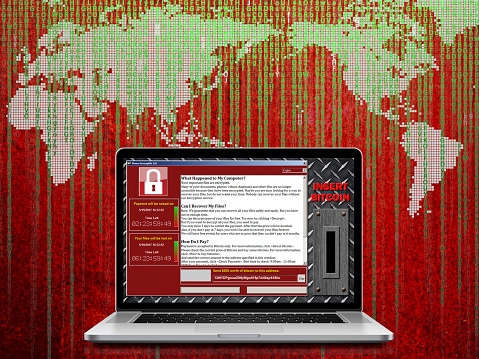
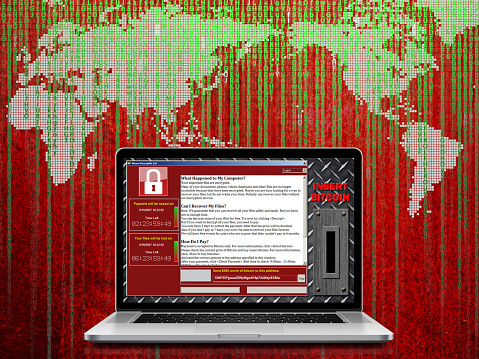
Ransomware has quickly become one of the biggest cyber threats to businesses today, especially given the recent Wanna Cry epidemic that infected hundreds of thousands of IT systems in more 150 countries. This kind of malware presents serious data integrity and financial concerns for affected businesses. It works by tricking a user into opening an executable file (either as an email attachment or downloaded from a webpage linked in an email) which then encrypts the victim’s files and holds them for ransom.

ransomware

A majority of cybersecurity services offered today include the best in vital technologies, from firewalls to anti-malware to data encryption and more. However, as important as this technology is, on its own, it simply isn’t enough to protect against threats like ransomware. The key to truly comprehensive cybersecurity is simple, yet often overlooked: the user.

Cybersecurity company Malwarebytes has found that as many as one-third of businesses like yours were hit by ransomware within the last year – the key to all these incidents? The “human factor”. Included in Malwarebytes’ Second Annual State of Ransomware Report, data showed that, of the 32% of organizations that were hit by malware, 20% had to immediately halt their operations.

It gets worse – further statistics showed that:

  • 25% of businesses were hit with more than 20 ransomware attacks in 2016
  • 31% of affected businesses in Australia did not know they were hit by ransomware, as compared to 9% in the US
  • 46% of Australian victimized businesses paid the ransom, and after paying, 40% still lost their files.

Cybersecurity gimmicks — such as “set it and forget it” firewalls and antivirus software — fail to account for how important the user is. Even the most effective digital security measures can be negated by simple human error, which is why conventional solutions are simply not enough to ensure your business’ safety. Much of cybersecurity is dependent on the user, and as such it’s vital that you properly educate your employees in safe conduct. The more your workforce knows about the security measures you have in place, the more confidently they can use the technology in a secure manner.

“People [behind the ransomware attacks] are going to more of the human factor now,” said Malwarebytes Senior Systems Engineer Brett Callaughan to CNET. “A lot more attackers are becoming aware of the fact that they can make small amounts of money on a grand scale very quickly if they completely automate this. The attackers we’re seeing are extremely sophisticated — they’re not fussed about creating a file and making something look real. They’ll just go after the user and they’ll spray and pray. If you hit 100,000 email accounts and 10,000 hit the button and you’re charging $200 a piece? That’s a significant amount of income right there from doing very little.”

So what can you do? First of all, ensure your employees are comprehensively trained in cybercrime awareness and prevention so that they can help keep your business safe. Training should include:

  • How to identify and address suspicious emails, phishing attempts, social engineering tactics, and more.
  • How to use business technology without exposing data and other assets to external threats by accident.
  • How to respond when you suspect that an attack is occurring or has occurred.
  • Further vital information that your staff needs to maintain a secure business.

That said, employee awareness will only do so much. Remember that ransomware is likely today’s biggest threat to cybersecurity, which means anything less than a comprehensive defense won’t be enough. You hear about it everywhere, along with a range of possible solutions, most of which are defensive – ways to keep the intruders out before they encrypt your files and send you the ransom note.

Both industry leaders and cybercrime law enforcement members agree that the best defense against ransomware, other types of malware and similar cybersecurity threats is a robust data backup contingency. Have you invested in one for your business?

When developing your ransomware defense, keep these recommendations in mind:

  • Make a considerable investment in a comprehensive backup data recovery solution so that you can restore your data at a moment’s notice when necessary.
  • Test your backup and cybersecurity measures thoroughly and regularly; create dummy files and then delete them to see how fast they can be restored, or schedule a day to literally unplug your critical systems to find out how long it takes to get online again.
  • Be sure to make the most of the available resources (both provided online and through expert IT consultants) to ensure that you’re not overlooking vulnerabilities in your IT security methodology.

The good news is that you don’t have to do all this on your own. Partner with an experienced, expert provider of security support and solutions like {company} today to ensure you’re comprehensively protected from ransomware on all fronts.

For more information about how to train your employees to protect your business against ransomware, get in touch with {company} right away at {phone} or {email}.

Isn’t It Time to Migrate to Office 365?

If communication is the key to personal and career success, then we should be doing everything in our power to ensure our communication lines are well established, extremely efficient, and thoroughly secure. Migrating to Office 365 might be what your business needs to get the most out of your email server.

Office 365 Migrations

Why migrate to Office 365?

Office 365 provides you with some new, much-needed features like:

  • Microsoft Lync Online with real-time collaboration and communication.
  • SharePoint Online that offers world-class collaboration and an easy-to-use information sharing platform.
  • Microsoft Office Professional Plus with the most popular client tools on the planet such as Microsoft Word, Excel, PowerPoint, Outlook and OneNote. This ensures that you always have the latest versions of these apps at your fingertips, whether it be while working on your desktop, or on a tablet at home.
  • Microsoft Exchange Online and an improved experience with mainstream e-mail and messaging.

What are my migration options?

Microsoft offers three main bulk migration options for Office 365: Cutover, Staged, and Hybrid:

  • Cutover Migration works best for businesses with 2,000 mailboxes and under. With this option, you can’t keep mailboxes on-premises, only in the cloud.
  • Staged Migration works best for Exchange 2007 and 2003 but requires a directory. Staged Migration can keep mailboxes on-premises as well as in the cloud, and there’s no limit to the number of mailboxes that you can move.
  • Hybrid Migration works best with Exchange 2010, 2013, and 2016, and like Staged Migration, it also requires a directory. Not only can Hybrid keep mailboxes on-premises as well as in the cloud, it also provides seamless functionality across environments.

What if these options don’t quite fit my needs?

If these options don’t fit your needs, there are also three less common options. The IMAP option works best with Exchange 2000, but it won’t move calendar items or tasks. If you prefer a more hands-off approach, or if your business is simply too large for the other options, you can have Microsoft Office import items for you. This is an excellent option if you have more than 10TB of data. Or, if you prefer, you can use third-party applications like Lotus Notes, or Novell GroupWise to migrate your mail and data, but this option doesn’t allow mailboxes to be stored on-premises, only in the cloud.

How to Prepare for Migration

After you’ve selected the option that meets your migration needs, you should begin preparing for your migration to Office 365. Microsoft recommends that you use the email migration service Outlook Anywhere (also known as RPC over HTTP), to connect to your on-premises Exchange Server. This allows you and your staff to use Outlook as you normally do without the need for special connections such as hardware, smart cards, or security tokens. Once you enable Outlook Anywhere, verify that you can connect to it outside your corporate network. Then configure Outlook Anywhere on your on-premise Exchange Server. This allows you and your staff to use Outlook as you normally would, without the need for special connections such as hardware, smart cards, or security tokens. Once you have it configured or enabled, you will want to verify that you can connect to it outside your corporate network.

Next, you should set permissions on your account so that after migration you can connect it to your new Office 365 email system. Remember that the admin must be assigned “Full Access permission” or “Receive As” permission to modify the Target Address. Also, be sure to turn off the unified messaging until after the migration is complete.

To begin the migration, you will want to verify your domain address in Office 365. Use directory synchronization to create users in your new Office 365. Next, create a list of mailboxes that you want to migrate and create a migration endpoint that’s connected to the on-premises server. These Migration Endpoints capture the remote server’s information and provide the credentials for migrating your data.

Now You’re Ready to Migrate Your Mailboxes.

If you are performing a stage migration, select the users to include in the first batch of the migration. Now you can begin the migration. Once you receive notification that the sync is complete, verify that the migration worked to ensure there are no errors and that you have included the appropriate users in the Office 365 Admin Center.

After Migration

After your migration to Office 365, you should complete a few post-migration steps to ensure the new system is running smoothly and effectively:

  • Route emails directly to your new Office 365. It can take up to 72 hours for some email systems to recognize the change from on-premises to cloud email.
  • Activate your Office 365 user accounts by assigning the appropriate licenses.
  • Create an auto-discover record so users can quickly access their new mailboxes.
  • Lastly, you should retire your on-premises email servers and celebrate as the migration is now officially complete!

At this point, you should feel a sense of accomplishment (and well-deserved at that). But your work isn’t done yet. Through Office 365 Support you can easily try out all the new features and maybe even gain a level up on the old features. Office 365 walks you through signing in, creating and saving projects, sharing and collaborating with staff, and setting up your mobile apps. Then, it introduces you to a few new things that will increase your productivity at work, such as Flash Fill in Excel or morphing your slides in PowerPoint.

Finally, schedule regular training for your staff to make the most out of your new Office 365.  Then you can “pat yourself on the back!”

As you can see, migrating to Office 365 isn’t easy. That’s why businesses in {city} count on the experts at {company} to handle the migration for them. For more information contact us at: {phone} or {email}

Beware of This Ransomware Strain and Its Dangers for Cloud E-mail.

We recently came across some chilling news. A white hat hacker developed a working “Ransomcloud” strain, that encrypts cloud e-mail accounts like those in Office 365, and it does this in real time. This strain uses a smart social engineering tactic to trick you into giving the bad guys access to your cloud e-mail account. This means that if you open your e-mail in a browser, it can encrypt the whole lot right in front of your eyes. Thankfully, Ransomcloud hasn’t hit the wild yet. With that said, there’s no reason why it wouldn’t, especially because it’s not all that hard to do.

Ransomware is a term that you should be aware of. There are 3 types of ransomware: File- Scareware, Screen Locker, and File-Encrypting Ransomware.

  • Scareware is malware that works for both security software and tech support. It can be recognized by its notification telling you that your computer is plagued with a specific bug or virus. In order to remove it, you need to pay a fee to the hacker.
  • Screen Locker uses an official-looking seal from government programs such as the FBI or Department of Defense. It locks your computer screen and requests that you pay a fine to unlock it and retrieve your data.
  • File-Encrypting Ransomware is a type of malware that tricks you into clicking on a suspicious link or opening a phishing e-mail. Ransomcloud is the newest variant of file-encrypting ransomware and is incredibly dangerous. In the Ransomcloud Demo Video, Kevin Mitnick, KnowBe4’s Chief Hacking Officer, shows us the dangers of this new variant and what it means for our cloud-based emails. Once the Ransomcloud is initiated, either by clicking on the link or opening the e-mail, it immediately begins encrypting or scrambling e-mails. This is especially dangerous if you are connected to a corporate network that shares access to files, such as a shared cloud. Any files you have access to can be encrypted.

Often the malware is represented as something else. For example, the e-mail can come through as an update or program that is beneficial to you. For example in the demo video, the e-mail looks like it was from Microsoft. The e-mail may appear to come from a large company such as Microsoft–even using authentic logos–It’s important to look for anything suspicious before opening it or clicking on it. If you see that the e-mail says that Microsoft is launching a new anti-spam pro product, without taking a deeper look, you could easily shrug it off as authentic.  (Keep in mind, that while this specific example uses the ruse of a “new Microsoft anti-spam service” it could be anything from any company as long as it helps the hacker reach their goal.) Since the e-mail stated that this new program will keep spam from your Outlook 365 inbox it wouldn’t be suspicious if it asked you to stay logged in and provide access to your data.

Ransomware Cloud

As soon as you accept these terms, the fatal mistake is made. You are essentially providing an “OAuth token,” which gives the hacker complete control. Once that OAuth Token is given up, all of your e-mails and attachments are encrypted real-time! The horrifying thought is that a Ransomcloud attack will work for any cloud e-mail provider that allows an application to give control through e-mail. It will also work for Google. After the link is clicked, and you go back to your e-mail, at first, it looks perfectly fine; then you’ll see changes moving swiftly throughout each and every e-mail in your inbox. All of your e-mails are quickly encrypted, leaving only the header readable.

Ransomware earns its name for what it does next.

Next, you’ll be notified that to decrypt your data you must pay a ransom. The hacker will explain how to do this.

The ransom is typically requested in the form of bitcoins. Bitcoins were created in 2009, as a new form of currency. When using this currency, there’s no need for banks or other middlemen, to intervene. The transaction is just between you, your bitcoins and your supplier. So why would bitcoins be a common currency for ransomware attacks? Because Bitcoins can be used without the name and paper trails (which can be limiting to criminals). Additionally, Bitcoins don’t use credit reports, or fees, and can work internationally without the regulations that other currencies are subjected to.

Using bitcoins gives this crime another shade of elusiveness. In the KnowBe4 Ransomcloud Demo video the hacker’s ransom e-mail states that the cloud e-mails have been encrypted and if the user wants the decryption code, they must pay a fee of $300 bitcoins to be sent to a specific bitcoin address. The video ends with the user paying the hypothetical $300 bitcoins and receiving the decryption code. Just as quickly as it started, it’s over, and the e-mails all return to their readable status.

The dangers of this are especially pertinent if you and your employees are working in a cloud-based environment. This is why it’s especially important to train your employees to be vigilant to secure your business data. They should carefully look at each e-mail prior to opening it or clicking on links. One small click of the mouse can turn into a world of trouble for your business.

The Take-Home Message

Simple training can help secure your company and your data. Training staff to spend a little more time when sorting through e-mails could save your business from a ransomware attack. This is where the importance of the training comes in. Employees should be trained to recognize ransomware emails and constantly look for ones that are suspicious, such as those containing simple grammatical mistakes or excessive punctuation. You should have a policy in place that tells them how to flag suspicious e-mail. Additionally, employees should all be trained on the importance of not opening or clicking on suspicious e-mails or links.