


Your Small Business Needs a vCIO to Manage These 10 Technology Priorities for 2018

If you’re the owner or CEO of a small business, then you’re probably already functioning as the Chief Information Officer (CIO) as well. Most small businesses can’t justify paying for both. This means you have to take time from your priorities to manage your technology, ensure that it’s secure and decide what IT solutions to use. It’s not as easy to do this as it was in years past, simply because of the fast-evolving nature of technology, and the increasing incidence of hacking and data breaches.

vCIO

But, did you know that you can “hire” a Virtual CIO (vCIO) at a fraction of the cost of hiring a CIO?

What is a vCIO?

A virtual CIO is a technology service provider who serves as your CIO. They help you develop an IT Strategic Plan, with up-to-date resources to ensure security, productivity, and efficiency. Rather than hiring your vCIO, you pay for the service on an on-demand basis.

This frees you from the daily worry about technology and whether it will run as it should. It also frees up your limited internal resources and allows your employees to concentrate on their core responsibilities.

A vCIO Will:

  • Gain an understanding of both your business and your technology infrastructure and make sure your IT is aligned with your business goals.
  • Help you with IT budgeting and cost control strategies to achieve your priorities and avoid unnecessary costs.
  • Analyze any inefficiencies in your existing IT infrastructure and centralize/consolidate resources and operations to promote considerable financial savings.
  • Advise on Organizational IT Design and replace outmoded processes so you can pursue market opportunities and overcome business challenges through updated, value-based technologies.
  • Effectively incorporate technology into your operational processes and ensure security at all times.
  • Develop and IT Strategic Plans that aligns with your budget.
  • Learn about your competition, and what new IT solutions they are using.
  • Interface with your managers and users to ensure that you meet your IT goals.
  • Identify and evaluate the impacts of your technology decisions.
  • Conduct ongoing evaluations to assess your IT needs and provide service performance metrics.
  • Manage technology needs for specific projects, whether they are new ones or ongoing.
  • Deliver monthly updates to your management, provide Quarterly IT Summaries that reveal the condition of each component of your network, and prepare other reports as required.
  • Provide procurement assistance to ensure you get the best prices on hardware and software.

Your Virtual CIO Will Help Your Achieve These 10 Technology Priorities for 2018.

 Cybersecurity

Security is an essential factor for any organization, and small businesses like yours are the biggest target for hackers today. Risk assessment, data protection, training awareness, and third-party security practices are necessary to ensure maximum security and protection. Continuous diagnostic monitoring is required to view your network, identify risks, quantify attacks and/or breaches, and mitigate them. Digital forensic tools are especially important for companies that require regulatory compliance and incident management. Identity and access management is a security practice that enables only authorized individuals to access resources to comply with security and compliance requirements. These are crucial elements for any business. Your vCIO will manage all these and other cybersecurity requirements for your business.

Disaster Recovery and Business Continuity

Disaster recovery and business continuity refer to your organization’s ability to recover data after a disaster occurs and when IT services are shut down or compromised. Both practices involve the process of backing up data and preparing policies and procedures to implement in the event of a disaster. Your vCIO will confirm your business can stay up and running no matter the IT disaster, manmade or natural.

Mobile Workforce Technologies and Solutions

With the BYOD (bring your own device) trend, organizations are using mobile devices more than ever. Your business is competing in a mobile, technology-driven economy, and you must rely on your mobile workforce to ensure customer satisfaction and product/service innovation. The right mobility solutions ensure secure and simple access to data, tools, and applications from any location. Your vCIO will help you consider applications, support, ownership, security, and communication issues and policies that will ensure your mobile workforce is always productive, and your data is secure.

Cloud Computing, Software as a Service (SaaS) and Virtualization

Software as a Service utilizes a cloud-computing infrastructure to deliver a single application to your employees no matter their location. This is opposed to relying on the traditional one application per desktop. Cloud services are available to your employees via the Internet from a cloud provider’s servers and used instead of your company’s own on-premises servers. Virtualization refers to the creation of virtual servers, desktops, storage devices, applications, and computer network resources. You can virtualize your entire IT infrastructure or just specific aspects of it. Cloud services and virtualization provide easy, quick, scalable access to resources, applications, and services, and simplifies your overall IT infrastructure to promote efficiency.

Enterprise Resource Planning (ERP)

Enterprise Resource Planning involves the use of business management software that combines a variety of integrated applications to store and manage data for all aspects of your business operations. It includes product planning, manufacturing, marketing, inventory management, shipping, invoicing, accounts receivables and payables, and more. Software as a Service Enterprise Resource Planning (SaaS ERP) supports remote hosting of business IT services. It’s also known as Cloud Enterprise Resource Planning (Cloud ERP).

Strategic IT Planning

Strategic IT planning focuses on your organization’s specific needs and how to best use technology to meet them. IT is a strategic capability to be used and integrated into planning and projections with consideration of future IT innovations and business growth. Your vCIO will work with you to determine how technology will help you achieve your business priorities and prepare guidelines and policies that support your vision with the right IT solutions.

Networking: Data and Voice Communications

Data communications refer to the electronic transmission of information for storage and processing, while voice communications refer to systems such as mobile devices and VoIP systems. Your vCIO will help you implement the best communication solutions to keep your organization connected and up and running.

Legacy Application Modernization/Renovation

Legacy application modernization is the process of refactoring, re-purposing, or consolidating legacy software programs to align with a company’s current needs. This enables you to benefit from the advantages of new development without the risk and cost of replacing legacy systems.

Business Intelligence and Analytics for Big Data

Business intelligence, or BI, is a term that refers to a variety of software applications used to analyze an organization’s raw and big data (massive amounts of data). Business analytics is the process of exploring and investigating an organization’s data with emphasis on statistical analysis. This is becoming more important for even small businesses today. They are relying on software solutions like Microsoft Power BI (Business Intelligence) to transform data and create interactive reports to help them analyze data to reach their goals.

Shared Services

Many parts of an organization use the same services and resources. Shared services involve the consolidation of business services and resources used by multiple parts of an organization. For example, with service portfolio management, organizations can define and manage services and resources. By incorporating automation, virtualization, advanced analytics, and other digital technologies into your operations, you can streamline processes. These technologies also may enable you to make better decisions and improve the quality of customer interactions.

By taking advantage of the services a virtual CIO provides, you’ll enjoy all the benefits of a CIO without the added costs. Your vCIO will protect your important data, help you get the most from your technology budget, provide customized reports and recommendations, and ensure you meet the technology challenges of 2018 and beyond.


Your Top 5 Easy Technology and Office Moving Tips

Your company is busting at the seams. Staff is piled on top of each other. You’re growing, but the building isn’t. The time has come to move your office and your technology. Where do you begin? 

Business Office Moves

If you stick with us, we have it all sorted out for you, with our “Top 5 Easy Technology and Office Moving Tips.”

The best moving plans always start with a little bit of reconnaissance. Getting it down in writing, as you would see on a blueprint.

  • What you want
  • Where will you be located
  • What will your new location look like
  • Where will your technology be installed
  • Will you need to upgrade or replace your equipment
  • Will you need to renovate the office space
  • What are the parking slot allotments per business
  • How to minimize office downtime through your move

As you consider your move, remember, your technology has become one of your employees, in many respects. Behind the scenes, they operate quietly. Your technology performs a high volume of functions, not seen by you and your staff.

Without them, your company doesn’t function smoothly. So, your technology moving plan is as vital as your office moving plan. Implementing the process takes careful and timely planning.

Tip 1. Phone System Evaluation

At your new location you will want to:

  • Establish a new internet connection
  • Install new phone lines
  • Run new cables

Ask yourself: Is it time for equipment upgrades or replacements? How long have your phones been in use? What are the phones speaking and listening quality? Is it hard to hear the caller? Do you or any of your staff sound garbled when speaking? Are the warranties valid or have they expired?

Quick warranty tip – Most phone equipment warranties do not go beyond 24 or 36 months. If you’ve reached those milestones, go ahead and replace.

Installing new phone equipment will save you money, adapt to more modern technology, and new warranties are in place.

As you plan for additional growth, new phones allow you to:

  • Use video conferencing
  • Forward voicemails to email
  • Use an IVR system
  • Improve call quality

Let’s also not forget telecommunication providers bundle packages, with new installations and low-cost introductory offers.

Tip 2. Cloud-Based Services

At your new location simplify your process. Maybe clean-up IT processes. Starting with Internal Server and Infrastructure. If you keep your current physical set-up, you will need to create new operation protocols.

On the other hand, you could switch over to Cloud-Based Services before your office move. What could you move into the Cloud that would free up physical space at your new location?

  1. Accounting
  2. CRM
  3. Email
  4. Files
  5. Phone System
  6. Administration
  7. Industry-specific software

Anything currently at your location you can send to the cloud reduces your overhead costs and secures your system. You will also eliminate the expense of installing and the upkeep of a secure server room.

Tip 3. Connectivity and Floor Layout

Here is where you must do a physical walk-through of your new location. Before you conclude, your Wi-Fi will work step into the building, look at every square inch of the landscape. What is the construction of the walls? (Some interior building walls make connectivity difficult due to their development and materials)

These are the physical attributes and barriers you’ll want to look for:

  • Floor layout
  • Office configuration
  • Wall and ceiling textures
  • Water Damage
  • Mold and Mildew
  • Technology services availability
  • Types of technology your neighbors use

Consider hiring a building inspector, that specializes in Connectivity and Technology office space setups. Laying the groundwork here removes any negative impact on employees, should the Wi-Fi connection be blocked and not work on opening day.

Tip 4. Internet Speed and Connection

Frustrated with your internet speeds? All of us have at one point. As you plan your office and technology move, now is the time to improve this necessity. Before you move to your new building, check with your provider to see if there is a cost break on the new service. What you may be paying now is for existing service at your current location, not the new one.

You’ll want to coordinate, with your provider when your new Internet connection goes live. We recommend giving plenty of notice, should you or a staff member needs to be at the location when the service technician arrives.

Tip 5. Transition and Moving-Day

As stated above: “Simplify your process.” Before you make that rapid transition, from one phase of your business to another, consider cutting over before you move.

If you can do it without hindering your business, cut-over before your move date. This part of your transition will make your final relocation simpler. If you are having new equipment installed, before your move, this part of the transition will be fast too.

Finally, these five items stay in place before your move:

  1. Furniture
  2. Computers
  3. Servers and network equipment
  4. Public IP Address (if it’s still needed)
  5. Phone Number Block migration to the phones lines at the new office

Taking the time to consider these items will make the overall office relocation project a more positive experience for everyone involved, including you.

Is Your Greatest Asset Also Your Biggest Weakness? Trust Us, It Is.

Your most valuable asset has nothing to do with information or data you store, but rather within your human resources departments – which may also be your greatest weakness.

Weaknesses

Cybercriminals don’t sleep. Nope. In fact, it’s when we sleep that cybercriminals are the most active! There is a good stretch of time during which they can cause significant damage before we rise to start our day, much less notice. While the rest of us are sleeping, cybercriminals are like attendees at an all-night rave with glow-in-the-dark colors splashed about the otherwise-pitch-black room, in the form of paint, black lights, and glow sticks worn by the party goers. Loud music pumps up the energy well into the wee hours of the morning, until just before Average Joes rise at the sound of their alarm clocks to prep for the workday.

Unlike the revelers at the rave, cybercriminals – hackers – aren’t dancing the night away in black leather and copious amounts of hair gel, although we can’t guarantee their wardrobe or style choices. What we can guarantee is their activity: seeking a network with even the tiniest cybersecurity vulnerability which they plan to exploit to their every advantage. This is where your greatest asset comes in: human resources. These human resources are not the team members that oversee onboarding, payroll, benefits administration, or anything like that. We literally mean the resources on your staff that is human! The people that get the daily tasks done are an organization’s greatest asset, even more so than the most dedicated and loyal customers that spend the most money.

Think of these human resources like cheerleaders in a human pyramid: the company is only as strong as the weakest link. This group of individuals is the frontline of defense when it comes to a network’s cybersecurity, and no individual is foolproof. That’s the goal of any hacker, to find that one email address or Internet user that isn’t as solid on defense and wriggle inside with covert tactics.

Most professional organizations install some form, or multiple forms, of antivirus protection at the user-level, as just one of the methods to safeguard against cybersecurity vulnerabilities. End-user antivirus software has remained one of the most effective and reliable methods to protect against infiltration, but antivirus programs have three major faults:

  • Antivirus programs are only as “good” as the programmers that designed them.
  • Antivirus programs are only effective when installed and used properly by the end user.
  • Criminals don’t follow the rules.

That last part is the most important of everything you need to keep in mind for your cybersecurity needs. Hackers have their own set of rules, and those rules change faster than anyone can keep up – including antivirus software developers.

How does antivirus software work? Software installed to protect at the user level, known as endpoint protection, is design to detect and block a virus or malware from taking root on a user’s computer, or worse, accessing a network to which the user is connected. If a user encounters a threat, the antivirus software detects the threat and blocks it using a string of text – an algorithm – it recognizes as a known virus. The virus file tries to take one action or sequence of actions, known to the antivirus software, and the algorithm recognizes this behavior and prompts the user to take action against the suspicious behavior.

The threat landscape is evolving, and new viruses and threats are constantly emerging – faster than antivirus software programs can keep up. Increasing security challenges present ongoing opportunities to strengthen cybersecurity. Brand new viruses emerge and antivirus programs react with new updates to maintain optimal protection for the user’s computer or network. The problem is that the antivirus software industry is in a constant reactive state. Detecting in advance is more proactive, but it relies on predicting criminal behavior. The good news is some viruses behave similarly because of their design, and this helps antivirus programs detect “families” of viruses, including some newer versions.

The trouble is like we mentioned before, is that criminals don’t follow rules. Cybercriminals already know how antivirus software programs work, and the most effective means by which to ensnare a victim to gain access to a network. The number of new viruses being detected each year drastically decreases, which poses the question of whether fewer viruses are being created or antivirus software programs are less effective. It’s not a great position to be in, and a question no business owner ever wants to be forced to answer.

There are many arguments that claim virus detection software programs aren’t as effective in the last 12 months as compared to the previous time frame. Current overall detection rates for the last 12 months are averaging right near 70% of the time. Considering this number is nearly three out of every four instances where a threat is detected before it has the chance to impact a user or network, it’s not a terrible statistic, but it’s still incredibly scary. The potential damage a virus that slips through these cracks can cause is immeasurable.

  • Reports have shown the average number of professional emails received per day is near 125. Of these, about 75 are legitimate, which means that roughly half of all emails received are spam. These only represent the number of messages that clear security filters.

After digesting these scary numbers, consider an even scarier number: the IT budget for an organization. This is the number by which an organization’s ultimate cybersecurity strength is measured.

  • Do enough resources get allocated to training end users?
    • If your human resources – end users – are those responsible for not falling victim to a cyber-attack, help prevent them from being the weakest link that allows access to your network.
  • Does enough of the budget account for emerging cybersecurity needs?

Your human resources are your greatest asset, but only if properly armed with the right tools and knowledge to protect themselves, a network, and the organization for whom they work. The right cybersecurity awareness training and education can be the thin line between an organization’s success – and failure.

Achieve New Heights With Microsoft In 2018

From humble beginnings in a garage as the brainchild of two men to an asset valuation of nearly $250 billion in 2018, Microsoft is no stranger to breaking records.

Microsoft Australia

Do you think Paul Allen and Bill Gates knew what lie ahead in 1975? Nope. Couldn’t have.

In those days, developing a BASIC interpreter for the Altair 8800 seemed impossible – because no one else had done it, including Allen and Gates, yet they promised the finished product and were able to deliver in two months. Between 1975 and now, the Microsoft Windows product is a professional mainstay and continues to dominate the desktop computing market. Add to this their Microsoft Surface product line-up, and between the desktop or laptop PC or the operating system it’s running, Microsoft is The Man. And we didn’t even get to the Microsoft Office line-up yet.

Between Microsoft Office, for which organizations purchased physical software plus per-seat licenses for users roughly a decade ago, and today’s Office 365, accessible online from anywhere, Microsoft caters to the modern professional. The Office Suite has expanded in recent years, beyond Word, Excel, and PowerPoint, to include a variety of productivity apps, including OneNote, Microsoft Teams – formerly Skype for Business – for a collaborative platform, and Outlook. All Microsoft applications offer seamless integration with other Microsoft apps, as well as a variety of external apps to blend the user experience with the goal of simplifying processes to increase efficiency and productivity – therefore, revenue.

Whether it’s standalone apps or the subscription-based Office 365, Microsoft products are the staples at every professional workplace in first-world countries today. Microsoft’s SharePoint and OneDrive, and their super-seamless integration with a multitude of productivity apps, simplify communication and connectivity in the professional world. From creating documents and spreadsheets to storing and sharing with colleagues, Microsoft has you covered.

Microsoft doesn’t like to just do something first – the team behind Microsoft Teams wants to do something first and best. Case in point, Microsoft is the first global cloud provider to receive the Certification for Protected data in Australia – a great achievement. The underlying significance of this is all levels of government and critical national infrastructure in Australia will be able to accelerate and increase use of secure cloud computing and storage. By comparison, Amazon began expanding its Amazon Web Services cloud-based storage solutions in the same area in 2012, but Microsoft is still first to be awarded this certification.

Remember when we mentioned subscription-based Office 365? Microsoft Azure and Office 365 are also getting accolades: both can now boast of Protected Certification by the Australian Signals Directorate (ASD), as well as inclusion in the Certified Cloud Services List (CCSL). Microsoft has been working in direct partnership with the Australian government toward this major milestone for a few years, and this achievement grants the opportunity for immense digital transformation in the public sector in both New Zealand and Australia.

Both Certification statuses are timed well with Microsoft’s announcement on the availability of Azure Australia Central. Two new highly-secure Microsoft Azure cloud regions are located in Australia-owned facilities, designed to facilitate mission-critical operations and demands for critical elements of national infrastructure. The Australian government has established clear intentions with these Certifications and announcements, to expand the adoption of cloud solutions. The public display of confidence in Azure and Office 365 offers a high level of assurance in both Microsoft and cloud optimization.

Australia released a formal strategy recently to demonstrate the cloud’s economical digital storage solutions, offering an ideal opportunity to shift reliance to a faster and reusable environment. Cloud-based storage solutions are free from limitations and constraints imposed by on-site options, with the added bonus of being customizable and convenient.

Microsoft invested in Australia with these data centers, and demonstrate a commitment to the public sector as well as the high degree of trust other organizations can have in Microsoft as a cloud service provider.

The cloud is nothing new, and the appetite for cloud-based solutions is growing in every corner of the globe. Microsoft isn’t the only global cloud solution provider, but this move signals a level of trust that few other brands can boast – or deliver upon. Every day, news of “the cloud” reaches journalistic outposts – Time, CNN, MSNBC, you get the idea. Dozens of entities have filled the channel, claiming to offer the same level of service and security that industry leaders, like Microsoft, can – but, in reality, few do. Why? It’s likely a combination of factors: expertise, financial fortitude and flexibility, all upon which a solid reputation is built.

  • Key players in the Infrastructure as a Service (IaaS) industry deliver infrastructure services on an outsourced basis to enterprise operations, providing hardware and storage solutions, servers and data center space These components each feature the benefits Australia focused on in their selection of Microsoft as their IaaS provider: security, scalability, reliability, economy, and expertise.

Is security the most critical component of the cloud? Many would argue that each benefit is nearly equal, but security and reliability are the two with the greatest impact and should, therefore, have the greatest focus when choosing a cloud solutions service provider. It’s easy to see why Australia went with the industry giant.

What’s next? Will other national governments follow Australia’s lead? Cloud is clearly the direction to take for trusted resources in data storage, with Microsoft being the lead innovator. Cloud is highly scalable, flexible, and reliable, and the future of data storage!

Want To “WOW” Your Boss With Professional Diagrams And Flowcharts?

I Have Some Tips For You.

Microsoft Visio

I often get asked by my boss to take the data she accumulates and put it into easy-to-read diagrams and charts. I was using Excel until just recently, which is great, but I needed something with more functionality and design choices. Then I found Microsoft Visio. I think it’s one of the best options available today to create diagrams and flowcharts. I have access to so many great templates and shapes that give my work the professional look my boss requires.

I really didn’t know much about Visio until a colleague told me about it. And when I gave it a try, I was sold. Now my diagrams can be as simple or complicated as I want. Visio provides all the tools and functions I need and comes with a wide variety of built-in shapes, stencils, and objects. I can even create my own shapes and import them if I want.

Have you heard about Visio Online? Microsoft Visio 2016 Viewer lets you view Visio drawings inside your Microsoft Internet Explorer Web browser. It’s a web-based version of Visio. So, when I’m away from the office I can still use it to design, create, edit and share diagrams and flowcharts online. I just upload my Visio diagrams and flowcharts to either SharePoint or OneDrive for Business and edit them in my browser.

Now I can collaborate with my team to streamline projects and work with them on diagrams right from my web browser. And I don’t have to worry about security. The only people who have access to my charts are the ones I authorize. I can even review their comments and add my own directly from my browser. And here’s another plus!—I can store all my diagrams in our OneDrive cloud storage that has 2GB of space.

What my team and I like best about MS Visio is that it’s so easy to use. It’s simple to create top-notch diagrams with commonly-used diagram types and rich shape sets. It’s easy to collaborate with team members and stakeholders, view and add comments, and share the diagram with others. We can pull external information into Vision such as an Excel sheet, or Access database. Now when my boss sends tons of data to me, I pull up my Visio, Excel or Access and design fantastic diagrams in just an hour or so. (She thinks I work all weekend to get this done!)

In case you didn’t know, Visio 2016 was released in September 2015 along with Microsoft Office 2016. It has dozens of templates you can use for a multitude of industries and verticals.

A few new features were added such the ability to connect to Excel data, information rights management for your Visio files, modern and detailed shapes for site plans and floor plans, IEEE-compliant electrical diagrams and home plans (architects, contractors, engineers, and designers will like these), and even 3D map diagrams. Plus, it comes with a bunch of new starter diagrams, themes, and built-in shapes–Hundreds of them! All these shapes are categorized, so they’re easy to find and choose from.

Want to know some really helpful Visio tips? I’ll share them with you here. I now consider myself a Visio expert, and I know there are a lot of beginners out there who might appreciate them.

Text Editing

Sometimes you need to edit text when you’re putting everything together, and not all applications let you do this. However, it’s easy to do in Microsoft Visio: Just click on the shape next to your text and press the F2 button. That’s it. Now you can edit as you wish–Simple! When you’re finished just press “Esc” to get out of the text-edit mode.

Shortcuts

  • F1 -for Help
  • Tab key to switch between shapes
  • Crtl+1– for the “selector” cursor
  • Ctrl+2 – for the text tool
  • Crtl+3– for connector lines
  • Alt for the main toolbar.
  • F3 for the Format Shape task pane
  • Crtl+PageUpor PageDown to move between sheets
  • Ctrl+ scroll up or down with the mouse to zoom in and out
  • Ctrl+click on and drag an object to copy and paste it in another place.  

Draw Shapes

The Drawing Tool is next to the Pointer Tool on the Ribbon. Click on the arrow and select a shape from the drop-down menu. Then you can start drawing your shape. Try combining shapes with the Pencil Tool to make more complex or intricate shapes. You’ll be an expert before you know it.

Save Shapes

If you want to save a shape that you made, Visio lets you do this. Look on the left of the toolbar for “More Shapes” > “New Stencil” and drag and drop your shape into the blank space. Then right-click it and choose “Save As.” Now, just rename the shape and save it.

Add Files

With Visio, you can copy anything from other Microsoft Office apps and paste it into your diagram or flowchart. So, if you have an Excel table or diagram, just copy and paste it right into your Visio diagram or flowchart. This saves you from having to redraw it. You can now proceed with Visio’s editing tools.

Create Flow Charts Quickly in Visio Online.

  1. Choose the Basic Flowchart diagram.
  2. Choose a shape from the Shapes Panel and drag/drop it into your canvas.
  3. Hold your pointer over the shape until you see the Auto-connect arrows.
  4. Move the pointer to one of the Auto-connect arrows. You should see Quick Shapes where you can choose the shape you want to add.
  5. If you want to add some text, double-click the shape.
  6. You can add more shapes by dragging and dropping them from the Quick Shapes list.
  7. Use the smart guides to align your shapes the way you want.

Before long, you’ll be an expert in Microsoft Visio. I hope this helps, and you get the kudos from your boss that I did from mine!

If You Don’t Know About These 3 Ways to Use Outlook 2016 More Efficiently, You’re Wasting Lots of Time

Microsoft Outlook is a professional email and calendar program that’s been used by businesses for over 15 years. It’s had many iterations over the years, but with 2016, and its integration with Office 365, Microsoft has taken Outlook to the next level. Today, small and medium-sized businesses that couldn’t afford the enterprise-level application can now benefit from Outlook 2016.

The following are 3 ways to help you use Outlook 2016 more efficiently.

1. Keyboard Shortcuts

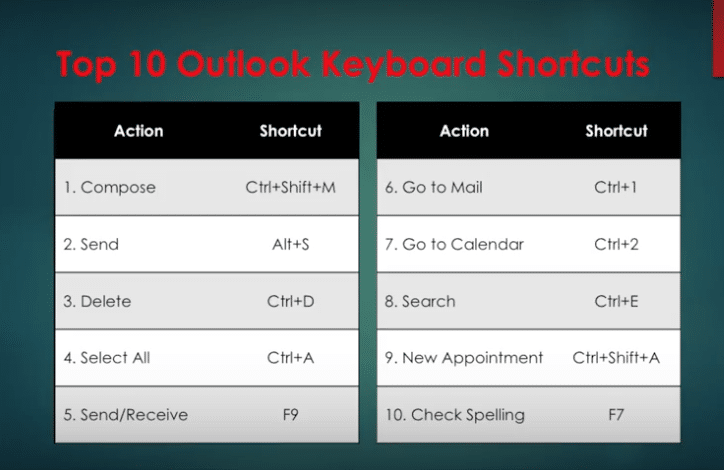
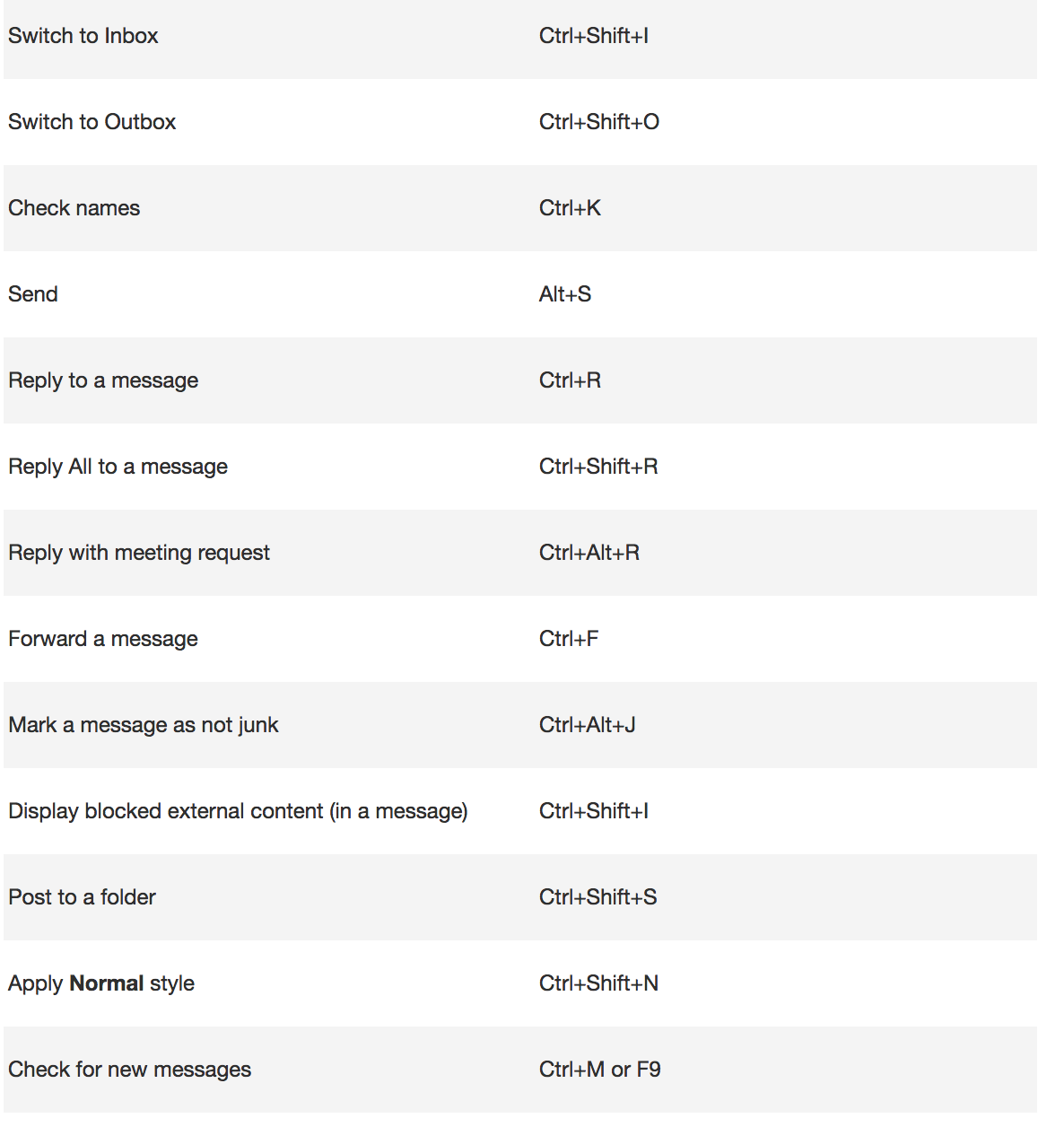
Using keyboard shortcuts in Outlook on Windows will help you work more efficiently. It’s also handy for those who have mobility or vision disabilities because using keyboard shortcuts can often be easier than using a touchscreen or mouse. Here are some popular keyboard shortcuts you should try.

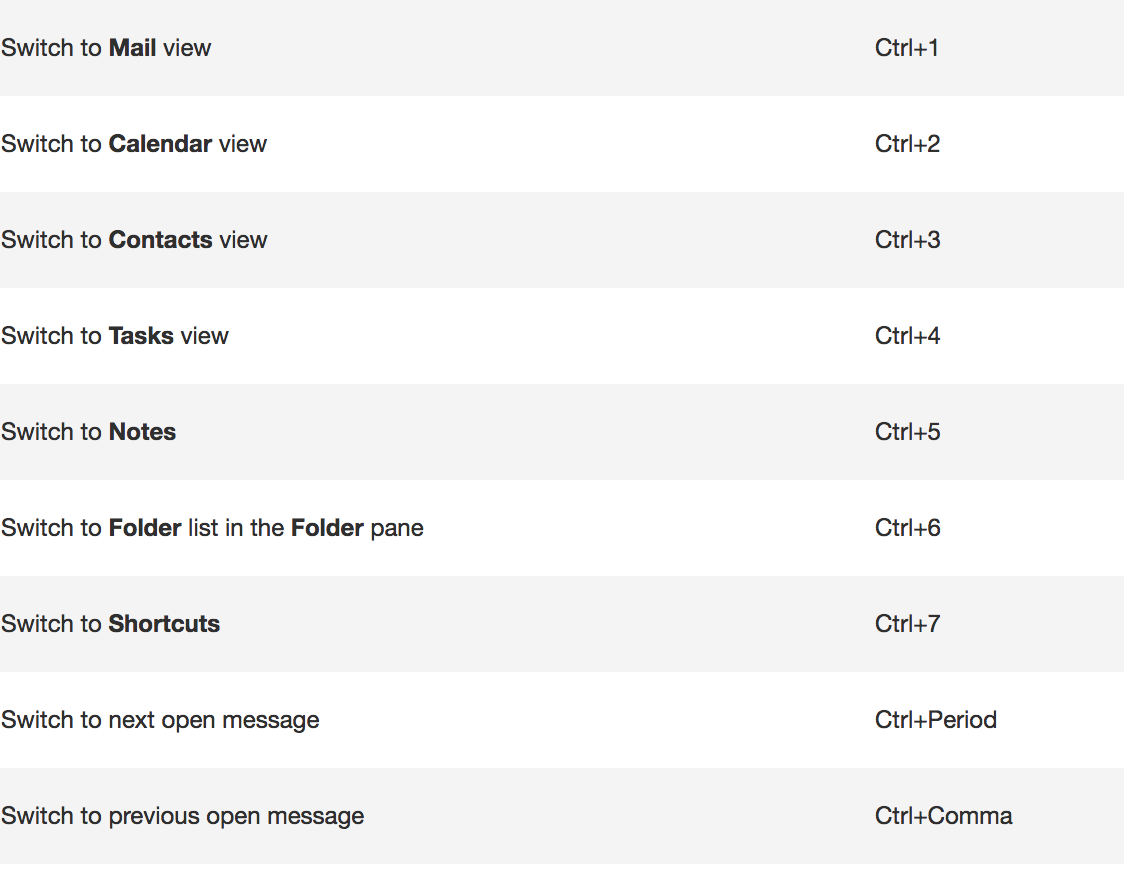
And there are more. Here are popular keyboard shortcuts for NAVIGATION:

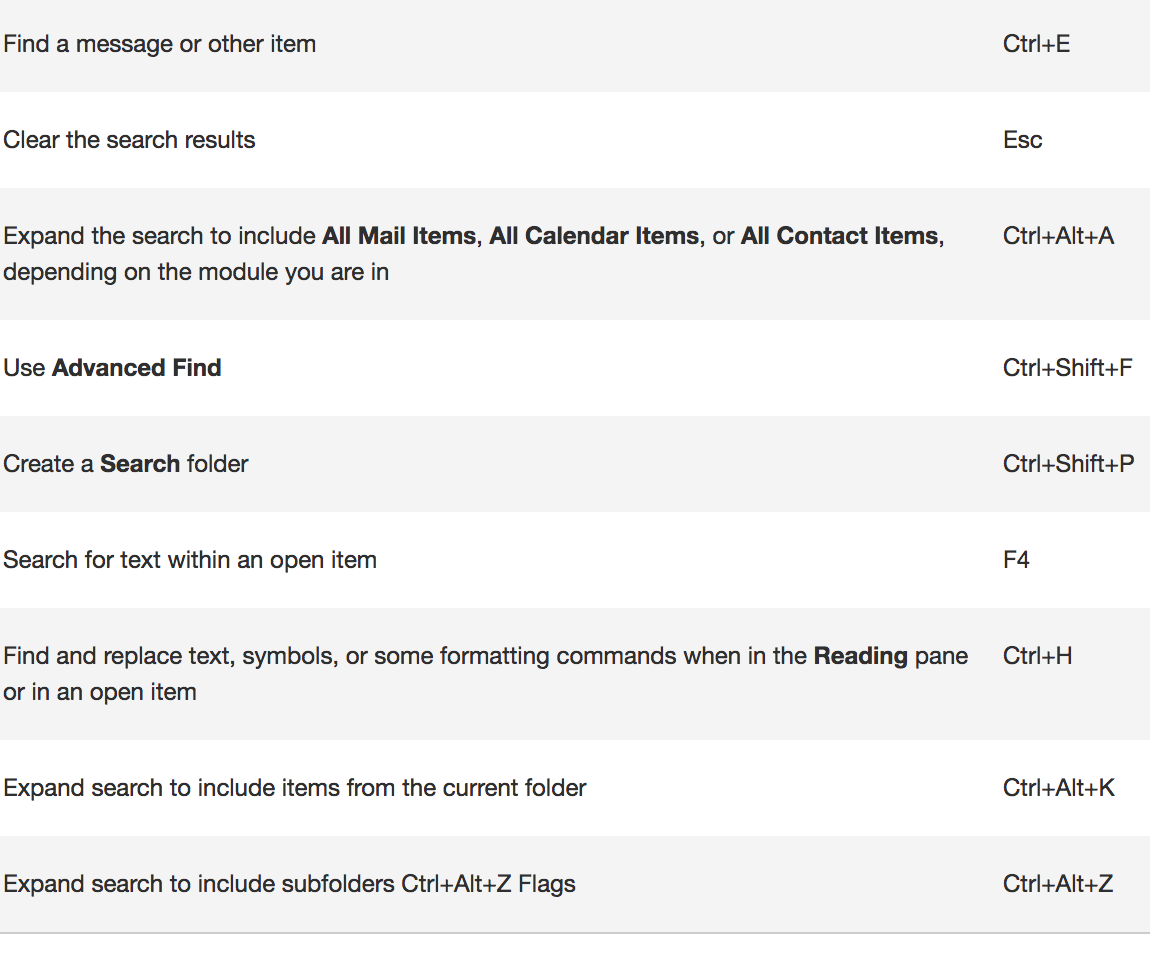
When searching, try these handy keyboard shortcuts:

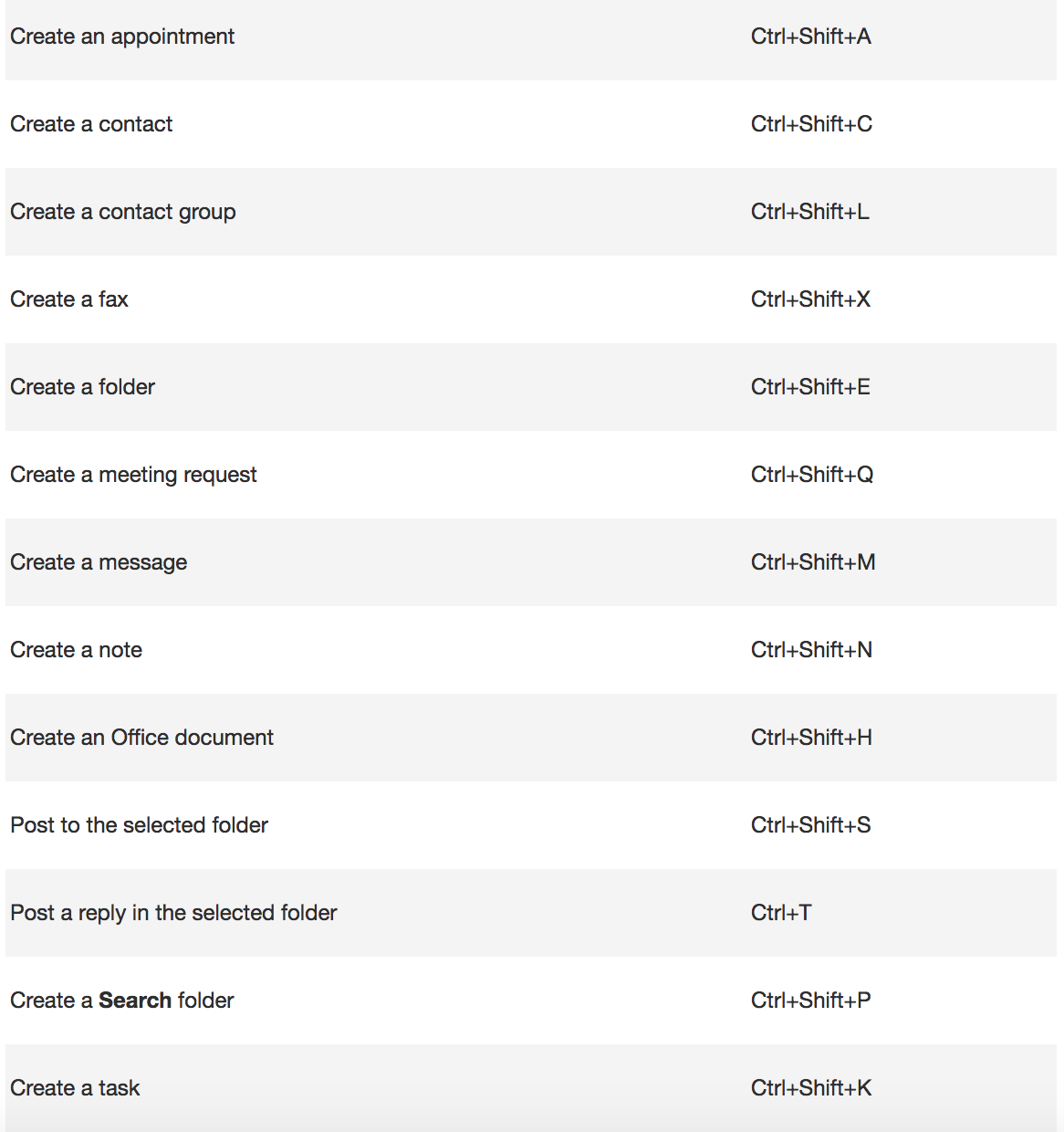
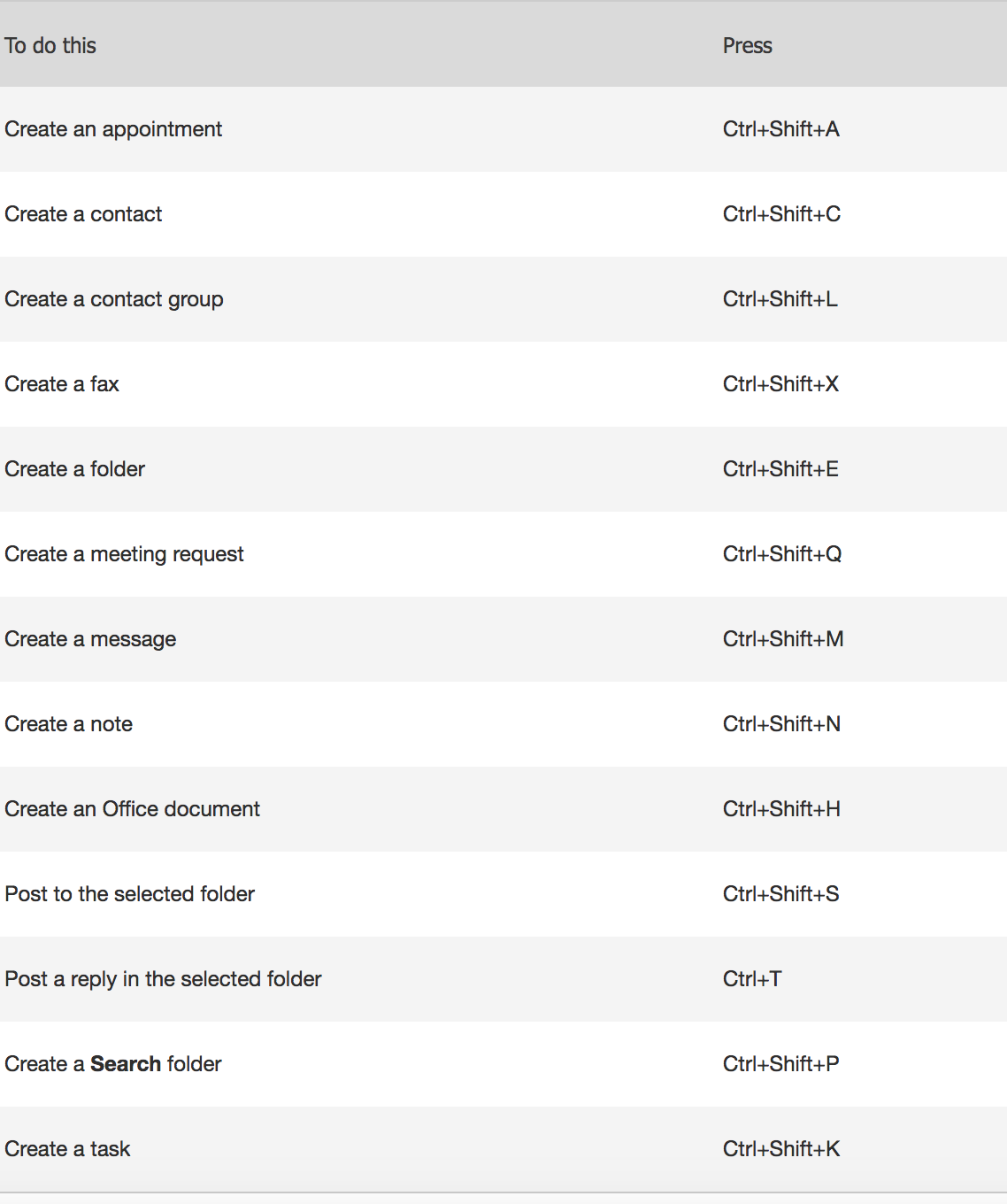
To create an item or a file keep these shortcuts in mind.
Shortcuts in Mail.

To see more Outlook 2016 Shortcuts go here.

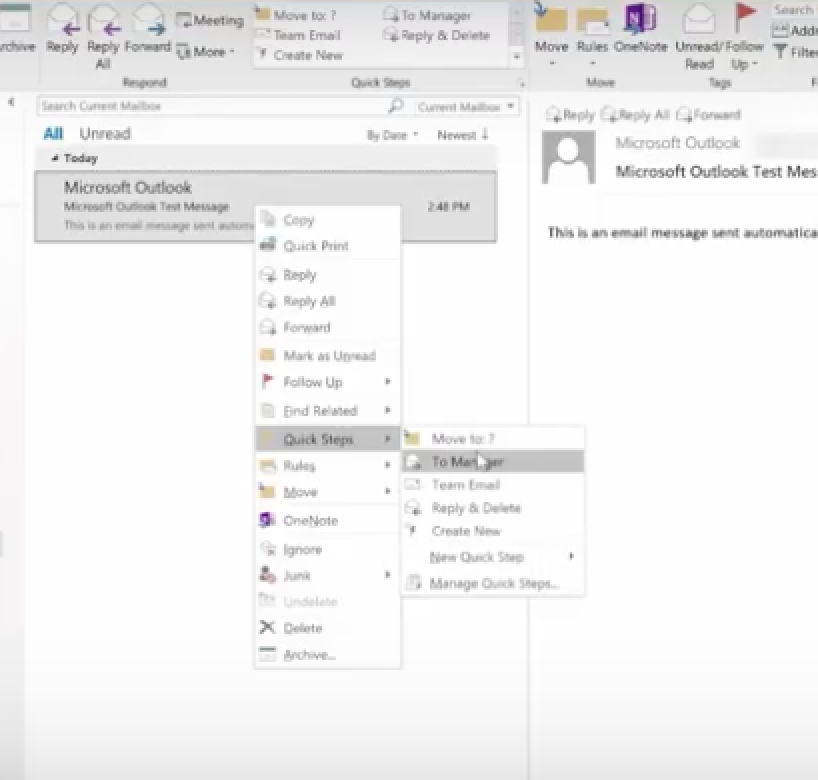
2. Use Quick Steps

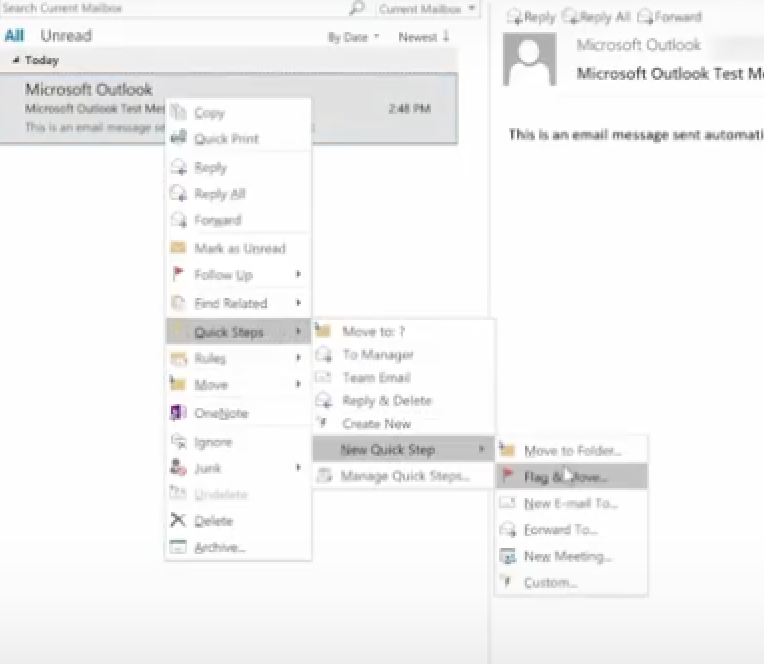
Right-click any email, choose Quick Steps and choose from the list.

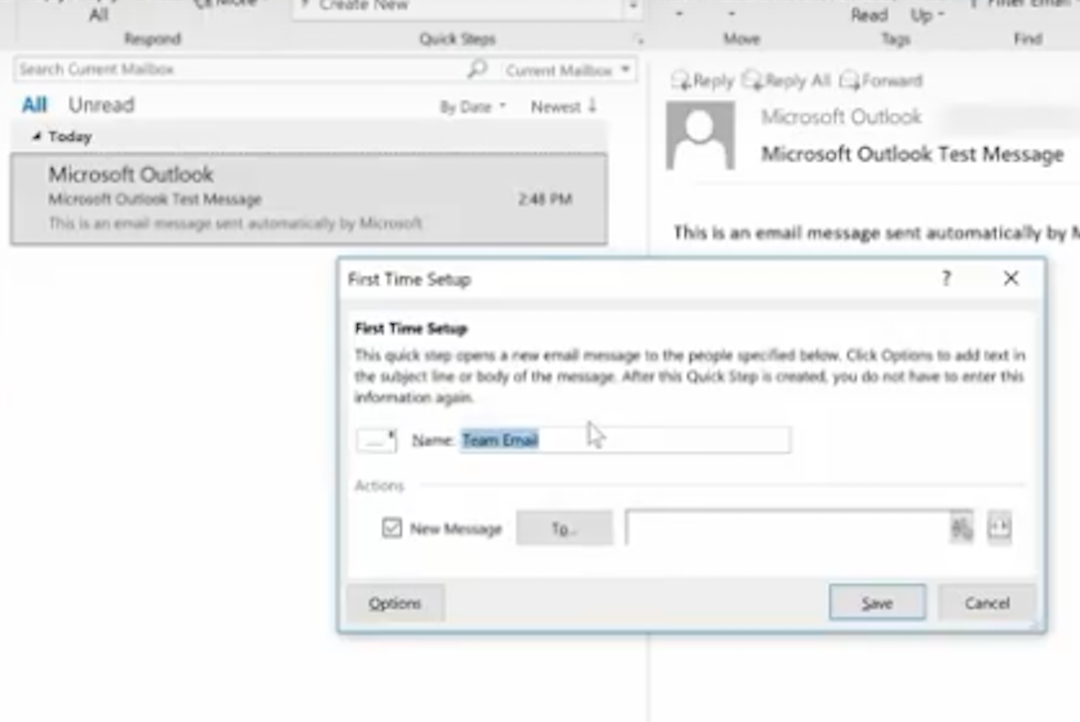
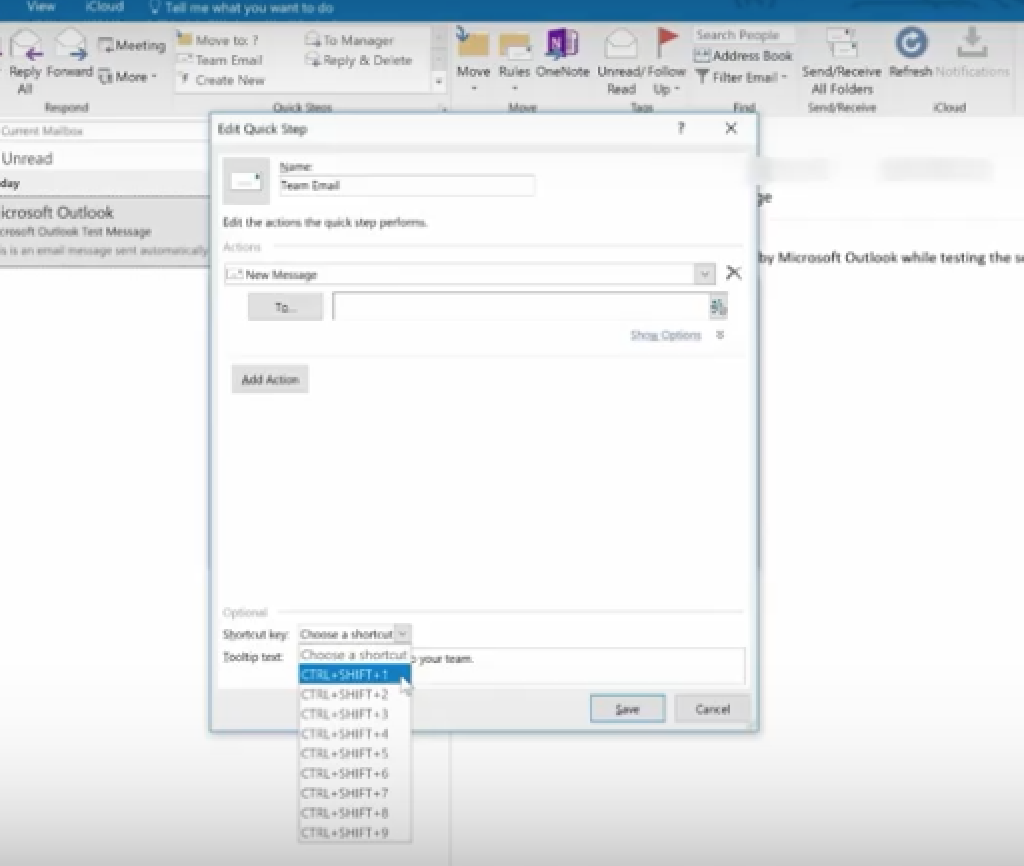
We’re going to choose Team Email. The first time we use this, Outlook asks you to name your team and enter their email addresses.

Then create a Keyboard Shortcut for this. So, the next time you hit Control Shift 1, an email to your entire team can be composed.
You can also create new Quick Step. Simply choose Create New Quick Step.
Here are some other Quick Steps to try: 1

  • Move to Folder: This is essentially the same as Move To.
  • Categorize & Move: This moves the selected message to a specific folder, marks the message as read, and assigns a category color and name to the message.
  • Flag & Move: This moves the selected message to a specific folder, marks the message as read, and assigns a flag to the message.
  • New Email To: This opens a New Message form with the To field already filled out with a particular recipient.
  • Forward To: This is essentially the same as To Manager.
  • New Meeting: If you often send meeting invites to the same group of people, use this Quick Step to open a New Meeting form with the To field already filled in with the invitees.
  • Custom: This opens the Edit Quick Step dialog box so that you can create your own custom Quick Step.

3. Use Conditional Formatting

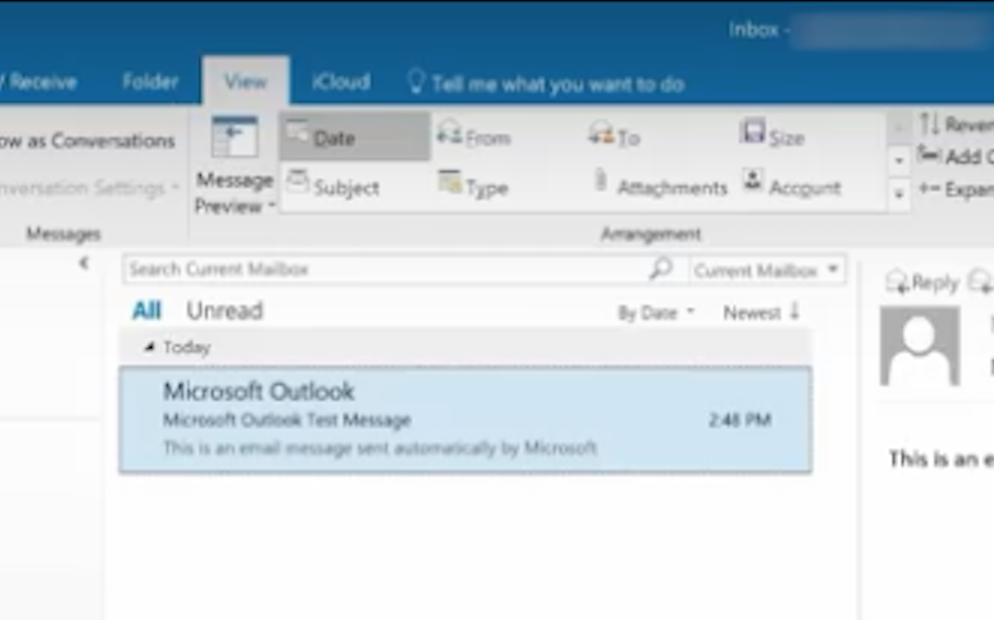
This is used to change the look of a particular email. You do this in the View Menu.

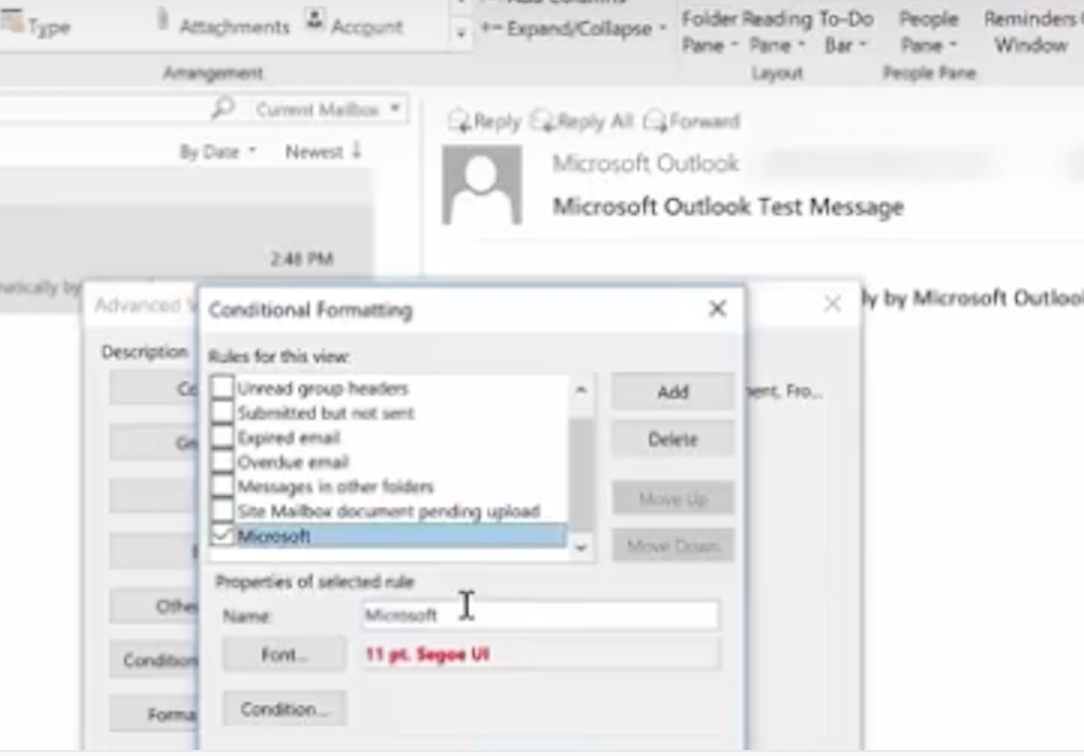
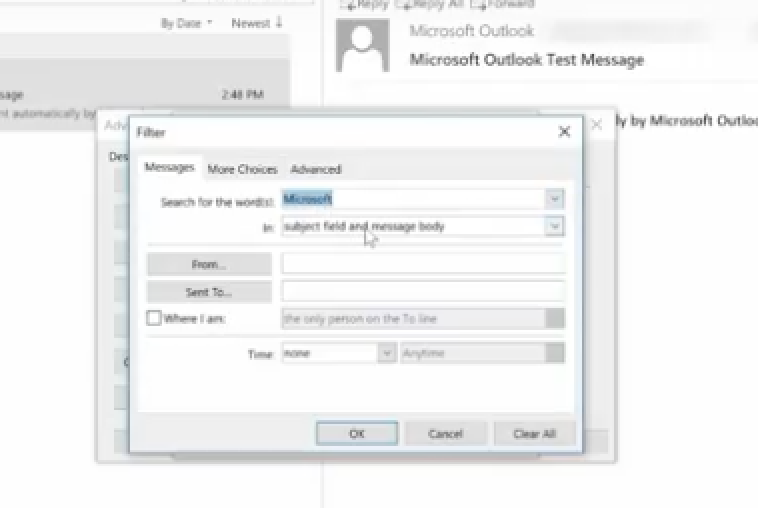
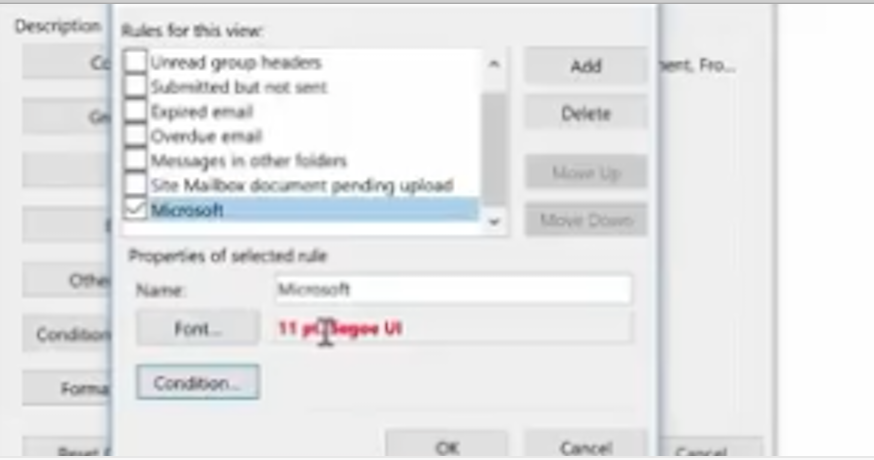
Here, we just click on Conditional Formatting and create an email called Microsoft.

Next, we choose a condition, where the word Microsoft appears anywhere in an email.

Then, we ask it to appear in a bold red font.

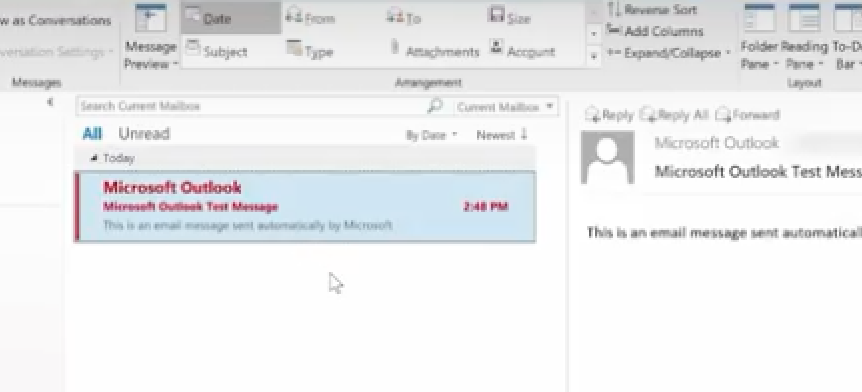
Now, any new email we receive with the word Microsoft in it will show up in red. This is a great way for us to recognize the importance of an email. You may want to do this for any email with your boss’s name in it!

And, there are more ways you can get the most from Outlook 2016. Here are a few ideas:

EMAIL

  • Change the color and contrast of Outlook: You can also use a picture or color as the background, add a text watermark to your emails.
  • Customize emails with the fonts you prefer: Change the default font for various email messages you send, or a particular font for messages that you forward or reply to.
  • Create signatures for your different email accounts: Create personalized signatures for your email messages: include text, images, your electronic business card, a logo, or even an image of your handwritten signature. Signatures can be added automatically to all outgoing messages, or you can choose which messages should use a particular signature.
  • Setup sound alerts when new emails come in: A sound can play when a new email message arrives. The default sound is a short .wav audio file, but you can change it to any .wav file of your choice.
  • Establish tracking options with delivery receipts: A delivery receipt confirms delivery of your email message to the recipient’s mailbox.
  • Use Outlook’s templates for your messages or create your own: Use email templates to send messages that include information that rarely changes from message to message. You can also insert icons, photos, and tables into your messages.
  • Embed voting buttons in your email to survey your recipients about a particular topic (such as, “When’s the best date and time for a meeting?”): Voting buttons are an excellent way to poll people, especially when communicating with large groups.
  • Use Quickparts to insert a standard set of words you often use: Use the Quick Parts Gallery to create, store, and locate content, including AutoText, document properties such as title and author, and fields.
  • Clutter: This is where you can place low priority emails you want to read later. Clutter helps you filter these low-priority emails saving time for your most important messages. Office 2016 remembers “Clutter” emails if you want.  If Clutter isn’t for you, you can TURN IT OFF.
  • Create folders and subfolders: You can base these on topics, senders, organizations, projects, etc.—Whatever works for you and organize your emails under the subjects you choose. Use folders in Outlook to move email messages, add a folder to your Favorites, and set a rule to move specific emails out of your inbox.

CALENDAR

Outlook 2016 calendars have all the tools and functionality you’ve relied on in the past, with improved features to help you manage your time. 

  • Set up multiple calendars (e.g., personal, business, health, etc.).
  • Create appointments quickly and share them with your contacts.
  • Scheduling assistant lets you access others’ calendars that you’re authorized to view (and vice versa).
  • Set reminders, reoccurring appointments/meetings, alerts, and more.
  • View your calendar by day, week, month, and year.

CONTACTS

  • You can also import contacts to Outlook from other email providers using the Outlook Import/Export wizard. Import a CSV file, Excel spreadsheet, or vCard.
  • Your contacts are linked to your email accounts, so you can simply key a name in the “To” field, and your contact’s email address will appear.
  • Set permission for a particular contact (delegate) to view your emails while you’re on vacation. Plus, you can give this person access to your calendar, tasks, and so on, as appropriate. One delegate can take care of your email, another your tasks, etc.

TOOLS

  • Always know how much space is left in your account.
  • Notify those emailing you that you aren’t available during a particular period with Out of Office. You set up a special message you want others to see.
  • Even set up different messages for people inside or outside your organization. (Outlook will remind you that the “Out of Office” message is turned on, so you don’t forget when you return.)
  • As mentioned above, similar to having an assistant help you manage your incoming paper mail, you can use Microsoft Outlook to allow a delegate, to receive and respond to e-mail messages and meeting requests and responses on your behalf.
  • You can also grant additional permissions that allow your delegate to read, create, or have more control over items in your Microsoft Exchange Server mailbox—And, set more than one delegate and permissions for various tasks.

TASKS

Outlook 2016’s task management helps you accomplish to-dos faster and easier.

  • Categorize your tasks with color codes.
  • Ping reminders for tasks.
  • Check-off tasks when complete.
  • Create tasks for others as well. Outlook integrates tasks with your emails so that you can assign a task to a recipient.  The task will show up on their task list.

To learn more about how you can get the most from Outlook 2016 contact us.

The Latest Expansions To Microsoft Office 365 Will WOW You!

The wildly popular subscription-based Microsoft Office 365 offers an ever-expanding application gallery. The latest additions to the line-up are sure to excite professional users.

Microsoft Office 365

The professional landscape today appears quite different from photos of workspaces and desktops 30 years ago. For one, shoulder pads are no longer as common! At one point, smoking and the occasional cocktail were quite acceptable in the workplace. Naps, too! But seriously, aside from the differences in the grainy photos – and the interesting hairstyles and wardrobe choices – you’ll notice major differences in staff count, communication style, office environment, and most importantly, technology.

The giant boxes that used to adorn desktops with the black screens and the giant white cursors that resembled a game of Pong. The ornately-framed diplomas and certificates on the walls of each office. Maybe a set of golf clubs in the corner? None of these are commonplace today. Why? First, let’s address the “office”. Gone are the days when a new college graduate receives an offer of employment and is escorted down a hallway to their own office on the first day – not since the explosive use of cubicles (we don’t mean that literally). Wall space in an office is nil because offices tend to be reserved for senior management in more modern set-ups. Pre-fab cubicles are the trend, being more flexible in design and layout, more economical in cost than construction of walls, and still offering the general guise of privacy in a professional workspace.

This type of environment is far from conducive to productivity – for some. Individuals have no control over noise level since there is no door that can be shut to block sound. While the cubicle was intended to also promote a more collaborative setting, the result is often disruptive. With the pressure on to maintain or increase productivity, professionals often resort to wearing headphones in an attempt to customize their environment to their needs – or just work remotely. In fact, a reliable Internet connection is all that is needed for a completely personalized work environment. Crank loud music or have silent surroundings, whichever is more helpful. Dim the lights or open every window, depending on the lighting that works best. It’s never too hot or too cold, and there’s never a wait for the bathroom. Lunches are never stolen out of the breakroom fridge if the fridge isn’t shared by a dozen other people!

Some organizations even maintain an entirely remote – or, distributed – workforce, where all employees work remotely. Staff may be in the same city and meet for the occasional coffee or brainstorming session, or be across the globe and only see each other via video conference. The number of distributed organizations in the United States continues to grow, including organizations like Automattic. The 400-strong staff are spread across more than 40 nations and are able to collaborate effectively, considering the company is valued at over $1 billion. The current count of companies with distributed workforces varies, but it’s estimated that as many as 200 U.S.-based brands are run entirely remotely. That means someone is potentially promoting a brand while wearing pajamas!

The professional landscape has evolved due to the modern technology. Boy, that’s an understatement! Thinking back to that giant boxy desktop computer in that grainy photo and comparing it to the sleek laptop or tablet today is a clear indicator of just how far we’ve come. We won’t lose our Internet connection when someone picks up the telephone, nor do we have to pay by the hour for dial-up service – in fact, high-speed connectivity is the standard in metropolitan areas. With high-speed Internet, remote staff have the connectivity to send or access shared files, send emails or instant messages, or have audio or video conferencing sessions with clients, customers, or colleagues.

The availability of productivity apps is astounding. Basic word processors that were the desktop staple haven’t been replaced, but have evolved from requiring installation from a CD-ROM to not even requiring a downloaded program file anymore! Yes, Microsoft Word, the workplace word processing darling, is accessible online through subscription-based Microsoft Office 365, which has a multitude of integrated apps designed for the flexible workforce. Create documents in Microsoft Word or spreadsheets in Microsoft Excel and save them to SharePoint or OneDrive, send emails through Microsoft Outlook, design innovative and edge presentations with PowerPoint, and the list goes on.

The list of apps that integrate with Office 365 expands every day! Considering Microsoft Office 365 now includes Microsoft Teams and Microsoft Flow, the possibilities are incredible. If you’ve not yet experienced either of these apps, you’re truly missing out.

Microsoft Teams

Microsoft was rumored to be interested in acquiring the techie-favorite collaborative platform Slack in 2016, but instead, release Microsoft Teams in 2017 as an updated and improved alternative to its Skype for Business. Microsoft viewed its Teams release as everything users loved about Slack and a “fix” to those areas where Slack wasn’t sufficient. Was Slack for sale? Probably not. But it didn’t matter – Microsoft decided to invest in a proprietary solution rather than re-do someone else’s established product. The even better news with this decision? Complete compatibility with the full family of Microsoft products is guaranteed, and integration with productivity apps!

Microsoft Flow

Do you love rules in Microsoft Outlook? If a new email comes in, is from a specific sender, includes a group of words in the subject line, or is from a specified domain, then treat the email with a certain process – the same way, every time. Whether this is forwarding to someone else, deleting the email, or moving to a folder to organize messages, the process will remain the same until the user changes the rule. Microsoft Outlook users love rules. Well, Microsoft Outlook users will love Microsoft Flow. Microsoft Flow is basically one big “if, then, then” rule app – but don’t let us oversimplify this for you – it’s so much better! Why? Glad you asked! It’s much better because these rules aren’t restricted to Outlook. Microsoft Flow is one giant automation machine. Rules in Microsoft Outlook are essentially automated processes the user defines, and Microsoft Flow helps users turn repetitive tasks into specific step-by-step workflows – hence the name – and automate these multistep workflows into templated processes to increase productivity and efficiency. Plus, don’t you get tired of doing the same things over and over again? Users can set up a plethora of cool processes – Flows:

  • If an email from your biggest customer comes in, get a push notification on your smartphone
  • Save any attachments that come in through an email in Microsoft Outlook to Microsoft OneDrive or SharePoint.
  • Track items like working hours or social media posts or responses in an Excel spreadsheet

Microsoft Project

If your Microsoft Office 365 subscription is an Enterprise, Government, or Academic account, Microsoft Project is available to use. Microsoft Project is a fantastic project management solution, facilitating in keeping projects, teams, and resources on track and centralized in one organized location. As with other Microsoft Office 365 products, Microsoft Project is easily integrated with Microsoft productivity apps.

There you have it! Microsoft Office 365 just keeps adding to its arsenal of productivity apps for professionals, and we love it. Whether you work remotely or not, Microsoft caters to the needs of busy professionals with modern apps – no shoulder pads required!

You Too Can Use Excel Like A Pro – Here’s Part 2 of Our Series to Show You How

With the 2016 version of Excel, Microsoft has really upped its game for people who aren’t great with numbers. You can now easily use one-click access that can be customized to provide the functionality you need.

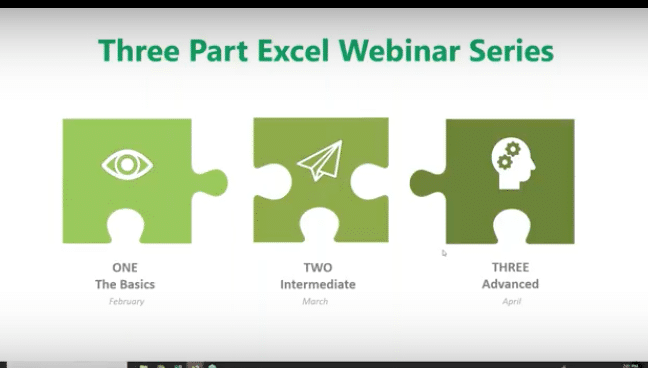
This is the second of our three-part series about using Microsoft Excel 2016 to help you identify trends, construct helpful charts, and organize information to maximize the value of your data.

Did you know that you can use Excel Worksheets and Workbooks in conjunction with programs like Microsoft Access and PowerPoint? Excel 2016 possesses many capabilities that aren’t readily apparent. That’s why we’re providing this three-part series for you.

If you missed Part 1 of our series, you can find it on YouTube at: https://www.youtube.com/watch?v=zA8X9wqrn1I

In this, Part 2 of our series we’ll be discussing:

  • Working with Multiple Worksheets and Workbooks
  • Managing Lists
  • Working with Dates
  • Formatting and Conditional Formulas
  • The IF, AND and OR Functions

Why would you want to use Excel?

If you or your employees work with financial data, it’s a great tool to use for:

  • Basic mathematical operations like adding, dividing, and multiplying.
  • Finding values like profits or losses.
  • Calculations like averages, percentages and number counts.

Performing calculations in Excel is only the tip of the iceberg. There’s much more you can do like creating charts and graphical layouts to make it easier to recognize trends and more easily analyze data.

What is Excel and how is it organized?

Excel is an electronic spreadsheet program that’s used to store, organize and manipulate data. You enter data into Workbooks that are made up of individual Worksheets. In the Worksheets, you enter data into cells that are organized into rows and columns. Excel data can consist of text, numbers, dates, times and formulas.

Working with Multiple Worksheets and Workbooks

Before you build your worksheets and workbooks think through the process and ask yourself:

“How do you want to see and analyze the results?”

“How much detail is needed to draw a conclusion?”

“What is the most important data for decision makers?”

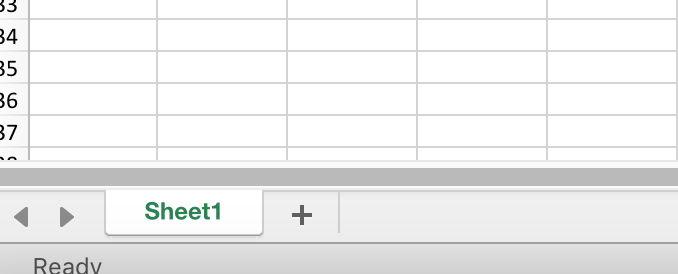
To access or create a Worksheet, go to the tabs at the bottom left of the screen and click the one you want to activate. Or use Control Page Up or Control Page Down to move among your Worksheets using the keyboard.

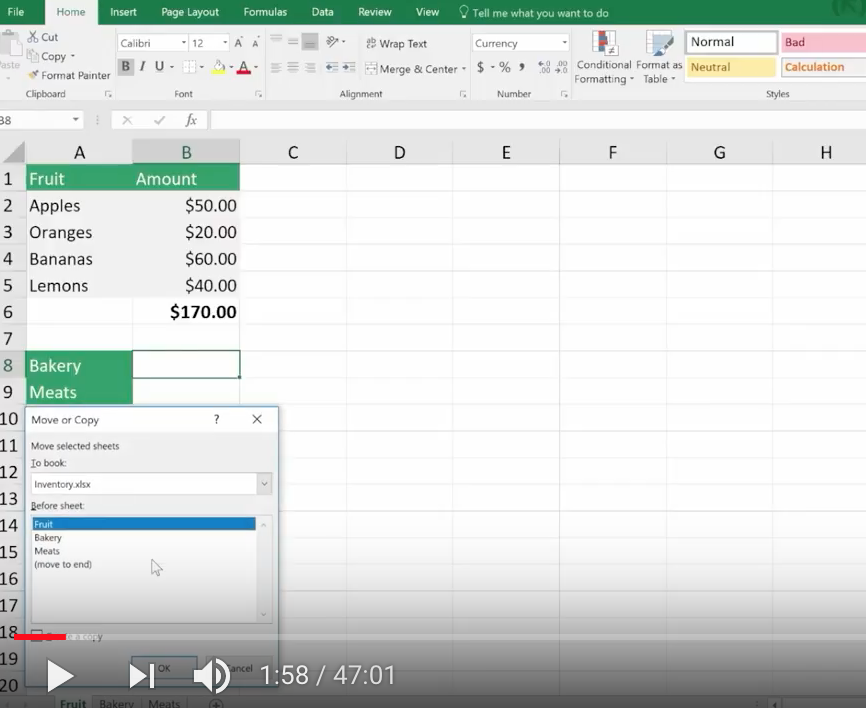
You can move or copy a worksheet by going to the tab, right-clicking, and you’ll be presented with a dialog box where you can select your function. You can move your worksheet to a different Workbook by entering its name in the space above.

Use the scrollbars on the right to make other selections like making a copy. Simply click the checkbox for the action you wish to take.

Working with Formulas Across Worksheets

You can calculate different formulas across a worksheet with what Microsoft Excel calls 3D formulas. 3D formulas allow you to calculate data throughout a workbook using multiple worksheets. It refers to the same cell (or range of cells) on multiple worksheets.

Think of a 3D formula as a cross-reference to data in a different Worksheet.

It’s a great way to build summaries and Master Worksheets to bring them together in one place. And it’s a must if your labels and data types vary between worksheets.

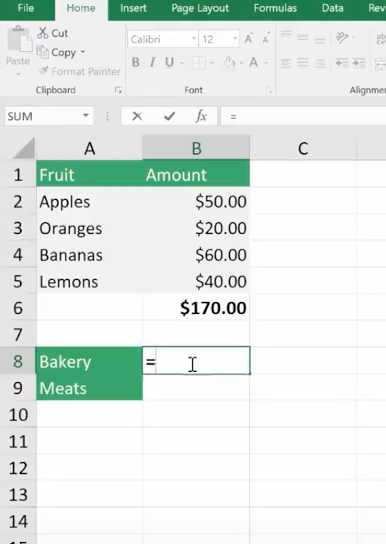
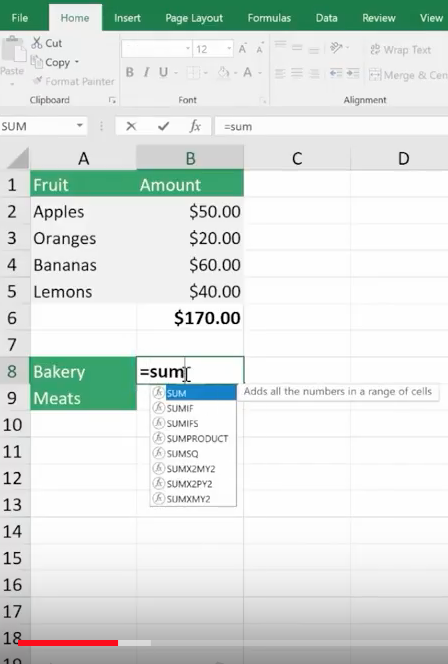
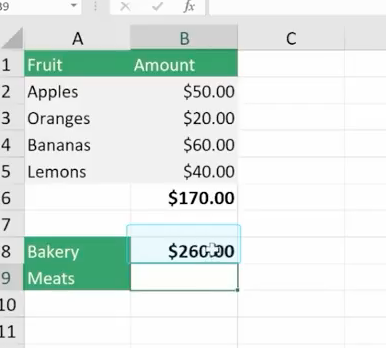
Here we want to bring in the formula from another worksheet to this one. We have three worksheets for our inventory costs. We have a breakdown for our Fruits Dept. But we want to bring in the costs for our Bakery and Meats. So, we go to the cell we’ve created, select =sum, hit the left parenthesis ( then navigate to the Bakery Worksheet tab at the bottom, click on the cell where we want the formula to appear and hit Enter. Then the inventory cost automatically appears.

All 3D formulas are based on this syntax: Sheet1:Sheet4!A2:B5.
If you copy or insert a new worksheet after Sheet1 the reference will automatically include it.

Similarly, if you delete a worksheet it will be excluded.

Consolidate Data

You can consolidate data from separate worksheets into one Master Worksheet. They can be in the same workbook or from other Workbooks. Let’s say you have a sales team and a worksheet with their weekly report data, and you want to consolidate this data into a monthly report. There are two ways to consolidate this data:

1. Consolidate by Position: This is when the data in the source areas is arranged in the same order and uses the same labels. You use this method to consolidate data from a series of worksheets that have been created from the same template.

2. Consolidate by Category: Use this method when the data in the source areas is not in the same order but uses the same labels. Here you consolidate data from a series of worksheets that have different layouts but have the same data labels.

We are only going to demonstrate Consolidate by Position because it’s an organizational best practice.

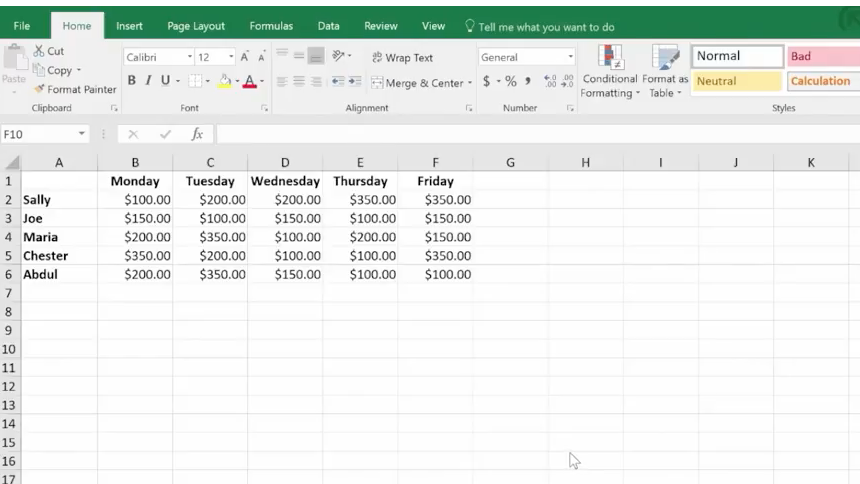
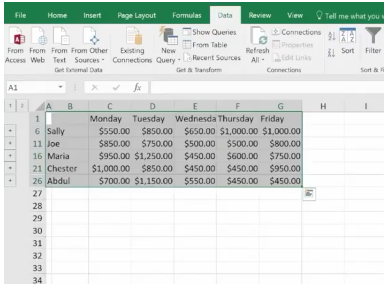
Here’s our example Workbook. Data is in the same order and uses the same labels.

Creating a clean master worksheet for this is best. But if you use a worksheet with pre-existing data make sure you have a blank area where the consolidated data can appear.

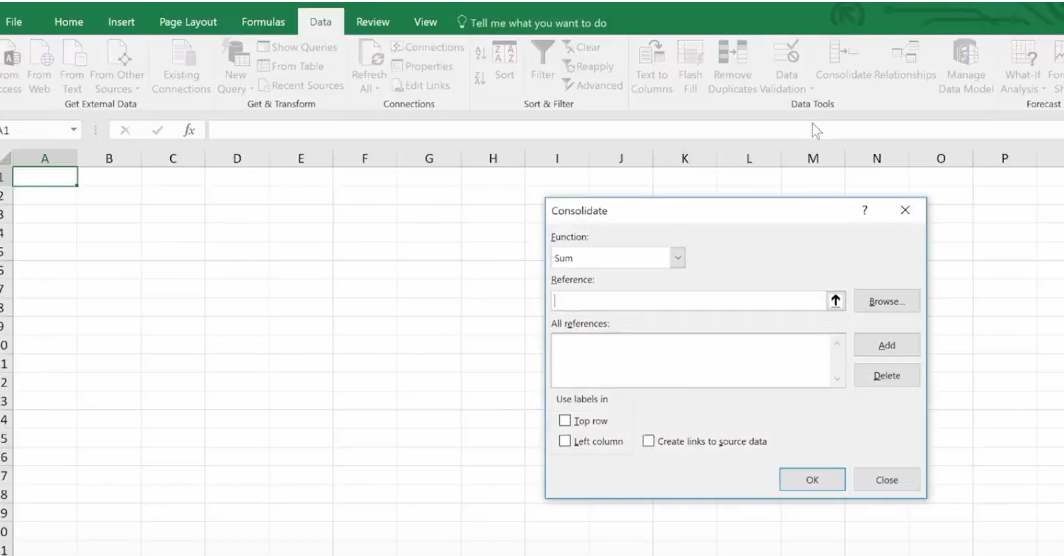
To start, click in the upper left-hand corner and click Consolidate. A window will open. By default, SUM will be your option, although there are others to choose from. Average is the next most common function people use.

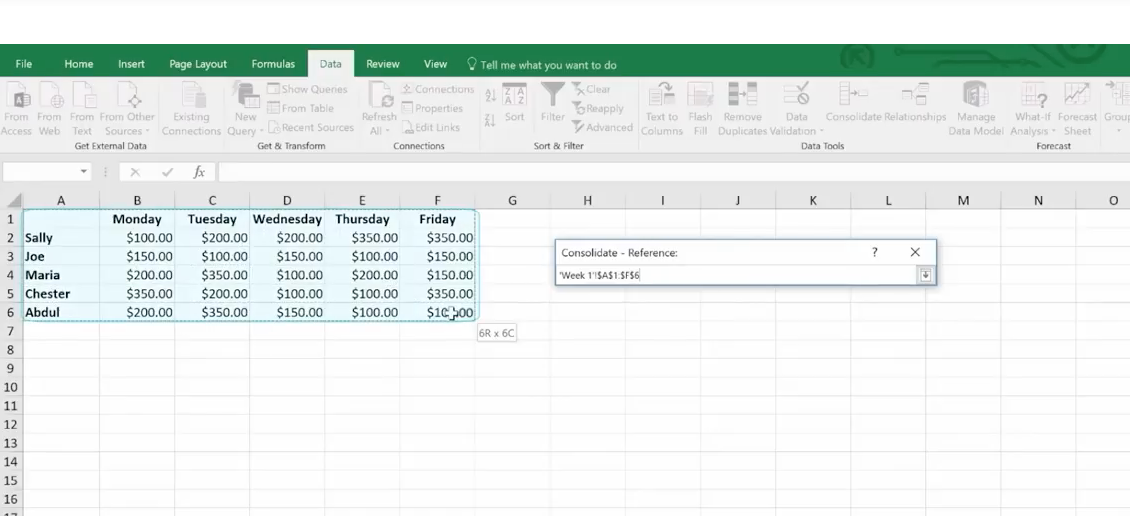
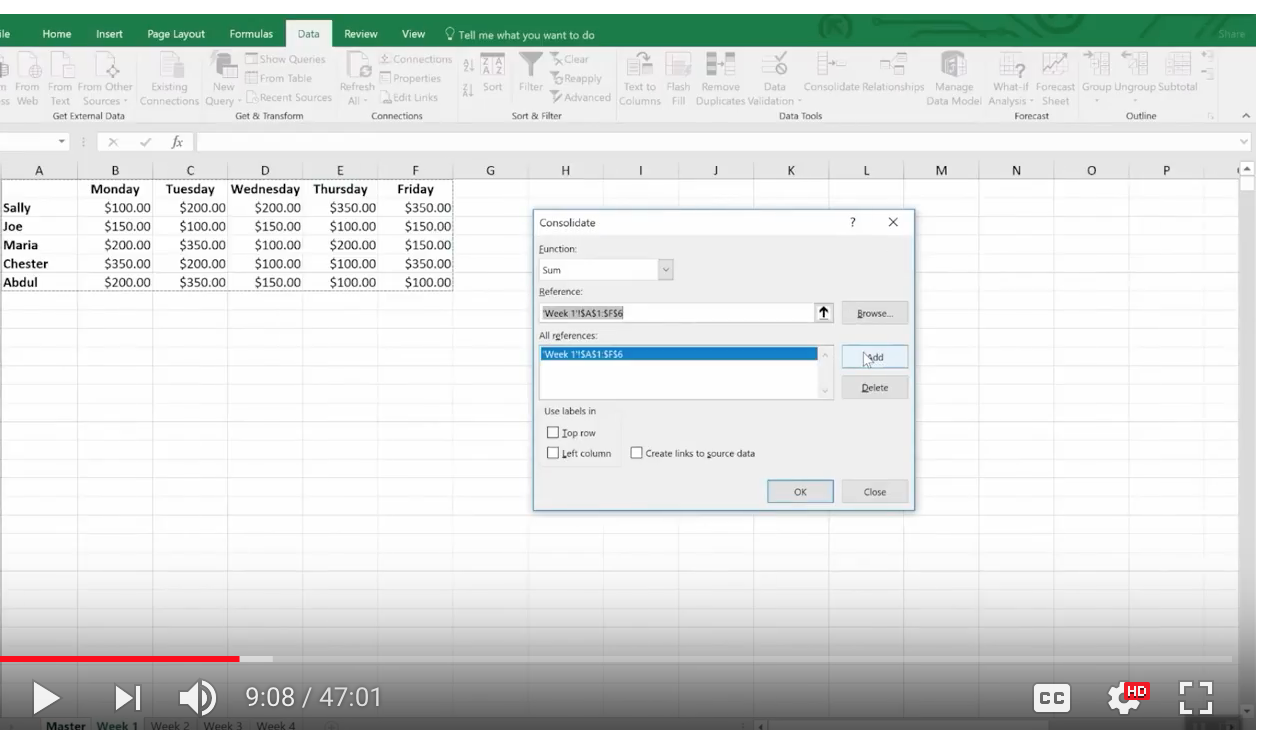
Now we want to choose our ranges from each of the worksheets. We’ll collapse the Consolidate box and click on Week 1. Select the entire range.

Bring back the dialog box and add this week to the references.

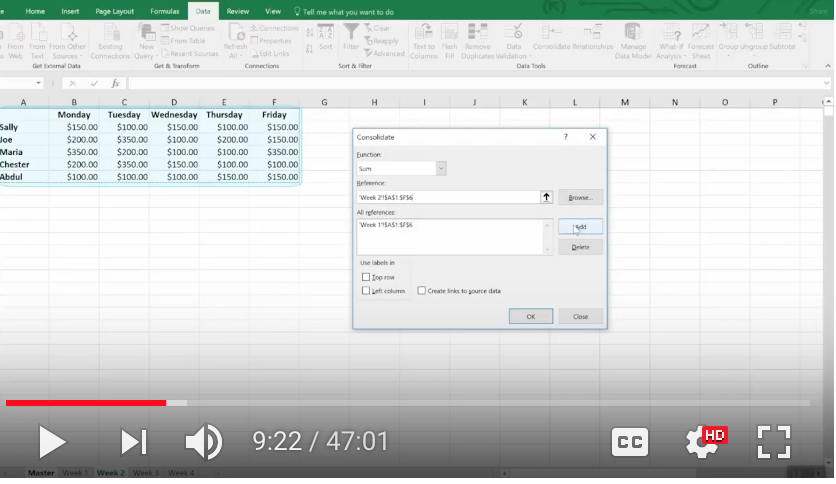
Now, when you click on week 2 to do the same, it’s already pre-selected. Just click Add. And do the same for the next two weeks. Now you’ve told Excel what data you want to consolidate.

Creating Links

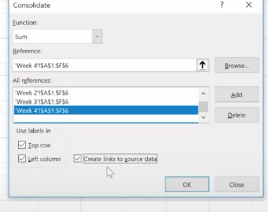
You must choose between automated and manual updates. If you want Excel to consolidate your worksheets automatically when you change data, you must tell it to do so by checking this box: “Create links to source data.”

Press OK and Excel will generate the consolidation. It’s up to you to format it the way you want. But you’ll only have to do this once if you used “create links.” If so, Excel automatically updates any changes.

Notes:

You can’t create links if the source and the data are on the same worksheets. This means it’s smart to group data into worksheets in smaller periods. In this case, we did it by weeks.

If the information you want to consolidate is in a different Workbook, you want to browse for that Workbook before you begin the consolidation process. Then you can select the reference in the same way we did above. Excel will create the path for you.

Linking Workbooks

Up to this point, we’ve been working in one Workbook with several worksheets. Just like we pulled data in from multiple worksheets, we can do the same with multiple Workbooks.

Remember our 3D formula? When this same type of linking crosses over to a different Workbook it’s called an “External Reference.” Sticking to our Sales worksheet example, you may have a Workbook for each month or each year.

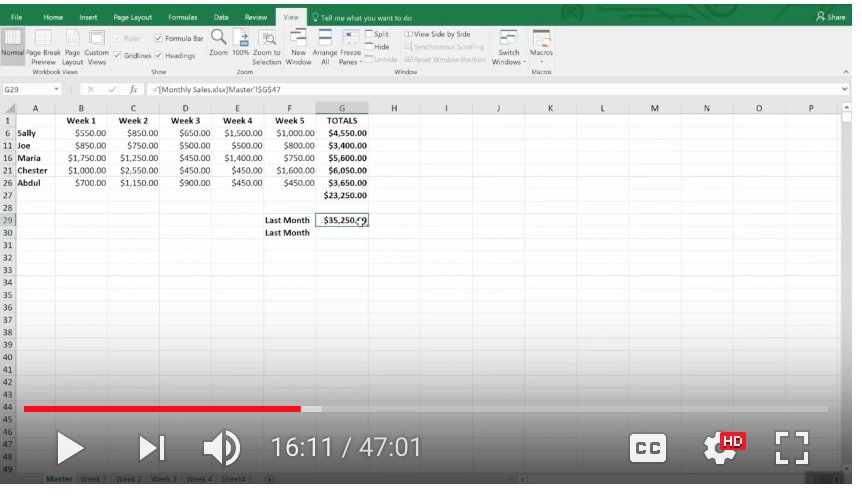
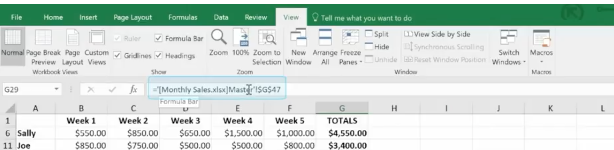
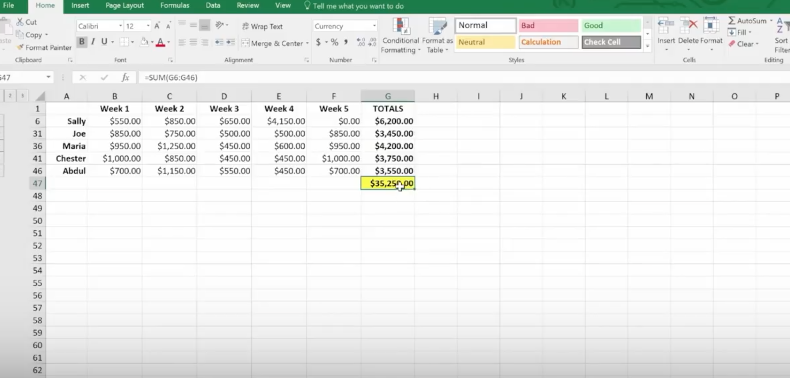
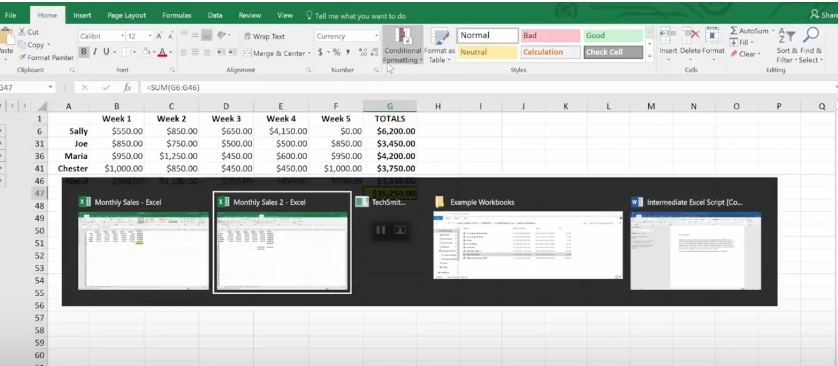
We now want to compare how our Sales Team did month to month instead of week to week. We are going to add a link to last month’s total. Just like before: select =sum, hit the left parenthesis ( and navigate to the Workbook you want. (Here’s it’s the Monthly Sales Workbook.)

You’ll see that single quote marks have been added to the syntax. This is because there is a non alpha-numeric character in the name (space). You’ll need these when links are broken as well.

Here’s how to do it in the opposite way. Start in your first file, go to copy or Control C.

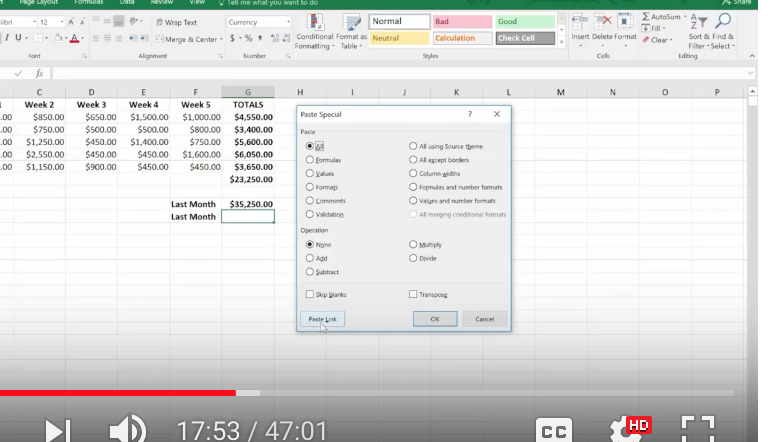
Go back up to Conditional Formatting and grab your Workbook and do a “Paste Special.”

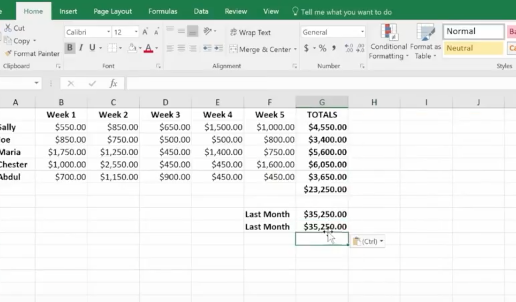
And down at the bottom left click “Paste Link.”

And here it is.

Managing Lists

Excel lists don’t typically use formulas. They use filtering and sorting instead. So, it’s important that lists have column headings and that there are no empty rows in your lists.

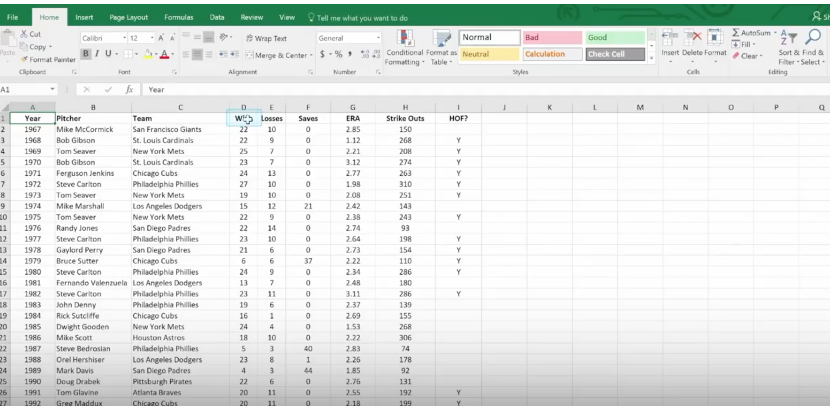
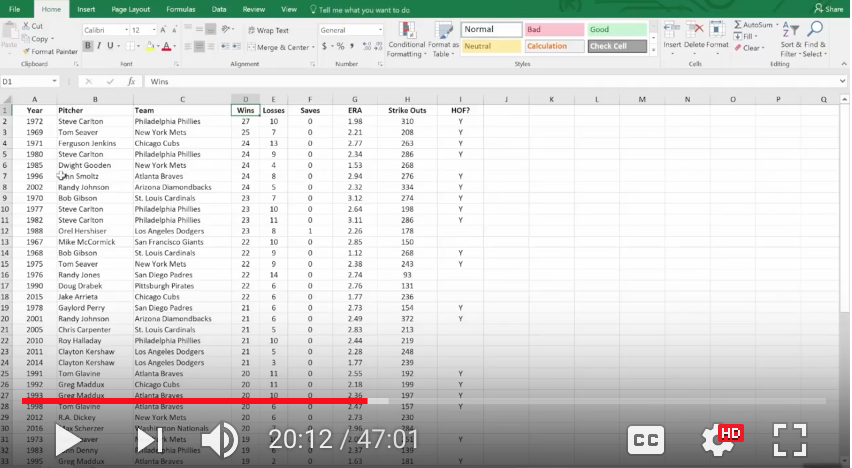
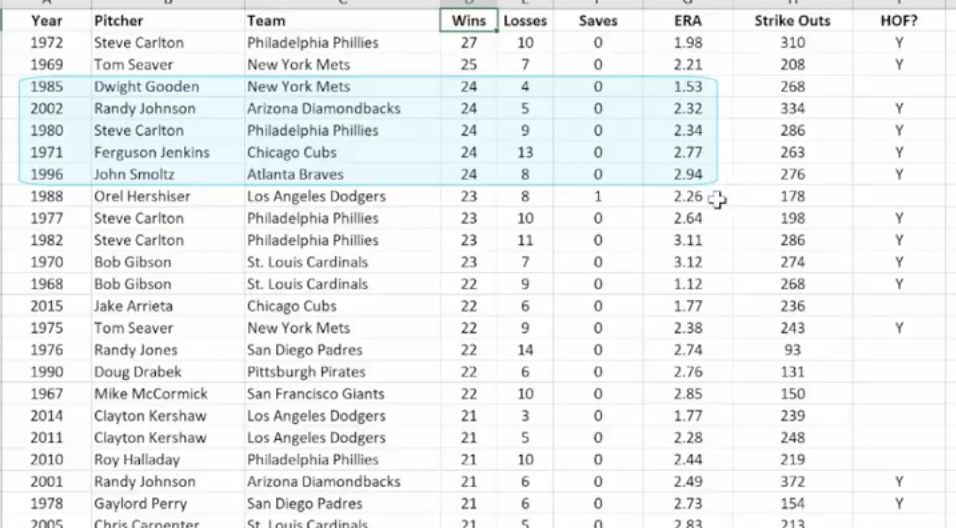
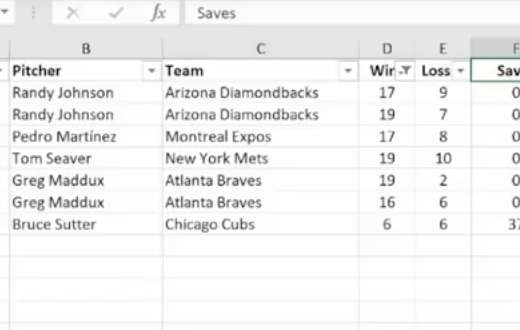
First, we’ll do a simple sort: From the list below, we’re going to organize who had the most wins.

  • We click the column header for Wins.
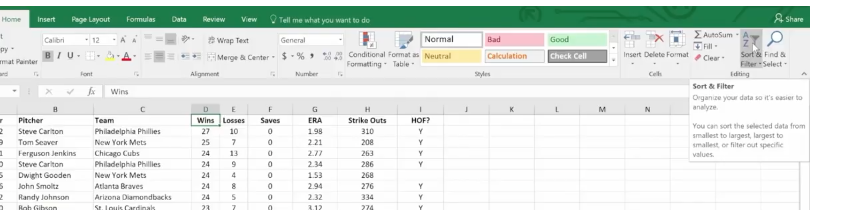
  • Go up to Sort & Filter in the top right and sort from highest to lowest.

Next, we’ll sort by multiple columns:

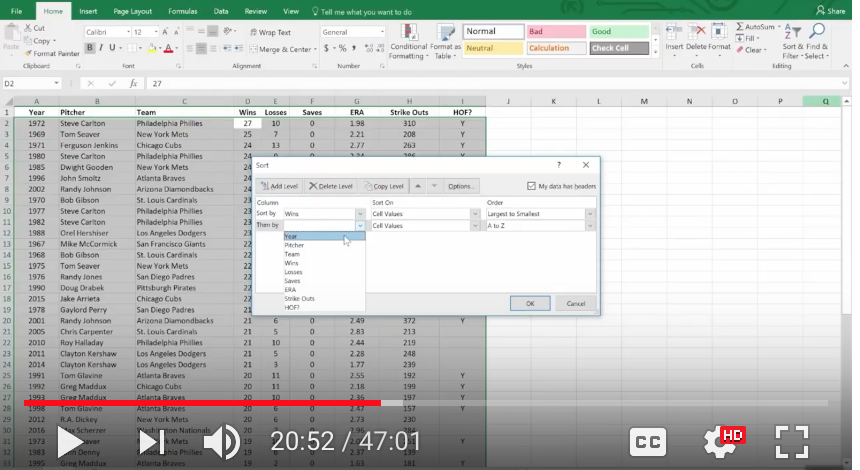
Select your columns.

Go to Sort & Filter > Custom Sort

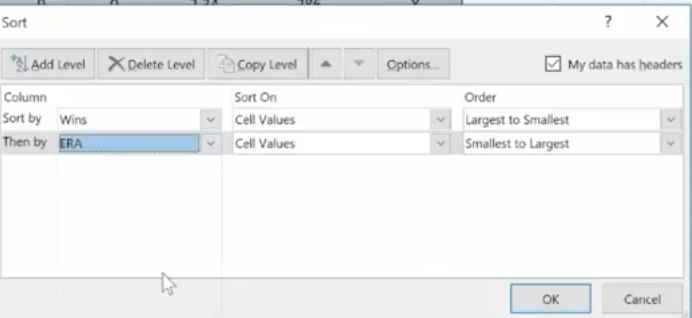
And we’re going to sort by Earned Run Average (ERA).

You can see below that it worked. (ERA sorts smallest to largest because a smaller number is better.)

Auto Filtering

This is how you can include or exclude any row data.

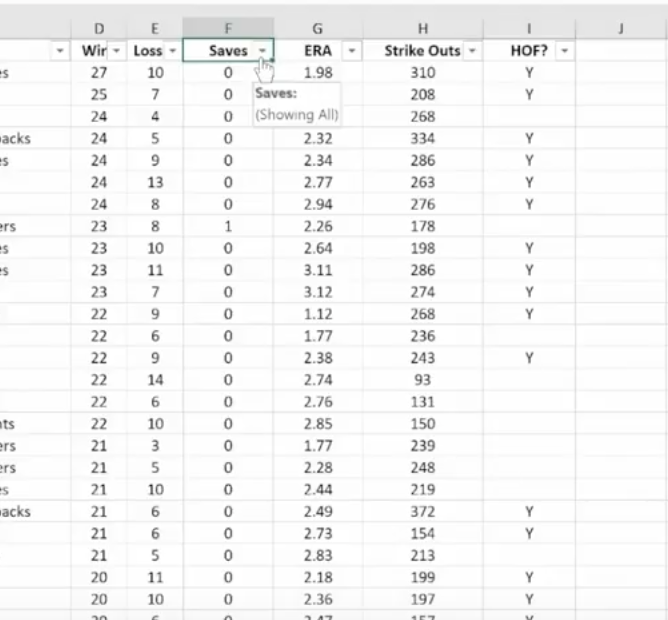
Select any column or header and under Sort & Filter choose Filter.

To the right of any column header there’s a drop-down menu.

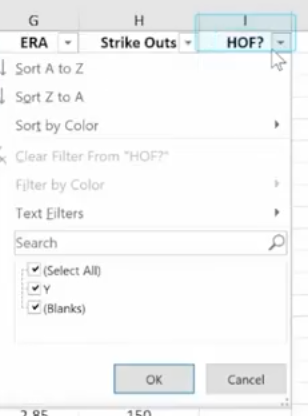
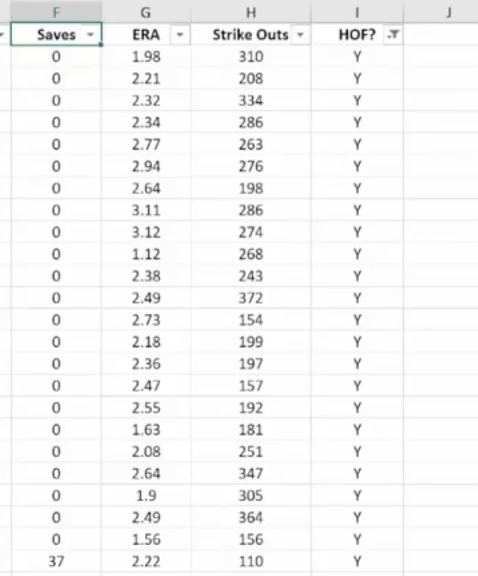
We’re going to see who was selected for the HOF (Hall of Fame.)

Click the drop-down and deselect everything.

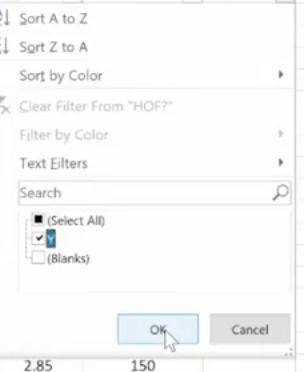
Then choose Y (for yes).

Click OK and now you’ll see just the players who were selected for the Hall of Fame.

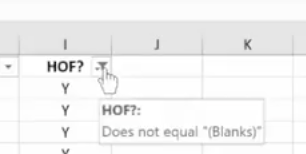
The Filter Icon is an easy way to see that a column is filtered.
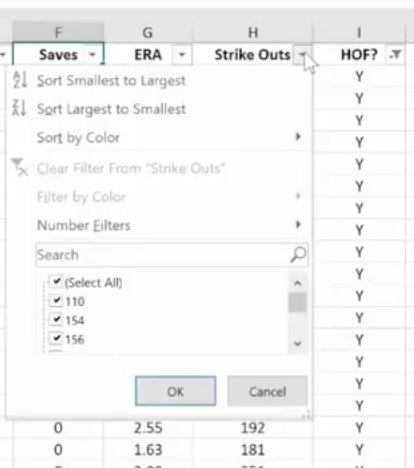
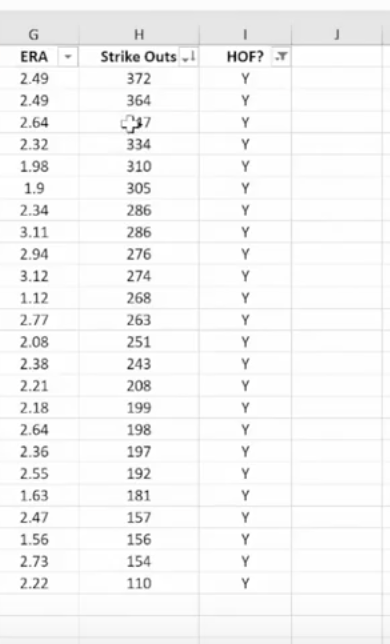
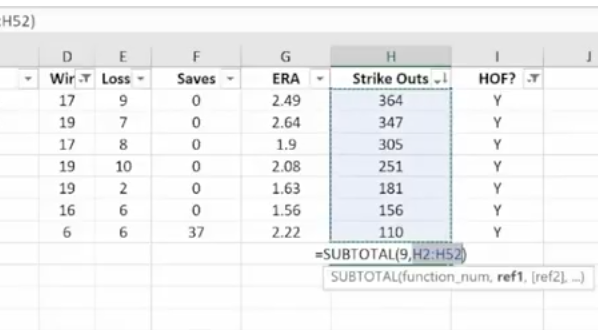
Now we’ll customize the filter by Strike Outs.

Click the drop-down next to Strike Outs.

Choose Largest to Smallest.

And now the list is ordered by Strike Outs.

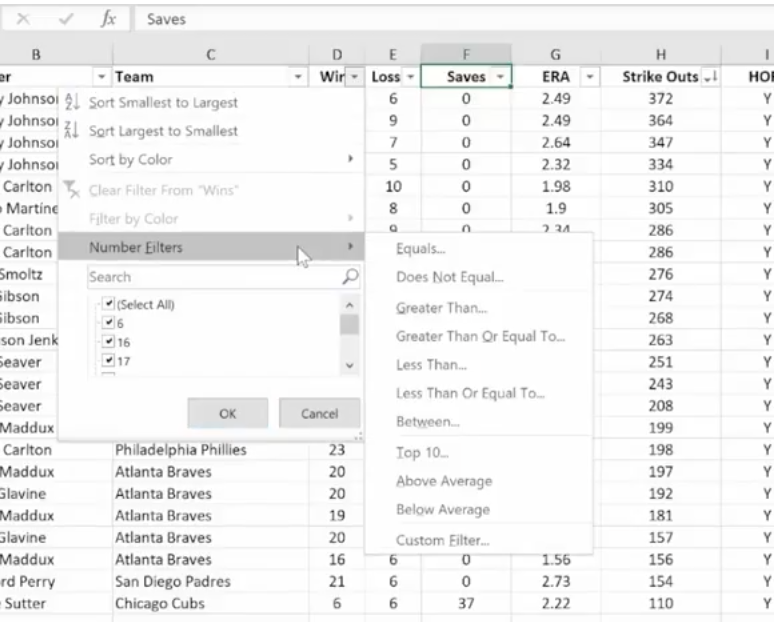
We want to see how many Wins they had. Go to the Wins and click the drop-down menu. Under Number Filters.

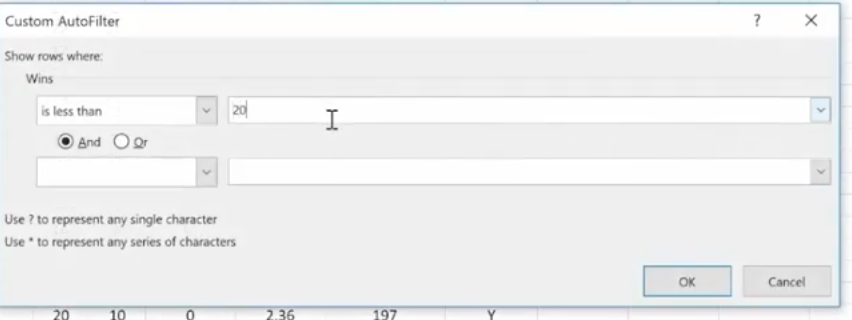
Choose Less Than and enter 20 > OK

Now we see the pitchers who won less than 20 games.

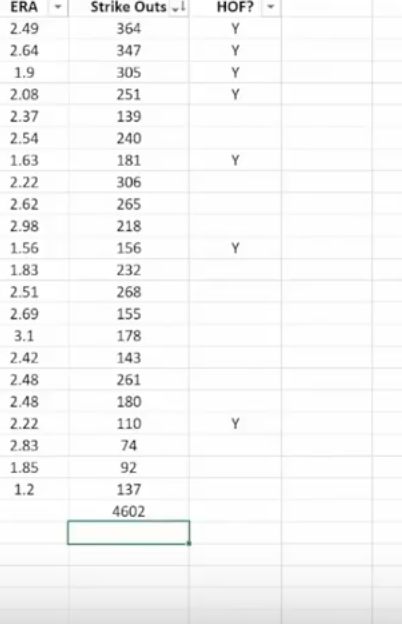
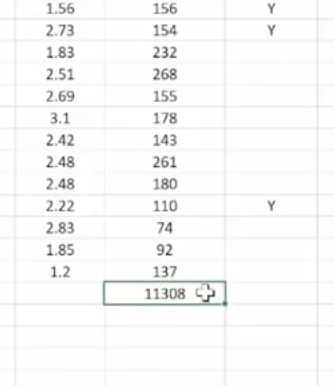
Sum Up Totals

Click in the cell where you want the Sum to appear and choose AutoSum>Enter.

And if you decide to take off all the filters, the Sum will recalculate automatically.

Working with Dates

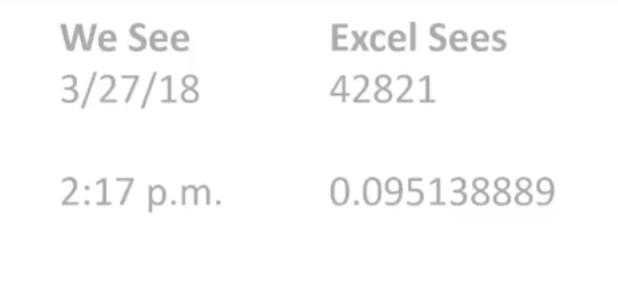
Dates and times are the most common functions people work within Excel, but they can be frustrating because Excel uses a serial number to represent a date instead of the typical 01/02/18 format and hours, minutes and seconds that we’re used to. It’s further complicated because dates are days of the week.

For example, In this system, the serial number 1 represents 1/1/1900 12:00:00 a.m. Times are stored as decimal numbers between .0 and .99999, where .0 is 00:00:00 and .99999 is 23:59:59. The date integers and time decimal fractions can be combined to create numbers that have a decimal and an integer portion. For example, the number 32331.06 represents the date and time 7/7/1988 1:26:24 a.m.

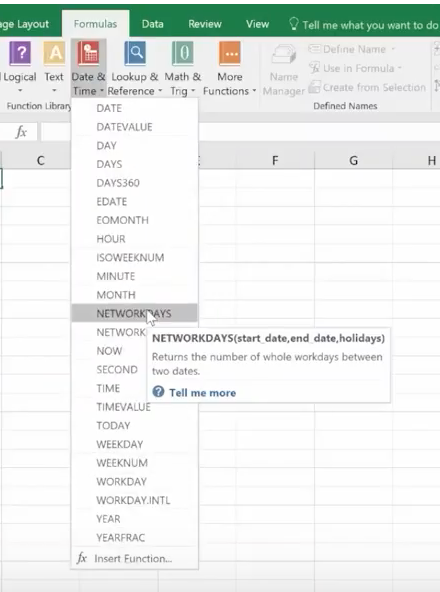
The Date Function will help. It’s on the Formula part of the Ribbon under Date & Time.

The TODAY() Function and the NOW() Function

The TODAY function returns the serial number of today’s date based on your system clock and does not include the time. The NOW function returns the serial number of today’s date and includes the time.

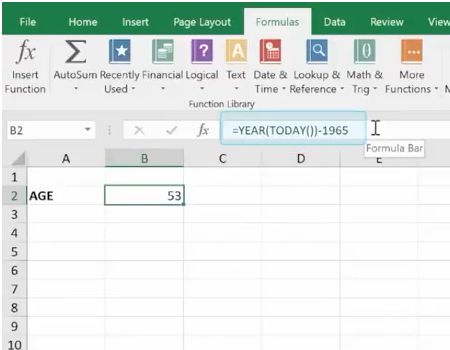
Here we are using the Today function. Excel will always use the exact date. The Today function is useful for calculating intervals. You might use this function to calculate someone’s age.

For example, we entered =YEAR(TODAY())-1965

And the age Excel came up with is 53.

TODAY always had the () following it.

The NOW () function is useful when you need to display the current date and time on a worksheet or calculate a value based on the current date and time, and want that value updated each time you open the worksheet.

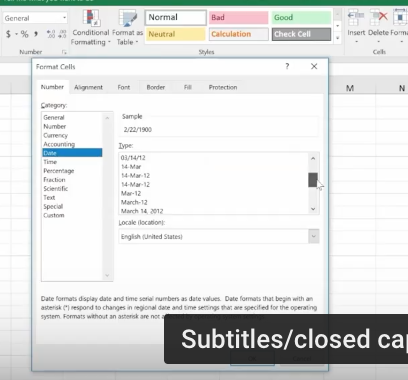
Formatting Dates

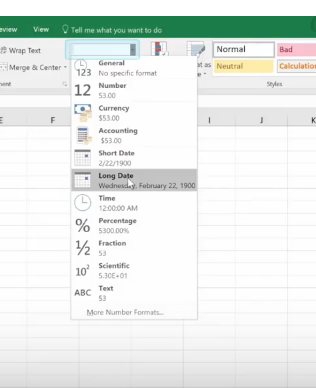
This is found on the Home Ribbon.

Under DATE you can see many ways you can display your information.

Formatting and Conditional Formulas

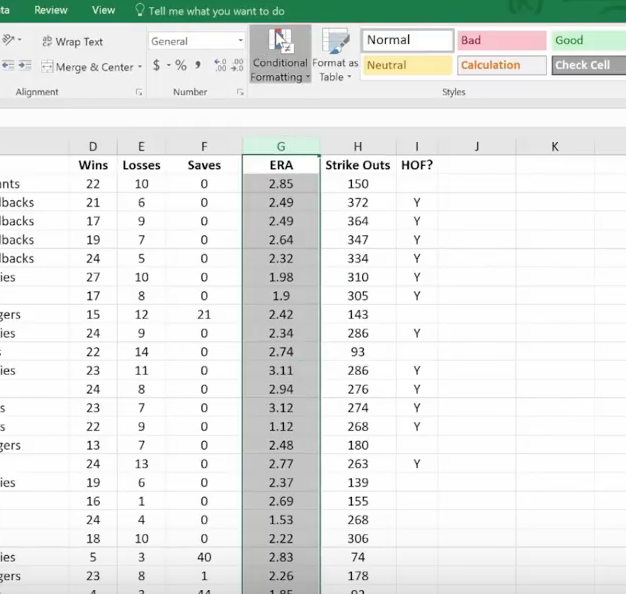
Conditional formatting highlights important information in a spreadsheet. But sometimes the built-in formatting rules aren’t enough. Adding your own formula to a conditional formatting rule helps you do things the built-in rules can’t do.

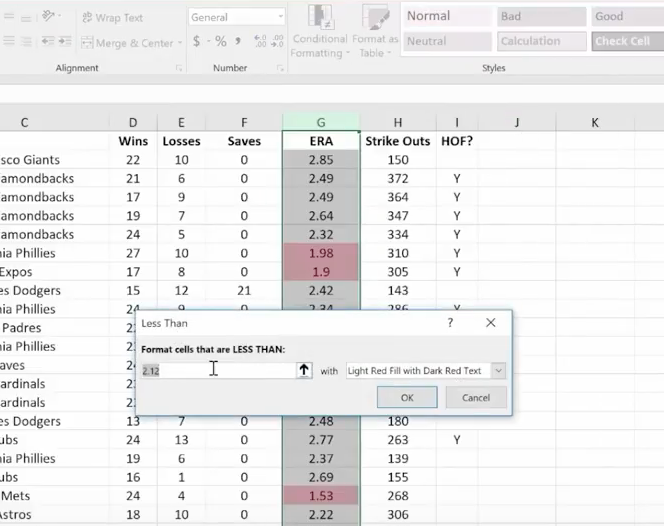
Here we want any ERA lower than 2 to be highlighted in red.

Highlight the column and click on Conditional Formatting.

We selected Cells Less Than 2.00

The IF, AND, and OR Functions

IF

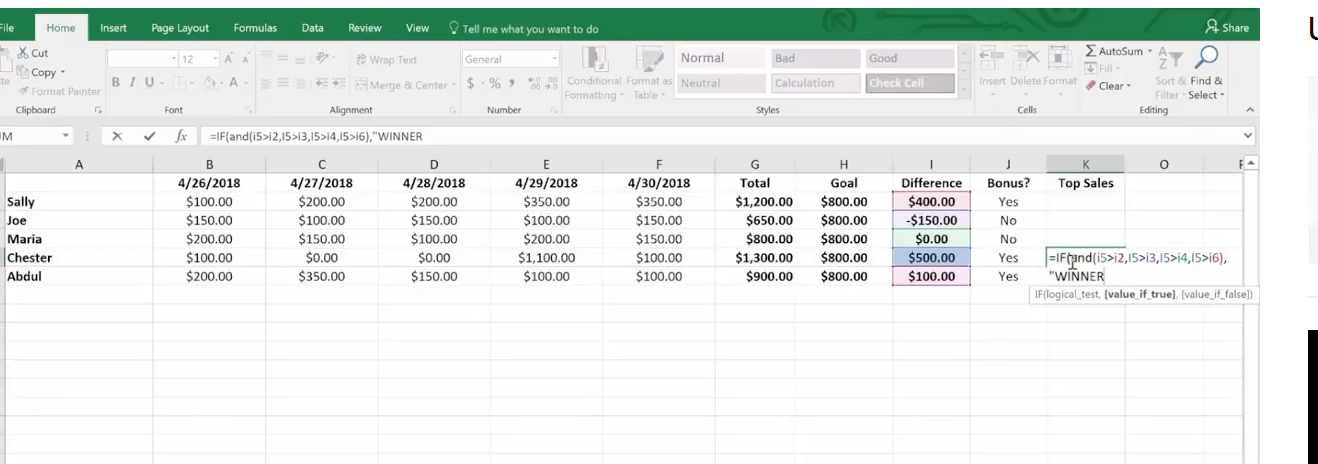
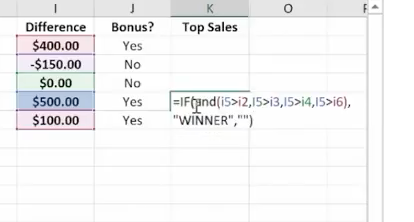
The IF function helps you make logical comparisons between a value and what you expect. For example: IF(Something is True, then do something, otherwise do something else)In this sense an IF statement can have two results. The first result is if your comparison is True, the second is if your comparison is False.

Below we’re going to determine our WINNER based on a calculation of IF:

Based on our IF formula, Chester is our WINNER!

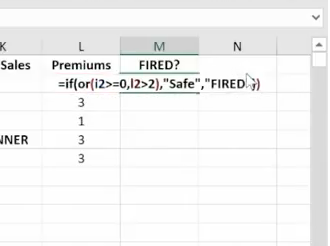
OR

Use the OR function, to determine if any conditions are TRUE.

Here we use a formula that tells us if someone is SAFE or FIRED.

That’s it until next time! To View this Demo on YouTube visit:

https://www.youtube.com/watch?v=ONeVQplb_bM&feature=youtu.be

To View Part One of this Series, visit: https://www.youtube.com/watch?v=zA8X9wqrn1I

Want Your World At Your Fingertips In Just One Simple Step? You Got It!

The digital revolution has changed our world in unimaginable ways – and for the better! Tools and applications like Microsoft Word and Microsoft OneNote aim to make our lives easier, in one simple step.

Have you ever stopped to think about Microsoft’s naming convention? It’s probably not something that crosses your mind as you open a Microsoft application, like Word or Excel or Outlook. There are teams and departments at Microsoft whose roles include the creative scope for brainstorming names for new products in the Microsoft line-up. If you look deeper, there are not only subtle references to what each does within the name, but there are also psychological implications – like subliminal messaging – within the product names.

Microsoft Word is a word processor, but has a vast array of built-in tools to help users improve their finished written product, like a wordsmith! Its thesaurus feature aids users looking for just the right word when the typed word is close but not “it”. The spelling and grammar check gets many a student through assigned papers – and, more importantly, helps prevent professionals from making expensive errors, like errors that affect professional reputations and can impact revenue and profit. Microsoft Word can perform a mail merge, so users can send letters to clients with just a few clicks – after using the app to perfect their letter, of course. Contracts and agreements depend on accuracy!

Microsoft Excel is a bit of a double entendre. To excel is to show an exceptional skill or quality in a particular activity or subject. Within the word “excel” is “cel”, a homonym of “cell” or the individual areas within a spreadsheet where data can be entered. Lots of dry, technical information in that sentence, but the meaning is the same: a database tool that is superior to other database applications for the professional user base. Here is where Microsoft Excel outshines the competition – and why its previous competition, Lotus 1-2-3, is no longer used. Aside from being a spreadsheet application, Excel offers users an endless variety of tools to really make Excel the go-to platform for data analysis. Including charts, data manipulation, and tools like creating pivot tables in Excel was Microsoft’s act of establishing their superior position with this app.

In the list above, we also mention Microsoft Outlook. Outlook reigned king of email for a very long time in the professional kingdom, but Google’s G Suite is a strong competitor for small and medium businesses (SMBs). Outlook, again, tries to be an all-in-one package for professionals, with email communication but also a calendar feature, a reminder system, user-friendly meeting tools and a variety of user settings to customize the experience.

These applications speak to Microsoft’s dedication to being the full professional package for businesses – and their full Office 365 suite is proof. Included are products like OneDrive, SharePoint, and OneNote. OneNote is one of the most underutilized products in the Microsoft line-up, and with new features being added all the time, we think this is because users aren’t aware of the full extent of what OneNote has to offer.

Microsoft designed OneNote as the digital solution for those who grab the nearest sticky note or doodle pad – or open a new Note on their iPhone – to jot down a quick scribble to remember for later. OneNote helps users gather notes, thoughts, and ideas, all in one centralized and organized location. Users can store everything from quickly-jotted notes to meeting minutes, to lengthy details about projects for home or work, in the same place. What’s even cooler about OneNote is that Notes are searchable and sharable.

  • Did you see where we mentioned the iPhone? That’s right – iPhone users rejoice! OneNote is also available for Mac.

To clarify, OneNote is part of the subscription-based Office 365, but OneNote is free as a stand-alone product. To get Microsoft OneNote, follow these steps:

  • From a desktop or laptop computer, open a web browser window
  • Enter OneNote.com
  • Download the latest version for free

New users will be excited to see that Notebooks stored in multiple locations (SharePoint, OneDrive, etc.) show up within the application the same way, simplifying the user experience. These same users will become experts in no time with the classically straight-forward way Microsoft presents the tools at your disposal.

Cool features inside OneNote for users underscore the built-in ability to share your information across all your devices and with other people. Check out some of these:

Email to Yourself

Set up your email from any email service provider supported, like Yahoo or Gmail, and of course, Outlook, within OneNote and you can send any email in your mailbox to your OneNote with a simple one-step task: forward the email to [email protected], and you’ll see it in OneNote!

Office Lens

This handy little tool lets you capture documents and photos with the camera on your phone, and then send that photo to OneNote – try the Email to Yourself trick we just talked about! OneNote and Office Lens will add some filters, adjust lighting, crop out backgrounds, etc., and show up clearly in OneNote. This is great for receipts you’re afraid you might lose, or other situations you might forget about later.

Clipper

This one helps users integrate OneNote with their web browser.

  • Go to OneNote.com/clipper
  • Click on the button to download the extension to your web browser

Now users can “clip” a page into OneNote, like clipping a coupon from a physical newspaper, except it’s now forever stored digitally in OneNote (until a user deletes it). Text on these pages is searchable within OneNote, too, which is very helpful if a user can remember the context of the page clipped but not necessarily when or exactly what was clipped. This is true of words within a picture on the clipped page, too.

OneNote boasts a number of partners that allow users to integrate with featured apps so that the apps can be used conjointly. A few of these partner apps include:

News360

This is a news reader, offering users news stories much like on a news website. Users can click on a story, and with OneNote integration, the story will show a “Save to OneNote” button. As long as a user is signed into their account in OneNote, the story will save in OneNote. Again, words in the story are searchable.

Feedly

Feedly is a website aggregator, bringing together all the pages a user wants to see in a centralized location and updates the pages as they update. This works similarly to RSS feeds and has the same “Save to OneNote” button that News360 has, as well as the words in the story remaining searchable.

Doxie

This one is for users of Doxie portable scanners. If you have one of these lightweight and portable gadgets, you’re going to love saving your scanned documents to OneNote! Any of the text can still be found with a simple search.

Integration is wonderful! Technology is amazing! With OneNote, Microsoft welcomes developers to make their own services with which to integrate for OneNote and share with users. Make OneNote your new best friend today.

MS OneNote

Easy Ways to Make Outlook 2016 Work Better for You

The new Outlook 2016 has incorporated some cool features, designed to be helpful and make your work day a little smoother. It can look a bit different depending on what version of Outlook you’re using and how your admin sets it up.

What’s New in Outlook 2016?

When you open Outlook, you’ll see six areas. Across the top is that familiar ribbon we’ve all become used to seeing. Above the ribbon, you’ll find the Title Bar which has the File tab, Home tab, Send/Receive, Folder, and View. Across the main section, you’ll find four wide panes of varying widths. Across the bottom is the newest addition to Outlook, the navigation bar.

While on the home tab, you can take a closer look at the four panes or main sections. The narrowest one located on the left contains your inbox, sent, deleted and other items pertaining to your mail folders. The second column contains your messages. Here, you can get a closer look at the items in your inbox. It shows the names and dates of each email. The widest pane shows the contents of the actual email. This section is called the reading pane. If you click on a specific email, you can read it and reply or forward it. The fourth smaller pane to the right contains your calendar and do-to list.

At the bottom, you’ll see the newly added navigation bar. Hover over each item there for a closer look. This is handy because you can access frequently used features or people very quickly here. The dots, which represent “more”, open up a “navigation options” dialog box. There you can change a number of things pertaining to the way your email client is laid out. You can also choose navigation options > compact navigation. This will make the navigation bar smaller. Little icons replace the larger words that were used. The icons can run horizontally across the bottom or vertically along the side.

Reading Pane Too Small?

You may not always need your calendar to stay open. It’s easy to close. Simply click on the arrow at the top to close it. You can also close the folders section located on the far left the same way. By closing these two sections, you’ll now have a much wider email viewing pane. This can be helpful if you have a long or important email to read. If you need to take a quick look at the folders, simply click on the words “All Folders” (far left side, vertically written) and a handy pop-out appears. This pop-out will stay there until you click on “All Folders” again. The navigation pane appears vertically written as well and this configuration can give you the greatest amount of space to work on emails.

In addition, you have the option of manually dragging the borders for each section. This is a quick and easy way to increase or decrease the width of a pane so that your Outlook email works best for your situation.

The New Navigation Pane

In the 2016 version, a navigation pane was added to the bottom. It has links that go out to:

  • Mail
  • Calendar
  • People
  • Tasks
  • More – More is represented by small dots in most programs now.

You can hover over each one to learn more about it or access that particular feature. For instance, hover over “People” to see all those listed in your contact list. You can also hover over a specific person to get more information about this person. For each of your contacts, you’ll see small icons along the bottom so you can email, call or video chat with that person. The same is true for each item in the Navigation Pane. Simply hover over your calendar for a quick look at your day, week or month. The calendar in your Navigation Bar performs the same tasks as the actual calendar portion of your Home Page. For that reason, you may find it handy to just leave that Calendar closed and use the one in the Navigation Bar. This will give you more room for emails and other tasks you do on the Home Page.

Taking a Deeper Look at The Ribbon

The Ribbon has been around since Word 2007 and most users are fairly knowledgeable about how to use it. If it’s in the way and you’d like to temporarily remove it, click on the small triangle on the far right side of the page. This collapses the Ribbon. When you want it back, click on the same triangle and it reappears. This works for all Microsoft Office programs, including Word, Excel, and Access.

Of course, there are shortcuts for just about all the actions found on the Ribbon. Many users find it helpful to learn those shortcut keys and use them instead of navigating through the tabs/items on the Ribbon. You can also hide or view the Ribbon by clicking on the View tab. Outlook 2016 is all about making your email tasks much simpler.

Dealing with Emails

Once you get your work area set up so that it’s most efficient for you, it’s time to read and answer a few emails. At the top of each one, you have inline options to reply, reply all, forward or IM. Click on reply and you can just start typing your message. You can also right-click in this area for a list of other options like changing the font and color of your typing. Right-clicking in various areas of the page will always call up a list of other helpful options and this can often prevent you having to reopen the Ribbon to accomplish a task.

When an email has attachments, you can click on the attachment to view it there in the Outlook program. This is true for PDF docs, Word docs, and Excel. This saves you the trouble of having to open Word, Excel or Adobe and this can be a real time-saver. If you do want to open up the specific program and view the document there, simply double click on the attachment.

Show As Conversation

Another helpful feature when dealing with lots of emails from different people on the same topic is the “Show as Conversation” feature found on the View tab. By clicking on “Show as Conversation” you can group all the emails about a specific topic so that they make sense. This prevents you from having to sort through dozens of emails to find all those related to a topic. Once these emails are grouped together, it’s easy to click on one to read or respond to it.

The Clean Up Tool

Like many users, you may have a dozen emails on one specific topic and yet only five of them are actually important and contain good information. The Cleanup Tool can be used to remove those emails that only say something inconsequential like, “I agree” or “Thanks” or contain redundant information. The Cleanup Tool is found on the home page and hovering over it will show three options:

  1. Clean up conversation
  2. Clean up folder
  3. Clean up folders and subfolders

Before the messages are cleaned up, you will get a warning box that asks if you’re sure. Many users find it helpful to clean up messages and folders on a regular weekly basis. This can prevent you from maxing out your Outlook storage limit. Simply run the Clean Up tool each week on folders and emails to keep redundant items from clogging up the works.

These are just a few of the many ways to make Outlook 2016 work more efficiently. By learning these tips and tricks you can save valuable time throughout your day and reduce stress.

Microsoft Outlook 2016

Are We Learning Anything From All These Cyber Attacks?

So many big, expensive cyber attacks have taken place in the last few years that it’s hard to remember them all – when will we learn our lesson?

Cyber Attacks

Cyber attacks are common ground these days. There was the Chase Bank breach of 2014, which exposed the financial information of 76 million Chase customers. This attack was set to target 10 major financial institutions in total, but only one other company reported that data had been stolen. This company was Fidelity Investments. Though the attack caused serious repercussions for Chase Bank, the damage could have been much worse. Four hackers (two from Israel) were eventually arrested.

Hacking Isn’t Just About Stealing Data

In the Sony Pictures data breach of 2014, over 100 terabytes of data was stolen by North Korea. This attack was about more than just getting the personal information of consumers. The attack occurred because of a movie that Sony Pictures was set to release called “The Interview”.

The movie, starring Seth Rogen and James Franco, was a fictional story about two journalists who go to North Korea to interview Kim Jung Un. The two men actually work for the CIA and are planning to assassinate the very well-known but unpopular leader. It was believed that North Korea’s leader ordered the cyber attack on Sony Pictures to show his displeasure and disapproval of the film. In addition to the personal information of Sony executives and other employees, hundreds of photos and emails were released to the public. These highly personal items caused a massive amount of embarrassment to Sony’s top executives.

No One Is Safe from Hackers

Proving that no one is immune from cyber hackers, Equifax, one of the nation’s largest credit reporting agencies, was infiltrated by hackers in mid-2017. The company estimated that approximately 143 Americans were affected. In addition, an unknown number of consumers from Canada and the UK were affected by this breach.  Were there any signs that an enormous data breach like this might occur?

A report issued in October of 2017 by Motherboard, found that Equifax had certain vulnerabilities due to an online portal created for employees. Researchers discovered that the Equifax website was highly susceptible to a basic forced browsing bug. A researcher from Motherboard said that he didn’t even have to do anything special to infiltrate the system. It was far too easy to get in.

“All you had to do was put in a search term and get millions of results, just instantly—in cleartext, through a web app,” the researcher said.

In spite of this information being available to Equifax, it took them six months to close the portal and shut down these vulnerabilities. In this day and age, it’s unthinkable that organizations as sophisticated as Equifax might be so lax in their data security.

The Final Cost of Cyber Breaches

Target Stores lost millions of dollars when they had to reimburse customers for their losses after their 2013 data breach. In addition to that, a class action lawsuit was settled for roughly $10 million. As if that wasn’t enough, 20-30 percent of Target shoppers said they were worried about shopping online at Target stores after the breach.

Are We More Vulnerable Than We Believe?

Many data security experts believe that cyber weaknesses like this are far more common than the public believes. In an era when everyone should be fully aware and taking every precaution to prevent a data breach, numerous large corporations remain at risk.

After all is said and done, most people would expect any organization that has experienced a cyber theft to drastically improve their cybersecurity. Large, expensive data breaches leave an organization open to legal action, plus they’re embarrassing. Consumers say that they are less likely to do business with any company that has been a victim of a cyber breach.

But has that really happened? A new study performed by CyberArk reveals that 46 percent of all companies who have experienced a cyber breach have not substantially updated their security policies.

This failure to learn from past mistakes has the public truly baffled. In some cases, IT professionals have been interviewed and asked why they haven’t greatly improved their cybersecurity. Over 30 percent of these pros said that they did not believe it was possible to prevent all cyber-attacks. This indicates that even security experts aren’t sure what to do to stop future attacks from occurring. But, should we simply make the decision not do anything at all?

New Report Sheds Light on the Problem

A 2018 report from CyberArk called, “Global Advanced Threat Landscape Report”, indicates that at least half of all businesses and organizations have only taken the basic security measures required by law. Though their public relations department may say they are taking every precaution to protect customer data, this is probably not true. In addition, 36 percent of respondents in the report said that administrative credentials were currently being stored in Excel or Word docs. These documents would be easy to obtain by any hacker with average skills.

The Global Advanced Threat Landscape Report also reveals that the number of users with administrative privileges has jumped from 62 percent to 87 percent over the past few years. This points to the fact that many companies are opting for employee convenience over data security best practices. This is an alarming statistic given the soaring cost of cyber breaches.

Moving Into the Future with Better Cyber Security

The new AT&T Global State of Cybersecurity highlights many of the critical gaps that remain in our cybersecurity strategies. IT infrastructure and critical data must be fully protected, including credentials and security answer keys. In most organizations, those in higher positions are given greater access and authority to online data and this equates to heightened risks of a cyber breach.

According to Alex Thurber, Senior Vice President and General Manager of Mobility Solutions, “If 2017 has taught us anything, it is that every device needs to be secured because any vulnerability will be found and exploited”.

The company is set to sign a deal with Punkt Tronics to install better security on smartphones, Blackberry devices, and other electronic devices. With consumers spending more and more time browsing on their cell phones, all mobile carriers are searching for ways to better protect their customers from hacking.

What Consumers Can Do

A great increase in the sale of anti-virus software and password managers demonstrates a strong resolve by consumers to incorporate stronger security measures into their everyday lives. Innovative technology is producing a new generation of security software that combines threat defense techniques and other more conventional means of cybersecurity. Though some of these techniques are having an impact, experts believe there’s much more to be done.

As our society becomes more aware and more prepared, even stronger security for IT systems will be developed. Until then, security experts urge the public to be more cautious about clicking on links. Employees at any company need regularly scheduled security meetings where they are educated and reminded to utilize best practices when using smartphones and computers. All programs should be updated regularly with software updates and fixes to known bugs. Create difficult passwords and change them every 90 days. These are just a few of the ways that consumers can stay safe while surfing on the internet.

Problems with Two-Factor Authentication in Office 365?

We noticed that some people are having problems using Microsoft Office 365 with two-factor authentication (2FA) (also known as multi-factor authentication).

Office 365 Two Factor Authentication

We have a few tips for you here.

First: It’s important to know that when your admin sets up 2FA for your Office 365 users, they must enable Modern Authentication (MA) for Exchange Online if users are accessing Exchange using Outlook 2016. (The versions of Microsoft Outlook before 2013 don’t support Modern Authentication.)  For details on how to enable MA for Exchange Online tenants, see Enable Modern Authentication in Exchange Online.

Second: You shouldn’t have any problem using 2FA with Microsoft’s mobile Office apps, Outlook Groups, Office 2016 desktop apps, and OneDrive for Business in Windows 10. However, other applications may be incompatible, so make sure you test all the apps in your organization before enabling 2FA.

How to Connect to Office 365 Security & Compliance Center PowerShell Using 2FA.

If you set up 2FA for tenant administrator accounts, they can’t sign in to Office 365 using PowerShell. Instead, you must set up a specialized account for administrators. To do this, you must install the Exchange Online Remote PowerShell Module and use the Connect-IPPSSession cmdlet to connect to Security & Compliance Center PowerShell.

Important note from Microsoft: You can’t use the Exchange Online Remote PowerShell Module to connect to Exchange Online PowerShell and Security & Compliance Center PowerShell in the same session (window). You need to use separate sessions of the Exchange Online Remote PowerShell Module.

This is what Microsoft recommends you do:

  1. Open the Exchange admin center (EAC) for your Exchange Online. See Exchange admin center in Exchange Online.
  2. In the EAC, go to Hybrid> Setup and click the appropriate Configure button to download the Exchange Online Remote PowerShell Module for multi-factor authentication.
  3. In the Application Install window that opens, click Install.

Windows Remote Management (WinRM) on your computer should allow authentication by default. If basic authentication is disabled, you’ll get an error message. Now you should be able to sign into the Security & Compliance Center PowerShell by using 2FA.

After you sign in, the Security & Compliance Center cmdlets will be imported into your Exchange Online Remote PowerShell Module session and tracked by a progress bar. If you don’t receive any errors, you’ve done this successfully.

If not, and you receive errors, check the following requirements:

  • Limit your open remote PowerShell connections to three. This prevents denial-of-service (DoS) attacks.
  • Make sure the account you connect to the Security & Compliance Center is enabled for remote PowerShell. For more information, see Enable or disable access to Exchange Online PowerShell.
  • The TCP port 80 traffic must be open between your local computer and Office 365. It may not be if your organization has a restrictive Internet access policy.

How to Enable 2FA in the Office 365 Admin Portal

Two-factor authentication (multi-factor authentication) can be enabled for individual users or in bulk. Before continuing, be sure to install Microsoft Authenticator on your user’s mobile devices, (not Authenticator, a similar app from Microsoft but without support for push notifications).  Here’s what Microsoft says to do to enable 2FA one user at a time:

  • Log in to the Office 365 admin portal using an administrator account.
  • In the menu on the left of the portal, expand Users and Active users.
  • In the list of users, click the user for which you want to enable 2FA. Note that only licensed users can use 2FA.
  • In the user’s pane, click Manage multi-factor authentication under More settings.
  • On the multi-factor authentication screen, select the user account to enable, and then click Enable under quick steps on the right.
  • In the About enabling multi-factor auth dialog box, click enable multi-factor auth.

The MULTI-FACTOR AUTH STATUS should change to Enabled. Close the browser window and sign out of the admin portal.  

How to Enroll an Account for 2FA

Once the feature is enabled, the user must now enroll for 2FA, and sign into Office 365 with their username and password, and then click Set it up now on the sign in screen and follow Microsoft’s instructions below:

  • On the Additional security verification screen, select Mobile app
  • Select Receive notifications for verification
  • Click Set up
  • Open the Microsoft Authenticator app on your phone and click Scan Barcode.
  • Use the camera on your phone to scan the barcode in the Configure mobile app You’ll then need to wait a couple of seconds while the app activates the new account.
  • Click Finished in the browser window.
  • Back on the Additional security verification screen, click Contact me.

The user will receive a notification on their phone. They should open it, and they’ll be taken to the Microsoft Authenticator app.

  • Click Verify to complete the sign-in process.
  • Click Close in the Microsoft Authentication app.
  • In the browser window, they must enter a number to receive verification codes in case they lose access to the Microsoft Authenticator app and click Next.

Web-based and mobile apps can use Microsoft Authenticator app verifications for 2FA logins, but Office desktop apps require an app password.

This final step provides the user with an app password for these apps.

  • They should copy the app password by clicking the copy icon to the right of the password and paste it somewhere safe. Click Finished.
  • They’ll be prompted to sign in again, this time by verifying the login using the Microsoft Authenticator app.

Important note from Microsoft:  If you want to use only Multi-Factor Authentication for Office 365, don’t create a Multi-Factor Authentication provider in the Azure Management Portal and link it to a directory. Doing so will take you from Multi-Factor Authentication for Office 365 to the paid version of Multi-Factor Authentication.

We hope this helps. It can be complicated to implement the proper settings for two-factor authentication in Microsoft Office 365.  If you have any problems doing this, feel free to contact our Microsoft Experts.