

The Benefits of OneDrive’s New Features for Small Businesses

Managed cloud storage services like OneDrive and its new features help small businesses be more productive.

Many small businesses rely on their employees’ ability to work together intelligently and efficiently to get the job done. Perhaps the new marketing brochure needs to be reviewed by sales before going to print, or the latest operations plan requires input from accounting before being finalised. Getting all your employees together at the same time to work on a document can be difficult, however, especially since the nature of small business often requires employees to fulfill multiple roles. For these companies, a managed cloud storage service like Microsoft’s OneDrive can help colleagues collaborate more efficiently and seamlessly, and OneDrive’s newly-released management and file collaboration features make the service even more valuable for small businesses.


One of OneDrive’s new file collaboration features is an enchanted syncing ability for all files, including both a user’s individual files stored on OneDrive and their team’s files shared through OneDrive and SharePoint Online. Previously, users were able to access all of their records stored on OneDrive from any PC or Mac; the latest update expands data accessibility by allowing users to also access and sync files shared through SharePoint team sites. What does this mean for small businesses? Your employees will be able to collaborate more easily because all team members will have the ability to access and work on documents shared through any of SharePoint’s team sites, including Office 365 Groups, OneDrive group folders and Microsoft Teams.

The ease with which small business employees can collaborate is also bolstered by OneDrive’s new simplified file sharing feature. Critically, this streamlined file sharing capability extends to users outside of your business’ team of employees. In other words, if your sales team is drafting a new marketing brochure and is working with an outside marketing agency to consult on the content, OneDrive’s enhanced file sharing feature will allow your employees to share their draft with your external marketing consultant seamlessly. OneDrive also prioritises your business’ security in file sharing by clearly labeling any individuals outside of your organisation who have been granted access to a file, helping to limit accidental sharing with unauthorised persons.

Lastly, OneDrive has introduced a new admin center, allowing your small business’ IT administrator to more easily and seamlessly manage your company’s cloud storage. Because this new administrative interface allows for robust control of file access and sharing options, your IT administrator will be able to exercise precise control of what files which members of your team are able to see and modify, providing necessary security checks for your business’ important data.

Interested in learning more about how managed cloud storage can increase your employees’ productivity? The experts at {city}’s {company} can help you assess how a cloud storage system can help your small business work smarter. Contact us today at {phone} or {email} to learn more.

The National Broadband Network Nears 50% Completion

 As the National Broadband Network (NBN) nears 50% completion, the opportunities it will offer become ever closer to being a reality.

Australia’s National Broadband Network has steadily increased its capabilities over the last few years. After its trial run in Tasmania in 2010, NBN’s infrastructure and capacity have finally reached a point where their work is almost half done. The next few years promise to see exciting new developments in Australian broadband access, allowing more and more users across the country. Big cities, in particular, are about to enjoy better broadband access than ever before as NBN’s ability to connect people grows. Through solid leadership and vision to change tomorrow, the National Broadband Network will soon provide the best communication Australia has ever seen.


NBN’s Infrastructure and Current Capabilities

Currently, NBN is in the middle of a massive push to provide network access to as much of Australia as possible. Growth in 2016 was considerable. In June, the National Broadband Network included over 1 million homes, and by August that number increased to 3 million homes, almost tripling the number a few short weeks earlier. As progress has increased, so has the NBN’s commitment to growth, exponentially broadening their installation teams and customers.

Immediate Goals

The National Broadband Network is hoping to make gains in 2017 that are even greater than 2016. The NBN predicts that by June of 2017, their progress will be about 50% complete. With the momentum and popular support of the Australian government, the NBN hopes to have roughly 5.4 million connections mid-year. This will mean millions more homes and businesses can stay connected better than ever.

The Challenge of Urban Areas

Initially, the National Broadband Network’s primary customers were in rural areas. Connections in these sectors have been easier to implement and maintain, partially due to its secondary objective of replacing outdated copper cable telephony infrastructure throughout Australia. As of now, around 70% of the NBN’s connections are in rural areas, but that is about to change. In 2017, the NBN plans on tackling the cities of Hobart, Freemantle, Gold Coast, Sidney, and Brisbane. According to NBN chairman Bill Morrow, urban areas will present a challenge for so many people in high-density areas will be disrupted by the implementation of a new system. However, the company remains optimistic they will keep all their long-term goals.

The NBN of the Future

The NBN’s 2018 goal is almost ten times larger than the initial 2016 June statistics, hoping to reach over 9 million Australian homes by June of that year. For the long term, the NBN hopes to have their project completed by 2020, hopefully spanning across the entire country and connecting Australians everywhere.

Conclusion

There is no better time to join the National Broadband Network’s increasingly connected network. The NBN has services represented by many businesses. Contact {company} in {city} to find out how you can be a part of the future. Contact us at {email} to learn more, or reach us at {phone}.

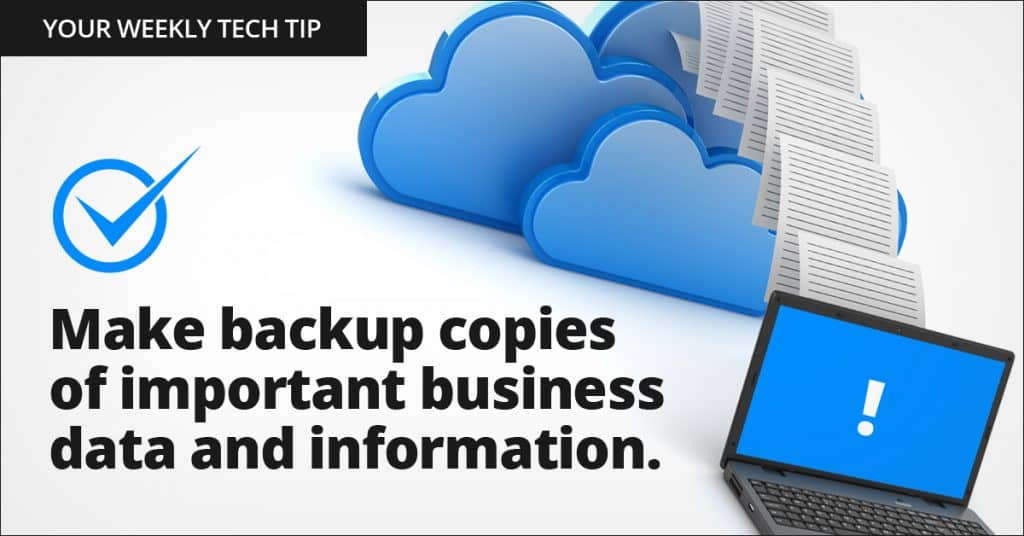
Weekly Tech Tip: Make backup copies of important business data and information

Regularly backup the data on all computers. Critical data includes word processing documents, electronic spreadsheets, databases, financial files, human resources files, and accounts receivable/payable files. Backup data automatically if possible, or at least weekly, and store the copies either offsite or on the cloud.


Wisdom Wednesday: Twelve Shortcuts Saving Maximum Time Using Microsoft Outlook

The latest version of Microsoft Outlook is designed to be a personal information manager, not just email. Learn the shortcut tricks and a user can become a power communicator very quickly.  


While many wish there might be another choice, it is unlikely that Microsoft Outlook as a user interface is going to go away anytime soon in the workplace. In this regard, those who see the long perspective focus far more on how to use Microsoft Outlook effectively versus trying to replace it. And that’s where power users are really pushing the boundaries of the tool for maximum performance and the least amount of time communicating.

Here are 12 shortcuts that really stretch Outlook for what it can do for a user:

  1. Keyboard Shortcuts – Yes, there are menu commands. However, it’s those who know the keyboard shortcuts who really get things done amazingly fast. Shortcuts go direct to the function needed, and it doesn’t take long to get used to them. Beginners often just print out a cheat sheet.
  2. Quick Steps – In addition to the keyboard shortcuts, Outlook has a number of Quick Steps. Started with the 2010 version, this is the macro version of shortcuts. They are customizable, so you can make personal multi-step tasks that happen with one code versus three or four menus.
  3. The Clipboard Email Creator – A neat feature, one puts the text in the clipboard and then with Ctrl-V Outlook will automatically convert it into a message, calendar post, or contact entry.
  4. Email Shortcuts – Outlook comes with a number of built-in sorting features for fast locating of a given email message. Learning them allows a user to control the mass of messages that come in daily.
  5. Limiting Notices – A default notice in Outlook will notice every new email, but these can be limited to just high priority parties, cutting down time and focusing attention better. It’s a simple rule creation in Outlook.
  6. Flagging – Ever had an important email that you needed to find later but couldn’t? Red flagging makes it easy to find a pin in a haystack of messages.
  7. Template Powering – Saved email templates for commonly sent emails cuts down a great deal of time, and it protects messaging when protocols have to be followed.
  8. Folders – Simple but effecting, active sorting of emails into labeled folders makes them extremely easy to find, segmenting out other emails not needed at the time.
  9. Quick Message Saving – Many people use cut and paste or printing to an Adobe PDF file to save a message. Instead, one can just drag it to the desktop which changes the email to a .MSG format file, easy to open in Outlook.
  10. Utilize All the Features – Outlook isn’t just email, it’s also a task-minder, calendar and journal. Don’t ignore them.
  11. Use Priority Tagging – Outlook has a number of priority fields and color coding for tagging. Using these make it easy to sort and filter items for what’s critical versus fluff.
  12. Natural Language – The software includes a feature where natural language can be typed in to the date field. For example, type in “Christmas” or “four days from today” and Outlook will recognize it on the calendar and implement the item.

Wisdom Wednesday: Out Of Office In Microsoft Outlook

How Do I Set My Out Of Office In Microsoft Outlook To Only Send From One Date To Another?

  1. In Outlook, click on File, Info then select Automatic Replies (Out of Office).
  2. Click on Send Automatic Replies and check the Only send during this time range check box.
  3. Specify a start and end time for the reply to activate and deactivate using the Start time and End time fields.


Tips to Enhance Your Personal Cyber Security

In the era of digital convenience, modern technologies like cloud computing and mobile devices have revolutionised the way we perform everyday tasks. From online shopping to remote work, these technologies have made our lives significantly easier and more efficient. However, as with most things in life, this convenience does not come without its own set of challenges. In the realm of technology, greater accessibility often equates to increased vulnerability, making personal cyber security a critical concern.

As the global adoption of new technologies continues to surge, so does the incidence of cybercrime. Cybercriminals are becoming increasingly sophisticated, exploiting the very conveniences that technology offers to orchestrate identity theft, data breaches, and other malicious activities. This rise in cyber threats underscores the importance of personal cyber security. It’s no longer just about protecting your devices; it’s about safeguarding your digital identity and the wealth of personal information that resides in the digital realm.

Practising safety when using technology is not just a recommendation; it’s a necessity. Personal cyber security should be an integral part of our digital lives, much like locking our homes when we leave or wearing seatbelts when we drive. It’s about being aware of the potential risks and taking proactive steps to mitigate them.


At the end of the day, security comes down to you: the user. No matter what kind of firewalls, antivirus or other IT security software your employer or your team uses, if you’re not safe, you won’t stay safe for long.

Staying Secure: Six Key Tips for Everyday Tech Use

The most important thing is to stay aware of the new risks that come along with using modern technology. Keep these six key tips in mind when using technology every day:

1. Control Your Visibility

It’s easier than you may think for hackers to learn what they need to know about you. Social media allows them to gather information about your work, family, pets, favourite vacation destinations and more, which makes it easier for them to guess passwords and send fraudulent emails while posing as someone else. The best way to combat this trend is by controlling your privacy settings on social media, using complex, unique passwords and enabling advanced security features such as two-step verification.

2. Familiarise Yourself With Hacking Methods

Most common hacking techniques and cybercrime schemes require the (unwitting) participation of someone on the inside. Downloading a suspicious email attachment or even responding to or forwarding an email can be all it takes. That’s why it’s vital for you to be wary of unexpected emails, unverified contacts, and unusual requests. It can often be as easy as requesting verification on the phone to stop a hacker who’s posing as someone else.

3. Avoid Free Wi-Fi

Sure, it’s convenient to utilise free Wi-Fi in spots like airports, beaches, and cafes. However, hackers are smart, and they know where people are likely to connect their devices to unsecured networks. Cybercriminals can set up free Wi-Fi, and when you unknowingly connect, you could be compromising your device. Use discretion when determining whether a free Wi-Fi hotspot is actually worth the risk.

4. Stay up to date

While some users remain sceptical of new updates to their software, the fact is that these patches help to protect your information from known vulnerabilities. By refusing an upgrade, you risk maintaining a weakness in the system that is publicly recognised at that point as a method that hackers may use to compromise your info, so be sure to regularly check for updates.

5. Use a wide variety of passwords

Even though you may have over a dozen different logins for the services you make use of on the web, the fact is that unique passwords are an important part of online security. If you were to use the same password for your email, online banking, and social media, the vulnerability of your information would significantly increase because a successful hack of just one account opens up every other one with the same password. Be sure to vary your password from one account to the next.

6. Enable two-factor verification

Many services these days, including Gmail, Facebook, and PayPal, offer a subsequent step for verification to ensure that hackers would need more than just your password to gain access to your accounts. While the methods may vary, a traditional form of two-factor verification today is to have a confirmation code sent to your mobile device that you then use your password to log in. While it may take more time, it only adds to the security of your information.

Your Guide to Personal Cyber Security

With the rate at which technology is constantly evolving, it’s important to make use of the latest tools available to you. When it comes to sensitive data, there’s no precaution too high. Remember, personal cyber security is not a one-time effort, but a continuous process of learning, adapting, and implementing safe practices. By doing so, you can enjoy the conveniences of modern technology without compromising your security.


Speed Savvy: How To Salvage A Slow Computer

Speeding up your computer is essential for succeeding in today’s fast-paced world. It can be as simple as closing other browsers or as complex as finding and eliminating malware.


In the modern business world, time is money, which means that a slow computer can actually cost you! Systems slowdowns may stem from a variety of causes. To narrow these down and speed your computer up, try:

Browser Basics

One of the most common, and most easily remedied, sources of slow network service is only leaving too many browsers open for long periods. Even if you are not actively using the browsers, they eat up processing power, slowing your device with every additional program you use. Thus whenever you are finished with the website or don’t plan to return to it for more than 10 minutes, close it. To ensure that you do not leave browsers open for extended periods of time, turn your computer off every night before you go to bed.

Sifting Through Startups

In addition to browsers that you intentionally open and fail to close, your computer may also suffer from software that opens automatically when you turn it on. Email accounts, music services, and other programs often open on their own, and the longer you leave them up, the more they will impair your system. To minimize this problem, close any automatic programs as soon as you log in or once you’ve finished using them. You can also reset your computer’s startup log to not open so many programs, though you should consult an IT professional before doing so.

Memory Management

The less hard drive space your computer has, the slower it will be. You can free up extra space by:

  • Deleting videos and photo albums once you’ve uploaded them to social media
  • Move files from your computer to the cloud
  • Use a disk cleanup program to remove whole categories of files
  • Eliminate cookies and other temporary files
  • Find and remove duplicate and redundant files
  • Empty your trash regularly, so the files you delete are actually gone

In addition to deleting files, you can also install a larger hard drive or extra RAM to instantly increase space.

Viable Visuals

Animations, window transparency, drop shadows, and other visual effects may be stylish and convenient, but they eat up extra processing power and slow your computer. Luckily, most systems allow you to disable these altogether or on a case-by-case basis, letting you balance style with speed.

Virus Vigilance

If none of the previous measures work, you may be dealing with a virus or other malicious program. Such a problem is far more severe than a mere computer slowdown. Malware presents a direct threat to you and your business contacts, stealing information and encrypting important files. If you think you have downloaded a virus, contact an IT expert to identify and remove it. Consumer-grade antivirus software often isn’t enough to solve the problem, but a qualified professional can find and eliminate the most pernicious modern programs.

{company} promotes speed and security throughout {city}. For more information or to schedule service, contact us at {email} or {phone} today!

Not A Day For Phishing

Looking Out For New Gmail Scams

Gmail and other email services are all vulnerable to increasing phishing scams. Learn what to look out for and how to safeguard your personal account and business.  

As current events have shown, even the upper echelons of American governance have been vulnerable to phishing scams. The Democratic National Committee’s official email accounts were recently the target of an effective phishing campaign, leaving us all to question the ways in which we’re vulnerable to cyber attacks.


A new extremely active phishing technique, aimed at Gmail and other email services, is being implemented to nab log-in credentials that are designed to fool even the most educated digital users.

The scam works by hackers sending out emails via hacked accounts to those users’ contact lists. Many of the emails include an image that looks like it could be an attachment, though when the image is clicked on, instead of a preview of the file, a new tab opens with a mock prompt from Gmail to sign into the email account again. Even the URL mimics an actual Gmail page: accounts.google.com. The sign in appears to be perfectly legitimate, though once a user signs on, they compromise their email account and with it other sensitive personal information. Hackers are then able to spread the scam immediately to others in your contact list with the access to your email.

To protect yourself from such attacks you have to change what you’ve always known in regards to cross checking phony-seeming links and emails. As this phishing scam mimics the URL of an actual, reputable website, you can’t always double check by just looking at the link. If you see the following text before the https beginning of the URL: data: text/HTML, this signifies a scam link.

As a rule of thumb whenever you log-in to an email service website, or any site asking for credentials, be sure to check the browser location bar and corroborate both the protocol and the hostname for legitimacy. For a Gmail account, it should read like this: https://accounts.google.com/ServiceLogin?… Verify that there isn’t additional text between the hostname “accounts.google.com” aside from “https://” and the lock symbol on the location bar, which should appear as green if you’re safe, as Google relies on this function to signify a secure site.

Also, consider enabling two-step or two-factor authentication on your email service. This makes it harder for hackers to sign-in to your account even if they have your password.

If you’re unsure of whether your email account may have been the subject of a phishing scam in the past, it’s a good idea to change your password anyway. A function on Gmail allows you to see log-in activity to find out if any other users have been logging into your account without your knowledge. This can be accessed through Gmail’s support page, view the Details icon at the bottom of your inbox. If you uncover any log-ins from places where you haven’t been or any active sessions from undetermined sources you can actively remove those sessions.

Raising your awareness of this issue and staying vigilant on good digital practices can help to ensure the safety and security of your email accounts and personal data.

Instagram — How We Give Away Rights through Online TOS

What happens when the TOS for Instagram is rewritten in plain English?

For teens, it is an eye opener, but what about for adults? Is your company at risk because of terminology in TOS statements? Read on to discover what we give away when we agree to a TOS for social media.


In an article that ran in the Washington Post, Amy Wang explains what happened when a lawyer rewrote Instagram’s terms of use so that teens could understand their privacy rights.

Wang exposes a truth when she asks the question, how much to teens know about the legal implications of agreeing to TOS statements. She points out that it is the language and the length of those documents which makes them unreadable and we wondered if that was not the point of those long and complicated terms of use statements.

How many adults actually read the terms of use before happily agreeing to whatever they ask of us? The reality is not many people. Yet, in a world where we are highly concerned about internet virus and spyware we give online sites like Facebook, Pinterest, and Instagram almost free reign to use our personal information, photographs, and post, even when we think those posts are private, for their own purposes. What that means is that many social media sites can reprint our private messages and make them available to the public. Yes, that is what you agreed to when you clicked that little box that said: “I have read and agree to the terms of use.”

Designed to be Difficult

Privacy terms are important, and we should read them. They are in fact, a contract of sorts and they outline what we should expect from a service and what we give permission to said service. If you had a client contract that needed your signature on it, you’d likely have it reviewed by legal counsel. What is sad is that it would take a lawyer to explain to most adults what we agree to in a TOS statement. That is very much the point of these legal documents. The companies that write them bank on the fact that we internet users want their service more than we want our rights. They are not wrong. Most of us sign away our rights quickly and without even scanning the TOS. We have no idea what we have given away.

The Teens and Instagram’s TOS

What Wang discloses in her article is that teens were shocked at the permission that they gave to Instagram. Teens, like many adults, think that the word private means just that. A private message on social media is not private, and the platform has the right to republish those private messages with your name attached to them. Egads!

The revelation of understanding that what we just said about Mary could become the next viral post with our name attached not only freaks out teens, it freaks out adults. Nothing on social media is truly private. Does that knowledge change our behavior? For many teens, knowing is half of the battle.

What do the Terms of Use do for Businesses?

In a world where online brings danger from the virus, malware, and ransomware it seems odd that we would so freely give away the gate key to our data. One of the means by which to protect our data is to employ security measures that protect our private information. Yet when it comes to online TOS, we gladly hand over permission to use our information. That inconsistency is dangerous.

At {company} we work with {city} businesses just like yours to discover weaknesses in IT security. We are a managed IT company and our services help businesses build better security while gaining access to robust tools and software. If your business is concerned about TOS disclosures and internet dangers, then {email} or call us. {phone}

We have solutions to your Internet needs and concerns.

Top Internet Security Says “New Ransomware Coming”

Top internet security firm Avast announces imminent Locky ransomware attack. Read on to learn more about how to protect your business.

Avast a leading internet security company announced via their blog that they expect a new wave of ransomware attacks from the Locky ransomware strain. Is your business safe?

All internet security companies have a test lab where they study internet threats so that they can help thwart the technology evil. At the Avast test lab, the experts discovered a pattern in the when Locky ransomware attacks occur. They have announced via their blog that a new attack is imminent.


How Does Avast Know?

Basically, their warning comes from a drop in the number of reported attacks from Locky. Overtime, the number of attacks per week from a pattern and when there have been periods of time where the attacks are quiet history shows that a major attack follows. Right now, we are experiencing a period of calm that does not match previous holiday Locky trends.

There are many reasons why this calm could be occurring, but Avast is erring on the side of caution and sounding the alarm.

The Deal with Technology

Technology changes quickly and even ransomware needs to evolve, or it becomes ineffective. While Avast discusses many reasons why there could be a pause in the Locky attacks their suspect that Locky developers are updating the ransomware to make it more efficient.

If that is true, then we should expect a new attack with an improved form of ransomware.

The Onus and The Cure

For the time being, there is no real cure that stops all forms or ransomware. The trouble is that they evolve to overcome the current standard in defenses. So while most of us hope that there is a solution, and there is, it may not be what we expect.

The answer is that the onus remains on individual computer users and businesses to enter the online world with caution and apply a best-practices approach to internet activities.

The trouble with just being cautious is that ransomware has already evolved to infect legitimate sites. You no long have to just open a link in an email to activate ransomware. Instead, you might click on a link that is infected on a site that is trusted.

Ransomware locks your computer so that you cannot access the file and you must pay a ransom to regain access. For a business, that can mean an excessive loss of data and income.

Part of the solution to decreasing the risk of ransomware includes:

  • Utilize the cloud storage for data.
  • Installing and actively using a data backup service or program.
  • Initiate a “suspicious attachment” protocol and educate staff about the risks of attachments.
  • Conscientiously ensure that your internet security is regularly updated.
  • Ensure that security patches and program patches are installed when available.
  • Avast recommends disabling Microsoft Office Macros, especially as they pertain to emails.

If you are one of the many people who just gave a huge sigh because all of this is now a burden, then {email} us. We are {company} and we provide IT solutions to businesses in {city}. For faster responses phone: {phone}

We are a Managed IT company, and we help businesses just like yours to reduce the risk of Malware, Virus, and Ransomware. We are happy to answer your questions and provide answers that are unique to your business model. {email} or {phone] are the fastest ways to reach us.

Microsoft Office 365 For Small Companies

Before Purchasing Microsoft Office 2016, it is important to know what programs are packaged in the different suites. Here are the titles you should come to expect.

The Microsoft Office Suite has stood as a top program package for several decades. While many of the core software titles have built on the foundation Microsoft started in 1990 (Bill Gates officially announced Microsoft Office in 1988), additional titles are now included. Beyond all the titles and new features, the suite of programs has built-in security, safeguarding information created and saved within Microsoft Office. For individuals either new to Office or who are interested in the latest offerings from the company, here is an overview of Microsoft Office 2016 programs.


Programs Available in Office Home

There are several variations of Microsoft Office 2016. The entry level Office Suite is Office Home & Student. The four programs included with this are:

  • Word
  • Excel
  • PowerPoint
  • OneNote

Word

Microsoft Word is a word processor. It makes it possible to create documents in traditional text form. There are added templates available in Microsoft Word that do alter creation potential, ranging from book layouts to postage addresses. This is the oldest continually running program in the Office package, with its origin dating back to 1983 (although it was called Multi-Tool Word then).

Excel

Microsoft Excel is a spreadsheet program. While often used for financial reports, this program allows a user to input information into individual cells on a chart. The spreadsheet software permits the creation of complex mathematical formulas, based on what a user needs. This way sums, equations and other information can be automatically calculated when typing in new data into the cells. Microsoft first released Excel back in 1985.

PowerPoint

This slideshow presentation software is a digital version of film slides. Individual “slides” can house text, visuals, video footage and other information. PowerPoint came out with the initial Microsoft Office release in 1990.

OneNote

OneNote is best used in a collaborative environment. It makes it possible for individuals to input notes (both typed or handwritten), images or other content picked up from the Internet. This way, when researching a subject or when working with different users across a network, it is easier to save all viable information in one location. This title has been around since 2003.

Programs Available For Office 365 Home and Personal

In addition to the four previously mentioned programs, Office 365 Home and Personal come with:

  • Outlook
  • Publisher
  • Access
  • OneDrive
  • Skype

Outlook

Outlook is an email service. The desktop application version provides more in-depth features than what the online login option provides.

Publisher

This is a basic level publishing tool designed to be easy to use editor for books, pamphlets and other, similar documents.

Access

This is a database management software. It shares many similar features as Excel only it makes it possible to output the information easily to not only Excel but Outlook, Oracle based programs, and other third-party titles.

OneDrive

This is a cloud-based service, which makes it easier to save information created in the Microsoft Suite to the Internet cloud drive. This way, a user can access the information anywhere there is an Internet connection.

Skype

Skype is an Internet communication service. It provides VoIP features, instant messaging, video calls, and other communication options.

Interested in learning more about Microsoft Office 2016 or what suite package is right for you? Give us a call at {phone} or feel free to {email} us at any time to learn more. Our {company} is here to help service you and your business in {city}.