


Benefits of Office 365 for Business

From strong security to seamless integration and even unprecedented mobile access, Microsoft Office 365 has plenty to offer your business.  


There is a range of benefits of Office 365 for business and some clear advantages, whether you need to boost your collaborative abilities, improve mobile access or only want to be sure your data stays secure. Learning about this innovative, easy-to-use suite of software can help you decide if it is a good fit for your organisation. If you already use Office 365, learning more about your options can ensure you make the most of this scalable, flexible business solution.

Benefits of Adopting Office 365

Office 365 Offers Easy and Seamless Integration with Other Solutions

The tools you already know, use and rely on for your workflow can seamlessly integrate into Office 365. The list of programs and tools that perform well with Office 365 is extensive and includes common solutions like Word, Excel, Outlook and PowerPoint. Office 365 makes it easy to standardize your file formats and to ensure that everyone on your team can open, access and use the pieces you create.

Mobile, on the Go Access is Easy with Office 365

Mobile use is at an all-time high and your team uses smartphones, tablets and other devices to stay connected and perform tasks, even when they are not in the office. Microsoft Office 365 allows your team to open and process documents, access contacts and calendar information and send emails from any connected device. Office 365 works with both PC and Mac and with Android, iPhone and even Blackberry devices.

This mobility allows you and your team to work from home, while you are traveling or from virtually anywhere you can get a connection. Whether you are heading to a trade show, calling on clients or taking a much-needed day off, you connect in an instant to get the information you need to serve customers or support your team.

Office 365 Enhances Communication and Collaboration

It’s easier than ever before to collaborate with your team and for your workers to share and access information. A password protected portal can be established that allows your team to quickly access the documentation or files then need – and more than one person can access and work on a piece at a time. Once work is complete, progress is tracked and noted so that anyone in the group can quickly determine what has been done and what still needs to be completed.

Collaboration and communication are about more than just opening, editing and sharing documents; Office 365 also supports robust, large scale storage and sharing and even online meetings.

Intuitive, Easy and Accessible

Unlike some other programs or packages, Office is free of jargon and very user-friendly. It has an intuitive, easy to learn dashboard that is standardized between applications. Even those in your group that are not particularly tech savvy can get up to speed quickly and become efficient users of this flexible suite of tools.

You do not need an on-site IT team to handle Office 365 issues and no one on your team needs to attend any kind of special certification to actually use this software.

Security and Safety Provides Peace of Mind

Microsoft has a robust and proactive security team and Office 365 receives their full attention. In many cases, the company has recognized vulnerabilities and released patches well before a publicized ransomware or malware attack. By identifying risks and possibilities for exploitation early, Microsoft has a long history of taking aggressive action to prevent you from being victimized by cybercriminals. In an ever-changing, ever-evolving landscape, regular patches and updates are a must; you’re far more likely to be victimized if you use a system that is regularly protected and up-to-date.

Security is about more than updates; Office 365 features the same robust systems used by Microsoft and some of the biggest brands to protect networks, documents and even email. With built-in scanning capabilities, your Office 365 suite can scan your email around the clock and alert you to any suspicious software or attempts to hack your systems.

Office 365 was designed with reliability in mind and Microsoft does more than promise they’ll be online; they offer a 99.9% uptime guarantee via a financially backed SLA (Service Level Agreement) to provide peace of mind about availability.

Flexible, Scalable Solutions

With a simple pay-as-you-go pricing setup and plenty of flexible options, you can start small and scale at your own pace. You don’t have to pay for more than you’ll use or begin to feel restricted as you grow. For new businesses experiencing growth, this flexibility ensures cost-effectiveness. Since you can scale up as needed, your team can continue to work with the tools they are familiar with as you grow, you don’t have to change to a new system or adapt to new tools.

From cost efficiency and scalability to the peace of mind that comes from working with Microsoft, Office 365 has plenty to offer enterprises of all sizes. Interested in Office 365 and want to learn exactly what it can do for you? Contact the team at Inspired IT; we understand the power of this powerful suite of tools and know just how much it can help your business grow.


Six Questions to Ask How to Keep Your Identity Safe Online

Help protect yourself from identity theft online by asking yourself these six questions.


I feel safe in assuming that if you met a stranger on the street who wanted you to disclose your personal banking information, you would tell him to go take a long walk off a short pier or keep you would keep your mouth shut at least. Then why do so many otherwise intelligent business owners fall for scams online?

When I speak to my clients about phishing scams and protecting their identity online, they nod their heads and assure me they would never fall for a Nigerian banking scam or open an attachment from an unknown person. Yet, every month, successful business owners contact me to ask for help reclaiming their lives after cyber criminals steal their identities.

The hard truth is recovering from identity theft is a long, painful process. It is much easier and way less expensive to prevent identity crimes from occurring in the first place by protecting yourself from an identity scam.

Protecting Your Identity Online

By asking yourself these six questions, you will learn how to keep your identity safe online. Help prevent yourself from becoming another victim of identity scammers.

1. Are you expecting to hear from the person or business contacting you?

Unless you have an ongoing relationship with the sender of an email or message, any inquiry for personal information you receive is most likely an attempt to defraud you. Even if you have business with the company supposedly contacting you, is there a legitimate reason for the business to communicate with you now?

It is now common for a fraudster to choose the name of a large company like PayPal, Amazon or local utility company which most people use. So just because you are a customer of a company, doesn’t mean the email is real. If you are ever in doubt about whether a request from a company is legitimate or not, open a new web browser and visit the company’s website by typing the full domain name directly into the address bar. Never click on any links from the email that may take you to a copy of the company’s site.

2. Does the email look professional?

Carefully examine any email you receive that asks for sensitive information. Compare the questionable email to other emails that you have received in the past from the same company and know are legitimate. Look at details like the logo, the salutation, and the way the email is written. The majority of phishing scams originate outside the United States in countries where English is not the official language. Many scam emails contain multiple spelling and grammar mistakes.

When an email contains language that encourages a quick response to prevent being locked out of your account or losing your benefits it is most often a red flag.

3. Do I really know who sent you that?

Online scammers are great at making their emails and social messages appear to be coming from a friend or associate you know. Manipulating the source of a message, or the header is ‘spoofing.’ Spoofing causes US businesses to lose billions of dollars in fraud.

Before you respond to an unexpected message requesting by sending any form of personal information, always double-check that the sender’s email matches the person or company you think sent the message. If the sender is using an email address that is different, don’t respond. The safest approach is calling and speaking with the sender by telephone to verify the legitimacy of the request.

4. Why is the person asking for that particular information from me?

Many scammers use a spoof email to ask users to confirm personal information relating to the individual’s account. Most of the time, the information these scammers ask for is something that a real business would not need to confirm a user’s identity.

Banks and financial institutions never request users to confirm passwords or user names through email. A legitimate business won’t ask for you to send sensitive information over an unsecured server.

5. Is the payment page secure?

The majority of purchases in the US are made online. But before you input your credit card information, you need to make sure you are not about to send your credit card information to a scammer. Help keep your bank account safe by always checking that the payment page is secure and authentic.

Never access a payment page directly from an off-site link. It is common for a cyber criminal to send a spoof email that contains an embedded link to a special offer. But when you click on the link, it redirects you to a copy of the site designed by the scammer to steal your credit card information. Never pay on a page that doesn’t have a “https://” before the domain name and look for an icon of a padlock in the address bar. If you are unsure about the security of a site’s payment page, don’t make a purchase.

6. Am I revealing too much personal information on social media?

A profile on a social media service like Facebook, Instagram, LinkedIn, and Twitter is a treasure trove for identity thieves. Many users of these social media services do not understand just how much of the information they publicly share can help scammers gain access to their accounts. Avoid sharing sensitive information such as birth dates, anniversary dates, and names of children, pets, friends, and spouses. Don’t post pictures scammers can use to create fake accounts. Never reveal your home or work address.

Always use the highest level of privacy available from a social media service and never accept strangers as friends.

Regrettably, it is impossible to guarantee you will never be a victim of online identity theft, but when you remember to ask yourself these questions, you will lower the chances you will.

10 Ways to Improve Cyber Security

Short on resources but still need to improve data security? Here are the steps you should consider.

In an era where cyber threats are evolving and becoming more sophisticated, the importance of robust cyber security cannot be overstated. For many small to medium-sized businesses, budget constraints can make significant security investments challenging. Improving cyber security doesn’t always require a massive budget. Here are 10 ways to improve cyber security in your business without straining your finances.


1. Implement Biometric Security Measures

Biometric security means using things like fingerprints or face scans to prove who you are. It’s often safer than only using a password. Many new phones and computers have these features built-in, and you don’t have to pay extra for them. You can also buy special devices to add these features to older equipment without spending a lot.

Encourage your team to use these fingerprint or face scan features if they have them. Show them how to turn them on and use them. If you have older equipment, think about getting some of these special devices to make everything more secure.

2. Appoint a Security Administrator

Automated threat detection tools like Microsoft’s Office 365 Threat Intelligence can provide valuable insights into potential security risks. These tools do need human oversight to interpret alerts and respond. Appointing a dedicated security administrator doesn’t necessarily mean hiring new staff. Consider reallocating responsibilities within your existing team or providing training to a current IT staff member to take on this role. Regular monitoring and prompt response to security alerts can prevent minor issues from escalating.

3. Strengthen Access Management Practices

Access management is about controlling who can access what within your organisation.

  • Start by conducting a thorough review of current access permissions.
  • Identify any unnecessary and broad access rights.
  • Install role-based access controls.
  • Ensure employees have access only to the information necessary for their roles.
  • Regularly review and update access permissions (especially when employees change roles or leave the organisation).
  • Educate staff about the importance of access controls
  • Encourage staff to log out of systems when not in use, especially in shared or public spaces.

4. Prioritise Security Updates and Fix Compatibility Issues

Security updates and patches are essential in protecting against known vulnerabilities. Begin by conducting an audit of your current systems to identify any compatibility issues that may hinder updates. Develop a plan to resolve these issues, whether through system upgrades or alternative solutions. Implement an automatic update schedule for all work devices, ensuring critical patches are applied. Regularly communicate with staff about the importance of updates and provide support in applying them if needed.

5. Adopt Mobile-Capable File Servers

The shift towards remote and mobile work has made mobile-capable file servers valuable. By transitioning to cloud-based solutions, you can enhance collaboration and reduce reliance on physical hardware. Explore various cloud service providers, considering factors like security features, compliance standards, and pricing. Migrate data and applications to the cloud, ensuring a smooth transition. Provide training and support to staff in using cloud-based tools, emphasising security best practices.

6. Enable Multi-Factor Authentication

Multi-factor authentication (MFA) is like having a second lock on your door. It requires two or more ways to prove it’s really you. This might be something you know, like a password; something you have, like your phone; or something you are, like your fingerprint.

Many online services offer MFA for free, so it’s a great way to add extra security without spending anything. You can turn on MFA for most of your online accounts, and it’s a good idea to give your team clear instructions on how to do it. Don’t forget to check the settings now and then to make sure everything’s working as it should.

7. Foster Continuous Employee Education

Your team is a big part of keeping things secure, so it’s important to teach them about safety online. Talk about security in your regular meetings. You can discuss things like how to spot fake emails (phishing), how to create strong passwords, and how to browse the internet safely. There are lots of free videos and guides online that can help you explain these ideas. Encourage your team to ask questions and share any concerns. Make sure they know who to talk to if they see something suspicious or need help with security.

8. Conduct Regular Security Audits

Regular security audits can provide valuable insights into your security posture. While professional audits may be costly, free or low-cost tools are available for basic assessments. Conduct periodic self-assessments, focusing on areas like network security, access controls, and incident response readiness. Act on the findings, prioritising high-risk areas for immediate action. Consider engaging external experts for occasional in-depth audits if the budget allows.

9. Leverage Open Source Security Tools

Open-source security tools offer an alternative to commercial solutions. Research reputable open-source tools that align with your security needs, considering factors like community support, update frequency, and compatibility with your existing systems. Implementing open-source tools may require some technical expertise, so consider seeking community support or engaging a knowledgeable team member to assist with setup and maintenance.

10. Develop a Comprehensive Security Policy

A good security policy is the starting point for keeping things safe. Write down clear rules and who handles what. Include things like what’s okay to do online, how to report problems, and how to handle data. Check and update the rules regularly. Make sure they match new technology and laws. Make sure everyone in the company knows the rules and follows them. Think about having practice drills sometimes. This can help you see if everyone understands the rules and what to improve.

Upgrade IT Security Without a Big Budget Shift

Improving cyber security is a continuous journey, not a one-time effort. By implementing these 10 practical strategies, you can make significant strides in enhancing your security posture without a substantial budget shift. From leveraging existing technologies to fostering a culture of security awareness, these actionable tips provide a roadmap to a more secure future. Start today, and take proactive steps towards safeguarding your business in the ever-changing digital landscape.

How to Share Files In Microsoft Word 2016

Everyone knows that the way work gets done is changing. Employees are no longer simply stuck behind desks, completing tasks on PCs and working within the same office. Workforces are mobile, getting work done from wherever it’s most convenient.

This requires the latest solutions from the biggest names in the industry, like Microsoft Word. As the word-processor of choice for millions of users around the world, Microsoft Word has had to stay ahead of the latest developments in business IT, such as the cloud.

Given how new the technology is, it’s understandable if you and your staff have been hesitant to make use of it. Maybe you’re used to the way things are, or maybe you’re not entirely confident that it’s safe. Allow us to help by providing a step by step instruction of how to share files in Microsoft Word, via OneDrive or SharePoint:

  1. Open your document in Microsoft Word, sand select the Share tab, found near the right end of the menu bar.
  2. Save your document to SharePoint or OneDrive, if you haven’t already.
  3. Now that it’s been saved to a shared location, you can begin inviting other to view and edit it. Enter the emails of the invitees in the Invite People box. If you’d like to invite more than one person at once, simply separate their names with semicolons.

You can also share a copy of your document (as a .doc file or PDF) by email:

  1. Open your document in Microsoft Word, sand select the Share tab, found near the right end of the menu bar.
  2. In the Share window, select Send As Attachment
  3. Select either Send A Copy, or Send A PDF
  4. In the To box, enter the recipients’ emails addresses, and a message, and then click Send.

While we’re at it, why take a look at one of the most common questions when it comes to Microsoft’s file sharing solutions –

OneDrive and SharePoint. How do they differ, and what are they both meant for?

The first thing you need to know is that, in simple terms, OneDrive is a cloud storage service, and SharePoint is a collaboration tool. The former is for storing, accessing and managing your work files; the latter is for sharing them with other teams and groups in your business.

OneDrive

OneDrive is like a cloud-based version of the “My Documents” folder that you’ve come to rely on with your PC for years and years. When you create a document or need to open up one from the past, it’ll likely be stored in “My Documents” (ideally, organized a few sub-folders down).

With OneDrive, it’s the same idea, but instead of being stored in “My Documents” on your local work server, it’s stored offsite in the cloud, which means you can access that same file from your home office, while you’re on your way to work, or even while you’re away travelling for business. It even offers an offline sync engine so that you can keep working when you’re disconnected from the Internet.

So when should you use OneDrive? When you…

  • Don’t want to share. By default, any documents saved to OneDrive are private (unless you place them in the “Shared with Everyone” folder).
  • Want to share under very specific conditions, whether that’s in a limited capacity or within a specific timeframe.

However, if you’re looking to share files, you should really be using…

SharePoint

As the name implies, SharePoint is designed to allow you to share files, collaborate, edit, and more with anywhere from a single coworker to an entire team. Files in SharePoint aren’t owned or associated with one specific person – everyone on the team has read and write access.

Files that you store in a given Team Site can be accessed by all team members, allowing everyone to collaborate by creating lists and libraries in which to store content. SharePoint offers a range of other features as well to help enrich the experience, including metadata, workflows, custom views and more.

The key to remember with SharePoint is that it’s where you keep the files that you want your team members to access, update, edit, etc. Try using SharePoint for your next team project and see how effective it really is.

When should you use SharePoint? When you want to…

  • Provide your team with complete access to a number of documents that pertain to a given project.
  • Give ownership and permission to a wide range of people – anywhere from a single team, to multiple groups, to your entire company.
  • Save time by granting a number of permissions at once instead of going manually document by document. By giving a team member, or the entire team access to a new site, they’ll automatically be given access to all included documents.

So, while there is an overlap in what OneDrive and SharePoint offer users, it’s not really a matter of which is better, or even if there’s a better alternative on the market. Both offer industry-leading functionality and features – in the end, how well they serve your business is about how well you understand and use them.

The bottom line of Microsoft’s file sharing solutions is that you have far greater access to your data, with no compromise in security- it’s the best of both worlds. Benefits include:

  • Protection for your data from unauthorized access with encryption, authentication, and other security features designed to keep your sensitive information safe.
  • The capability to set specific levels of access for different users. Confidential data will be shared with only the employees or clients you select.
  • Greater control over your files with the ability to wipe mobile devices and users that shouldn’t have access to the data.
  • Improvement of productivity by easily working on projects or completing tasks from any configured device or workstation at any location

Your business deserves every advantage to stay ahead of the game – and with secure and convenient file sharing solutions, you’re able to get work done from wherever it’s most convenient for you.

Get in touch with Inspired IT at {email} or {phone} to learn more about how the latest Microsoft innovations can boost your productivity, increase your efficiency, and help your business do more.

Ransomware Attack Hits Major Firms Across the Globe

Large, sophisticated corporations and government agencies have been mercilessly attacked by ransomware. Here is a look at some that have been hit around the world.  

Ransomware

Ransomware attacks have become increasingly prevalent throughout the world. At one time, only small companies were the only ones at risk. This may be because they were not savvy about the real dangers, and didn’t put cyber security in place. Now, even large, sophisticated corporations and government agencies have been mercilessly attacked. Here is a look at some of the firms and agencies that have been hit around the world.

Russia’s Largest Oil Company

In 2016, Russia’s largest oil company, with a majority owned by the Russian State, was named the 51st largest corporation in the world. Sales are estimated at over $64 billion annually.

On June 27, 2017, this company disclosed that it had been hit by the most recent ransomware attack, said to closely resemble the devastating “Wannacry” attack that was carried out just last May of 2017. With that much sales in jeopardy, the Russian oil company probably does wanna cry. A Russian-based cyber security firm estimated that roughly eighty companies in Russian and Ukraine were affected. However, the damage wasn’t limited to Eastern Europe, as seen by the following other companies that were affected.

Corporate Snack Brand

A corporate giant and traded stock company that owns famous snack brands was forced to take its systems offline in response to a “serious global cyber incident.” It’s likely that the perpetrators of this were not just having a “snack attack,” but are in hot pursuit of something far darker than the darkest chocolate.

Global Pharmaceutical Firm

One of the world-renowned pharmaceutical firms that are worth untold billion was also hit by a ransomware attack. Corporate executives announced Tuesday that their firm, too, had been somehow breached by this latest attack. Unlike a pharmacy break-in, a lot more than prescription drugs are at stake.

Global Shipping Company

One of the subsidiaries of a global shipping company was another victim of the latest ransomware attack on June 27, 2017. The subsidiary’s deliveries were disrupted, leaving over 200 countries affected by undelivered packages.

What is Ransomware?

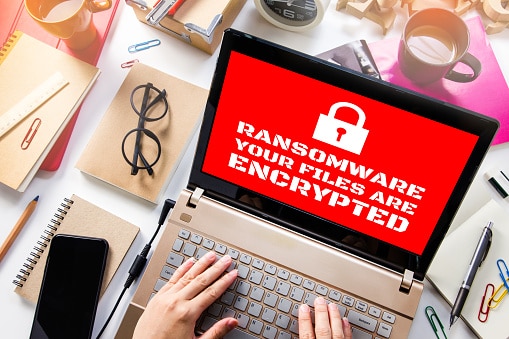
Ransomware is malicious code that holds company files and data hostage until a certain sum of money is paid to the perpetrator. Just like in a real world ransom scenario, the “goods” won’t be handed back until the ransom is given over. Also as in real world ransom scenarios, there’s a risk that the “goods,” or the data in the case of ransomware, will be harmed while in possession of the “kidnappers.”

When the extorted party gets the files back, there is no way of telling what other kinds of breaches have occurred. Since there are usually billions or more lines of code, it would be nearly impossible to tell if the files were infected with spyware, or some other kind of future ransomware virus, ready to defer to a date in the future.

Another risk with the ransomware scenario is that the files won’t actually be returned, even after the money is paid. In the case of the recent attack, logic would seem like the perpetrators would return the files. If one company paid and didn’t get their date back, word would quickly spread and other companies wouldn’t pay the ransom. For that reason, in many ways, it behooves the hackers to return the files in the same condition in which they stole them; however, the “operating code” of hackers is obviously not ethically bound.One thing is sure. If any of these companies do end up paying the ransom, it won’t be widely reported in the press, if at all. It’s unlikely that a giant corporation would want to admit that it a) hadn’t backed up its systems, and b) went against all professional advice to not pay, and c) paid out millions to criminals.

Will Major Firms Pay the Ransom?

Whenever something is taken for ransom – be it a person, property or, as in this case, digital data – authorities strongly advise against paying the ransom. Paying ransom does perpetuate the problem. When hackers see that they can steal data and profit by it, they are thus encouraged to rinse and repeat. The prevailing advice is that corporations back up their data, plug holes and monitor for suspicious activity. But this is like telling someone who just had their wallet stolen that to get their wallet back they should put extra money someplace else, hide their wallet and look out for suspicious characters lurking in alleyways. That advice doesn’t actually help get the wallet back. Basically, if a large corporation hadn’t taken those precautionary steps before the ransomware attack, and the lost data would put them out of business, they are going to pay the ransom. Hackers know this, and that’s why ransomware works.

The Only Answer is in Prevention

The only solution to a ransomware attack is to live and learn and spread the word. The more willing these corporations are to admit that they got hit, the better prepared other companies are likely to be. While it’s embarrassing for a giant pharmaceutical firm to admit that they were fooled, it’s ultimately better for the rest of us to learn that even the big guys are not infallible to cyber threats.

Prevention measures must include redundancy, as a number one priority. That one step would, 1) prevent the loss of critical operating data, and 2) enable overwriting of any malicious code that might have been introduced into the data while it was in the hands of the hackers. Backing up files so there is a minimum of one extra copy is good. Two backups is even better.

The next prevention measure involves making sure virus software is up to date with plug-ins. Literally, the company’s IT department should be checking daily, if not hourly to install available updates that are designed to plug security holes.

Finally, monitoring activity must be done continually. These ransomware attacks leave prints, and they are detectable by watchful IT experts. If vigilance is practiced, future attacks could be kept to a minimum, or even prevented.

Contact {company} in {city} at {email} or {phone} to learn more about protecting your company.

BREAKING NEWS – New Worldwide Ransomware Outbreak Reported

Reports have begun to pour in regarding a new ransomware infection currently wreaking havoc in Russia, Ukraine, France, Spain, and several other countries. This highly sophisticated Russian strain is known as Petya or Petrwrap, and it has been advancing on a scale comparable to the recent WannaCry ransomware infection. However, unlike WannaCry, this strain lacks both the errors WannaCry contained as well as lacking a kill-switch.

Global Ransomware Threat

A wide range of businesses have reported being hit with this infection, with victims receiving the following message: “If you see this text, then your files are no longer accessible because they are encrypted. Perhaps you are busy looking for a way to recover your files, but don’t waste your time. Nobody can recover your files without our decryption service.” Sources state that the message appears as red text on a black background, and demands $300 worth of bitcoin in exchange for the decryption key.

While it has not been completely confirmed as of yet, Petya/Petrwrap looks to be taking advantage of the EternalBlue exploit, which was leaked by a group known as The Shadow Brokers. If EternalBlue sounds familiar to you, it should – it’s the same exploit WannaCry took advantage of.

If you haven’t already, you should be taking steps to protect your business against this exploit by installing the MS17-010 security update from Windows (which you can find here) and checking to see that your systems are fully patched. Like WannaCry, Petya/Petrwrap has the ability to compromise systems that are firewall protected. As this is a true worm, if the infection is able to reach a single computer within your network all of your systems and servers are at risk of becoming infected.

Take a moment to remind your staff that they need to be exercising extreme caution at all times when checking their email. If anything even slightly suspicious finds its way into an employee’s inbox, they need to know how to handle the situation and who to alert. All it takes is one mistake for your business to suffer serious damage, and events like this serve as an ugly reminder that a certain level of vigilance is required at all times to keep your business secure.

If you have concerns or want to find out more about what you can do to protect your business in the wake of this latest ransomware attack, please contact {company} right away at {email} or {phone}. Our team is here to help.

Tired of Chaotic Teamwork? Try Microsoft Planner on Mobile

Microsoft Planner organizes teamwork to make it easy for teams to create new plans

Microsoft has recently announced that one of their latest apps, Planner, is now available in mobile format on both Android and iOS. This update offers a companion app to the web version that users have come to enjoy since its release. This new mobile capability will allow users to view and update plans through their mobile devices for greater convenience.

Microsoft Planner organizes teamwork to make it easy for teams to create new plans, assign tasks, share files and chat about what is being worked on. Team members can perform tasks and get updates on progress across tablets, desktop PCs, smartphones and more. This allows you and your team to improve communications with better visibility and transparency allowing for more efficient collaborations.

In a nutshell? Planner means you’ll never miss a beat because all your team’s discussions and deliverables stay with the plan and aren’t spread out across disparate applications.

It’s simple to use too. Planner can be launched from the Office 365 app launcher with a single click. You create a new plan, build your team, assign tasks and get updated status all in a few easy steps. Each plan gets its own board on which tasks are organized into buckets. The tasks can be categorized based on priority and status or to whom they are assigned to. Make changes to assignments and status updates with quick and easy drag and drop capability.

Microsoft plans to add more features to the Planner mobile app in the coming months, including push notifications, the ability to create plans in the app (as opposed to just in the web app), as well as full integration with Intune.

Microsoft Planner is available to customers with Office 365 Enterprise E1 – E5, Business Essentials, Business Premium and Education subscription plans – if that’s you, then give the new mobile version of Planner a try today!

For more information about the latest Microsoft innovations and how they can help your business do more, get in touch with Inspired IT right away at {phone} or {email}.

Introducing OneDrive Files On-Demand

The cloud has a lot to offer users today – in particular, the capability to save local storage space.

By storing your files in the cloud, you don’t have to worry about maxing out your local storage, or investing in a massive external hard drive or SD card. The cloud offers seemingly limitless space for your work files, kept safe and secure for when you need them.

To further this benefit, Microsoft is proud to preview a new feature to go along with their OneDrive cloud platform – Files On-Demand. This latest innovation will allow OneDrive users to access all their work and personal files in the cloud without having to download them to a local device. This new feature will be coming to Windows 10 soon, with a preview this summer, and will be fully available with the Fall Creators Update.

OneDrive Files On-Demand offers a number of new features, including:


  • Anytime, anywhere access to files without having to download them
  • The ability to share files directly from File Explorer (and Mac’s Finder) through the SharePoint Virtual Summit
  • The option to send sharing links to users both inside and outside your business staff
  • Simple management of sharing permissions you have granted, with control over how long the permissions last

With OneDrive Files On-Demand, you won’t have to use your local storage for work files any longer – just keep them in the cloud! Look for OneDrive Files On-Demand to start rolling out by July of this year.

For more information about the latest Microsoft products and what they offer your business,
get in touch with Inspired IT at {phone} or {email} right away.

Held Hostage: Properly Handling Ransomware Attacks

Unless you happen to be a cyber criminal, ransomware is bad news. So for the rest of us who might have a run in with a cyber criminal who uses ransomware as a method for extortion, it’s important to know what to do and how to handle such situations. Thankfully, we’re going to provide such tips to stop an individual from holding your data ransom and how to prevent them from getting away with their crime.

Held Hostage: Properly Handling Ransomware Attacks

What’s Ransomware?

Ransomware is known as a form of malware that either blocks access to your files (via encryption) or holding your computer hostage. Once a person is infected with ransomware, they’re usually ordered to pay a ransom in order to retrieve their data. Since the ransom can usually range between hundreds or thousands of dollars, many individuals who are unprepared for such attacks end up paying the amount and suffer the financial setback – regardless if get their data after paying the ransom.

How Ransomware Is Spreading & Evolving

With ransomware finally receiving national attention on the news, it’s safe to say that it’s only evolving and becoming more common in the future. This is mostly due to the fact that cyber criminals are utilizing modern technology that make the most dangerous links seem completely harmless.

One specific ransomware strand that has been causing concern has been CDT-Locker. Being incredibly hard to detect, CDT-Locker is capable of hiding in files and going unnoticed by security software. To make them even more threatening, hackers have managed to get people to download such files by utilizing tricks that make them seem harmless. An excellent example would be a hacker (posing as your utility company) claiming that they are about to shut off your power if you don’t fill out a form. Another example could be a hacker utilizing social engineering tactics (to pose as a contact you know) to get you to click on a link via email.

To make matters even more bothersome, cyber criminals will even use newsgroup postings and social media to post their malicious codes. By taking advantage of human reactions, cyber criminals have no problem benefiting making money at another’s expense.

What To Do In A Ransomware Attack

There’s a few guidelines one should follow in the event of a ransomware attack. Such guidelines are:

  1. Regardless if you’ve found a questionable file or received a pop-up window demanding payment, the first thing you’ll want to do is to contact law enforcement. Although it’s likely that they might not be able to offer immediate assistance, they should be notified of what’s going on in regards to your attack. Once you’ve contacted the police, contacting the FBI is necessary so they can begin to take action on the matter.
  2. The next thing you’ll want to do is to contact your service provider. Make them aware of your situation so they can take action and rectify the issue. Doing so not only makes it easier for them to solve your problem, but this helps them prevent ransomware attacks in the future.
  3. The third thing you’ll want to do is to turn off the infected computer and disconnect it from any networks that it could be connected to. By containing the malware, you can prevent further damage to other computers within your network. Many individuals do not know that ransomware can take down an entire network of computers if the infected computer remains on the same network, so removing the infected computer from the network is necessary to stop the problem.
  4. The final step is up to you – if you weren’t prepared for a ransomware attack beforehand. If you end up paying the ransom, it is possible that you might not receive your data and end up with a financial setback that could happen again. for example: the cyber criminals already got you once, what would prevent them from attacking you once more? In addition to this, cyber criminals tend to want payment in bitcoins or over the Tor network, since these methods of payment are virtually untraceable. Caving in to the ransom not only makes their illegal acts easier in the future, but it allows ransomware to become much larger problem in the future.

However, if you have been backing up you files and information via the cloud or through physical drives, you won’t have to suffer such traumatic experiences. By having this upper hand in a ransomware situation, the cyber criminals remain powerless since they don’t have anything that you don’t already have in your possession.

So regardless if you happen to be a small business or a large corporation in {city}, it’s important to back up your files to avoid such severe circumstances. Thankfully, {company} is here to solve your problem. Since a few hours of backing up information on other platforms can save you hundreds of dollars (and time lost medicating headaches during the ordeal), preparing for such situations is one of the the best ways to combat and prevent the event of a ransomware attack. Contact us by {email} or {phone} today so we can save your business a lot of hair pulling in the future.

What Microsoft’s OneDrive and SharePoint Summer Updates Mean

Technology is an essential part of the modern business in large part due to the way that it helps bring people together. Since the beginning, Microsoft solutions like OneDrive and SharePoint have been founded on this simple fact – by making it easier for people to collaborate and communicate with one another, organizational leaders can create an environment where everyone can contribute towards the goal of working “smarter, not harder” whenever possible.

Microsoft OneDrive and Sharepoint

At Microsoft’s recent SharePoint Virtual Summit, company officials debuted a number of new features for both platforms that seem to double down on this simple-yet-critical goals. The features, which will begin making their way to users later on this summer, are intended to improve the way that organizations can connect both internally among employees and externally with clients.

OneDrive Updates

The centerpieces of Microsoft’s summer update spree in terms of OnePoint is undoubtedly the new “file sharing experience,” a feature designed to improve OneDrive’s integration with the built-in file management tools found in the Windows 7, Windows 10 and MacOS operating systems.

When users navigate to an Office 365 file or folder using either the “File Explorer” file management system on Windows or “Finder” on a Mac, a new OneDrive-centric “Sharing” option will appear. This is similar to the way services like Dropbox already work in that employees can now share files and other documents with one another WITHOUT navigating away from the file manager or opening a different piece of software.

The same window will give users the option to create Web links for colleagues from external organizations or even from their clients. What sets OneDrive apart from their competitors, however, comes by way of the far deeper level of control that it provides. Users can set an expiration date on all links that they create, for example, and can even modify the permissions they give to any particular shared file. If someone is sharing a proof of concept document with a client that they want them to SEE but not EDIT, it is now simple to make that happen in just a few quick clicks of a mouse.

One specialist described the OneDrive updates as “collaboration on my own terms.” He said that Microsoft is going deeper than just allowing people to share documents – instead, it’s now possible to truly connect with someone in a meaningful way the same way you would if they were sitting beside you in an office. People can connect anyWHERE, anyTIME with anyONE – something that will be of particular value to the collaborative environment with many employees working remotely.

Because OneDrive sharing permissions will also be tightened, end users will have a far superior level of visibility over who can view, modify or even access certain documents. This will also go a long way towards maintaining a much-needed level of security in a digital age that is growing more dangerous by the day.

The Future of SharePoint

During the same event, Microsoft also announced that a new feature called “communication sites” are coming to SharePoint later this year. They’re designed as an alternative to the existing “team sites,” offering employees a much better and more user-friendly way to distribute content more broadly across and organization than ever before.

If a certain piece of information needs to be seen by as many employees as possible as quickly as possible, users can create a “communication site” in seconds to do exactly that. If the venue of an upcoming company picnic has suddenly changed due to unpredictable weather issues and people are already in transit, the “communication site” can bring together elements like Bing Maps, an image gallery, a general messaging service and more – all in an effort to spread the word as far as possible as fast as you can.

Microsoft also announced a new feature that administrators have been clamoring for in particular – the new “Site Management” page. Viewing and managing all SharePoint sites is no longer a time-consuming and frustrating experience. Instead, administrators can navigate to a single page that serves as a comprehensive destination for viewing and managing all sites, no exceptions. That noise you just heard was the collective sigh of administrators around the country enthusiastically awaiting this release.

Another upcoming feature that will allow admins to rest easy – a newly designed “Device Access” page, distilling all of the various access controls for mobile collaboration down to a single window. Businesses can now quickly set policies restricting file sharing based on users, devices, and location characteristics, helping to cut off small security incidents before they have a chance to become much bigger (and undoubtedly more expensive) ones down the road.

More Features on the Horizon

In related news, Microsoft also took the opportunity to announce changes to PowerApps – the company’s “no fuss, no muss, no-code” business app builder. End users will soon have the option to create custom forms that appear in SharePoint lists and libraries. Approval flows are also on the horizon, which are built on the Flow automated workflow platform and are intended to speed up the approval process at many different organizations.

Microsoft has taken a lot of flak over the years for releasing “solutions in search of a problem” or for making “changes just for the sake of it” with many of its products. The company’s flagship operating system seems to have been a particularly notable culprit of this, though Windows 10 has undoubtedly gotten things back on track. Regardless of what has happened in the past, one thing is for sure – Microsoft’s summer update spree to both OneDrive and SharePoint, in particular, reaffirm its commitment to its customers and their own workflows moving forward.

Microsoft seems to genuinely want to make it possible for organizations to work “smarter, not harder.” While the company’s definition of “smarter” is often up for debate, steps like these show that the tech giant is at the very least moving in the right direction.

{company} is incredibly proud to be your premiere source for all the industry news, tips, tricks and best practices you need to run the business you’ve always dreamed of. If you’re in or around the {city} area and you’d like to find out more about Microsoft’s OneDrive and SharePoint summer update spree, or if you have any additional questions that you’d like to see answered, please don’t delay – contact us today at {phone} or by sending us an email to {email}.

Flash Back Friday: The World’s First Spam

Flash Back Friday: The World’s First Spam

Conveniently located in Innaloo AU

The word “spam” has quite a different meaning in today’s technology-focused world than it did even just a few decades ago. When you hear about spam, you probably don’t think about the weird, textureless, “spiced ham” that was an inexpensive staple of meals closer to the mid-twentieth century; nor are you likely reminded of Monty Python’s infamous “spam and eggs” sketch.

When you hear about spam today, your first thought is probably of digital junk mail – outrageous sales offers, phony claims of being able to make thousands of dollars a week working from home, solicitations from less-than-legit dating sites, etc.

While our spam folders generally keep such content out of our inboxes today, have you ever wondered about when it all began?

In terms of actual digital spam, the first instance is believed to have taken place in 1978, when DEC salesman Gary Thuerk “spammed” 400 or so users on ARPANET. However, if you define spam as simply an unsolicited communication, the history goes a bit further back. More than a century further back, in fact.

As we all know, in 1864, there was no email or ARPANET. So, if a scammer wanted to deliver unsolicited messages to unsuspecting recipients, they had to do it by telegram, and that’s exactly what dentist Messrs Gabriel did. In order to advertise that his practice would be open from 10 am – 5pm, Gabriel sent telegrams to several British politicians, who, given the fact that telegrams were usually time sensitive and important in nature, were less than pleased to have been contacted for something so inconsequential.

In fact, many of them were angry enough to write to The Times about it: “I have never had any dealings with Messrs Gabriel, and beg to know by what right do they disturb me by a telegram which is simply the medium of advertisement?” wrote one of the recipients.

So by this definition, spam is now more than 150 years old as a method of advertisement – does it make you as mad today as it did the politicians who wrote to The Times about it?

Keep an eye on our blog for more Flash Back Friday articles. For information about spam filters and other IT solutions, be sure to get in touch with Inspired IT at {phone} or {email} right away.


Microsoft Teams Tips and Tricks

Microsoft Teams is a chat-based work hub destined to change the way you communicate with team members. Follow these tips and tricks to make the most of your Office 365 experience.


The goal of Office 365 developers is not only to make better productivity applications, but they also want to allow for a more collaborative experience among users. To achieve this goal, they have developed a new application for their suite of products called Microsoft Teams. The driving force behind Teams is to get everyone working together in the most efficient way possible.

Microsoft Teams Overview

With Microsoft Teams, users have a digital hub for all their most important workplace applications. The service comes with Office 365 and the chat element allows for easy collaboration for team projects. Teams was created as a competitor to the very popular service Slack. With Teams, real-time messaging with application integration makes the service a must have on any compatible device. Unlike Slack, Teams uses threaded conversations in order to avoid the confusion of searching through too many messages on your screen. As long as you’re an enterprise-level Office 365 subscriber, the application is completely free. It’s very important to have a business-level Office 365 subscription. Otherwise, Teams is unavailable on single subscriptions.

Why These Tips and Tricks Matter

Mastering Microsoft Teams tips and tricks can transform your daily workflow, enhancing efficiency, collaboration, and overall satisfaction with the platform. These tips and tricks are designed to help both new and experienced users make the most of Teams’ robust features.

Communicate Like a Pro

Tagging and Formatting for Clarity

Use @mention to tag individuals or entire teams, ensuring they see your message. Apply formatting like bold or italics by using the formatting toolbar below the message box. You can also title your conversations by clicking the “Format” option and adding a subject line.

Important Messages and Replies

Reply to specific messages by hovering over the message and clicking the “Reply” button. To mark a message as important, click the “!” icon in the message box. Pinning messages can be done by right-clicking the message and selecting “Pin.”

Organise Your Workspace

Manage Teams and Channels

Right-click on a team or channel to hide or show it. Use the search bar at the top to find specific conversations or messages tagged with @mention. Organise your channels by dragging and dropping them into your preferred order.

Search and Save Messages

Use the search bar at the top to find specific messages or conversations. To save a message for later, click the three dots (ellipsis) next to the message and select “Save this message.”

Chatting Made Easy

Separate Windows and Group Chats

Right-click on a chat and select “Pop out chat” to open it in a separate window. Manage group chats by using the “New chat” button and adding multiple recipients.

Quick Polls and Feedback

Use the “Forms” app within Teams to create quick polls. Simply click the “Forms” icon in the message box and follow the prompts to create your poll.

Stay in the Loop

Customise Notifications

Click your profile picture, then “Settings” > “Notifications” to customise your notification preferences. Follow channels by clicking the three dots next to the channel name and selecting “Follow this channel.”

Follow Important Updates

Customise your alerts and follow channels to stay updated on important conversations. Tailor your notifications in the “Settings” to find the right balance for your workflow.

Connect with Other Tools

Integrate with Microsoft Services

Explore the “Apps” section in Teams to find integrations with Outlook, SharePoint, OneDrive, and more. Add these apps to your Teams environment to enhance collaboration.

Explore Other Useful Integrations

Beyond Microsoft’s ecosystem, explore third-party integrations like Trello, Asana, or GitHub in the “Apps” section. Add them to your Teams to streamline your processes.

Meetings and Collaboration (if applicable)

Conduct and Manage Meetings

Schedule meetings by clicking the “Calendar” tab and then “New meeting.” Utilise features like screen sharing by clicking the “Share” button during a meeting.

Collaborate with Ease

Share files by dragging them into a chat or channel. Co-edit documents in real time by clicking the file and selecting “Edit in Teams.”

Discover More Features

Explore Shortcuts and Hidden Gems

Use shortcuts like Ctrl + E to search, Ctrl + N to start a new chat, or Ctrl + Shift + M to mute/unmute. Explore these and more in the “Keyboard shortcuts” section under your profile picture.

Enhance Your Teams Experience

Experiment with themes, extensions, and settings to tailor Teams to your needs. Explore the “Settings” under your profile picture to find customisation options.

Recap of Microsoft Teams Essentials

We’ve explored essential tips and tricks to help you navigate Microsoft Teams with confidence. From communication to organisation, chatting, notifications, integrations, and collaboration, these insights are designed to elevate your Teams experience.

These tips are just the beginning. Dive into Microsoft Teams, experiment with these features, and discover how they can transform your daily workflow. Happy collaborating!